Ever felt that heart-sinking moment when you accidentally delete an important file and realize you’re too broke to pay for professional recovery? We’ve all been there. Whether it’s a cherished video, a crucial document, or a project you’ve been working on for hours — the panic is real. But don’t worry! In this article, you’ll find a step-by-step guide to recovering your lost files without spending a fortune.
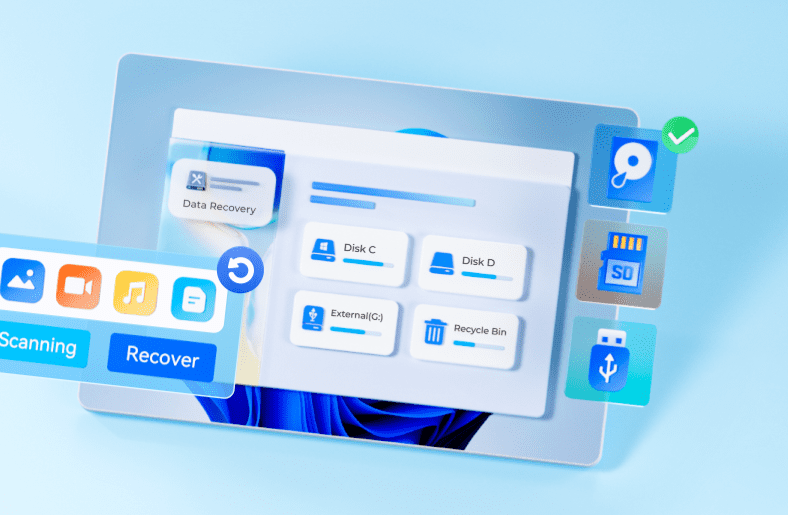
We’re going to show you how to retrieve deleted files using a powerful tool called Tenorshare 4DDiG Data Recovery — along with a few budget-friendly alternatives. So let’s dive in!
🔗 Official Website: https://4ddig.tenorshare.com/windows-data-recovery.html
Step 1: Check the Recycle Bin First
Before using any software, it’s always worth checking the Recycle Bin. If you’ve only just deleted the file, chances are it’s sitting there, waiting to be restored.
- Open the Recycle Bin from your desktop.
- Look for your file.
- Right-click and hit Restore.
⚠️ Note: Once you empty the Recycle Bin, files are no longer visible, but the data isn’t immediately removed from your hard drive. The space is just marked as available until it gets overwritten.
This means there’s still hope — and that’s where Tenorshare 4DDiG comes in.
Step 2: Use Tenorshare 4DDiG to Recover Deleted Files
If your file is not in the Recycle Bin, don’t panic. It’s still recoverable using Tenorshare 4DDiG, a professional-grade file recovery tool.
Here’s how to use it:
✅ Download & Install
Visit the official Tenorshare website and download the 4DDiG Data Recovery software. Installation is quick and straightforward.
✅ Choose the Location
Launch the software and you’ll see a simple interface. Select the location where the data was lost. For recently deleted files, you can select the Recycle Bin or a specific drive.
✅ Select File Type
Choose the type of file you want to recover. If you only need videos, you can filter your search to only scan for video files. This makes the scan faster and more precise.
✅ Start the Scan
Click Start, and the software will begin scanning for recoverable files. The scan will identify files based on the file type, size, and when they were deleted.










In our test, the tool found 2700 files totaling 13 GB — impressive for a deleted file scan!
✅ Preview & Recover
You’ll be able to preview the files in the same folder structure as they were originally saved. Select the files or folders you want to recover — in this case, we chose 136 video files totaling 300 MB.
✅ Choose a Destination
Next, choose a different destination folder (not the same drive where files were deleted). This prevents overwriting during recovery.
Click Recover and let the magic happen! Within moments, all your selected files will be back.
Step 3: Explore Budget-Friendly Options
While Tenorshare 4DDiG is incredibly powerful, it’s not free. Here’s a breakdown of the cost:
- Monthly Plan: $46
- Yearly Plan: $60
- Lifetime Plan: $69.95
- Student Offer: 40% OFF — Lifetime license for only $43
If that’s still beyond your budget, there’s another trick you can try.
Step 4: Try System Restore as a Free Alternative
If the files were part of system-level changes or major folder edits, System Restore may be an option. It allows you to roll your computer back to an earlier point in time before the files were deleted.
⚠️ Caution: Using System Restore might reverse other system changes, so proceed only if you’re confident.
Final Thoughts
Losing important files doesn’t have to be a nightmare — or an expensive fix. Whether you’re living on a tight budget or just don’t want to spend money unnecessarily, these recovery methods can save your data and your day.
- Start with the Recycle Bin.
- Use Tenorshare 4DDiG for deep, precise recovery.
- Try System Restore for no-cost file resurrection.
- And above all — remember to back up your data regularly.
Because, as the old saying goes, “A stitch in time saves nine.” Or at least a few bucks!
Take care, and may your data always be safe and recoverable!
Tags:
file recovery software, recover deleted files, Tenorshare 4DDiG, how to recover permanently deleted files, free data recovery tools, student discount software, budget recovery solutions, restore recycle bin files, system restore Windows, data backup tips
Hashtags:
#FileRecovery #DataRecovery #Tenorshare4DDiG #LostFiles #RecoverDeletedFiles #SystemRestore #RecycleBin #StudentDiscount #PCTips #BackupYourData








