Losing valuable data—whether it’s from a USB drive, hard disk, or SD card—can feel like a nightmare. Thankfully, tools like Wondershare Recoverit make the recovery process fast, effective, and user-friendly. This article will take you through the most powerful features of this software and how to use them to recover lost files, fix damaged videos, and even rescue data from a crashed system.
Wondershare Recoverit isn’t just a data recovery tool. It’s a complete solution that includes multiple utilities for handling different types of data loss scenarios—from simple file deletion to serious video corruption.
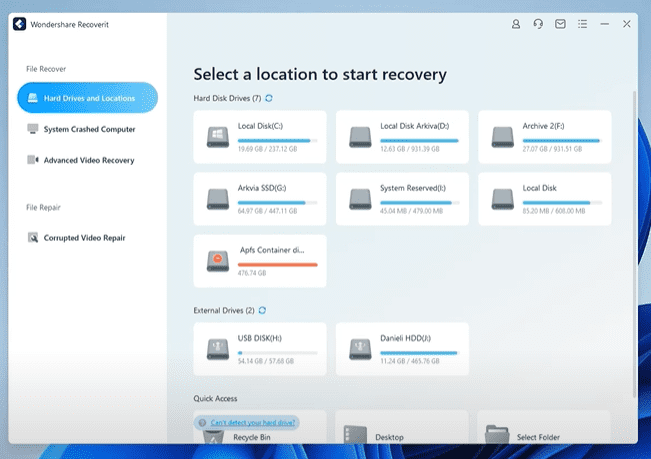
Let’s walk through the key features and step-by-step usage.
🔍 1. Recover Deleted Files from USB, SSD, or Hard Drive
One of the most common use cases is recovering files deleted from external storage.
Step-by-Step Guide:
- Launch Wondershare Recoverit and select Hard Drives and Locations.
- Choose your drive (USB, SSD, or HDD).
- Use the Shift + Delete command to simulate full deletion of all files.
- Refresh the drive in the software and click Scan.
- The software will begin scanning for lost files and display progress in real-time.
- Once scanning is complete, you can browse the folder structure (not just file types), which is helpful if you don’t remember file names.
- Select the files you want and click Recover, choosing a folder to save them.
The recovery is impressively fast, and you can preview files before restoring. The software even supports recovering large video or music folders without issue.
🖥️ 2. Rescue Data from a Crashed or Unbootable Computer
If your system has encountered a blue or black screen of death, Recoverit allows you to create a bootable USB rescue drive.
How it works:
- Plug in a USB drive and choose the System Crashed Computer option.
- The software will download the necessary bootable firmware and install it on your USB.
- Insert the USB into your unbootable computer.
- Access the boot menu (usually by pressing F12) and boot from the USB.
- Choose between:
- Data Recovery: Restore files from the internal disk.
- Hard Disk Copy: Copy data from one disk to another.
This is a lifesaver when a system won’t start, and you need to recover files quickly without reinstalling Windows.
🎥 3. Recover Deleted or Hidden Videos (Including 4K/8K Footage)
Wondershare Recoverit offers a dedicated video recovery mode for content creators, especially those working with high-resolution video formats.
Advanced Video Recovery:









- Supports deep scan of storage devices.
- Specifically targets formats like MP4, MOV, AVI, etc.
- Useful when quick recovery fails to retrieve playable footage.
You simply choose your drive, select the video format, and click Start. The software then thoroughly scans for even deeply hidden or fragmented video files.
🛠️ 4. Repair Corrupted or Damaged Videos
Perhaps the most powerful feature is Corrupted Video Repair. If you’ve ever had a video file become unplayable due to a system crash or interrupted recording, this tool can often bring it back to life.
Real-World Example: To test this, a video was forcefully interrupted mid-recording (by terminating the process). The resulting file was unreadable.
Basic Repair:
- Upload the corrupted video.
- The software tries to fix it immediately.
Advanced Repair (if basic fails):
- Upload a working video recorded from the same device.
- The software uses this reference to rebuild the damaged file.
In this case, the advanced repair was successful, and the video became fully playable again—proving the tool’s robustness.
🧪 Summary of Key Features
| Feature | Use Case |
|---|---|
| Deleted File Recovery | Recover from USB, SSD, HDD, SD cards |
| System Crash Recovery | Create bootable USB for unbootable PCs |
| Advanced Video Recovery | Recover high-res video formats from deep storage |
| Corrupted Video Repair | Fix unreadable or broken video files |
| Folder Structure View | Restore files with original directory layout |
🎁 Special Offers
- Free Trial Available: Try the software and test recovery functions before buying.
- Limited-Time Discount: A 30% off coupon is available—check the software page for details.
- USB Rescue Tool Included: No additional tools needed to rescue crashed systems.
🧠 Final Thoughts
Wondershare Recoverit is more than just a data recovery tool—it’s a complete data rescue suite that delivers powerful functionality for everyone from casual users to content creators and IT professionals. Whether you’ve lost wedding videos, important documents, or can’t access a dead PC, this software is designed to bring your data back with minimal effort.
If you’re looking for a solution to data loss that actually works, this software is definitely worth exploring.
Tags:
data recovery software, usb file recovery, video file repair, recover deleted files, corrupted video fix, wondershare recoverit review, bootable usb recovery, recover from crashed pc, mp4 video recovery, advanced video recovery
Hashtags:
#DataRecovery #WondershareRecoverit #RecoverDeletedFiles #FixCorruptedVideos #VideoRecovery #PCRescue #TechTools #FileRecovery #USBRecovery #RecoverLostData








