Losing access to your Gmail account—whether due to hacking or losing your device—can be incredibly stressful. If you no longer have access to your recovery phone number or email, don’t worry. This article explains a step-by-step guide to recover your Gmail account using a method that bypasses the traditional recovery options.
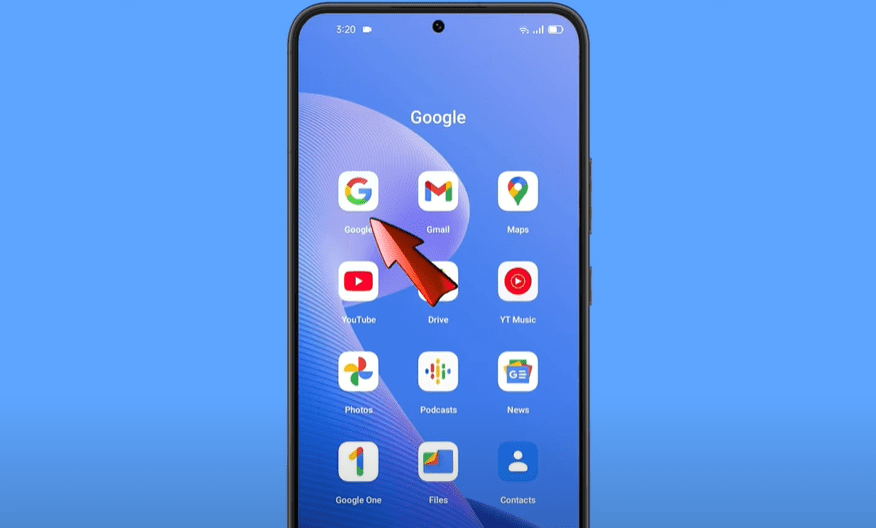
Follow these instructions carefully to regain control of your account.
🔐 Step-by-Step Gmail Account Recovery Guide
Step 1: Adjust Google App Permissions
- Locate the Google app on your phone.
- Tap and hold the app icon and select App Info.
- Tap on Permissions → Location.
- Choose “Don’t allow” and confirm by tapping “Don’t allow anyway.”
- Minimize the app.
Step 2: Adjust Chrome Browser Settings
- Locate the Google Chrome app.
- Tap and hold the app icon → Select App Info.
- Tap on Permissions → Location → Select “Don’t allow” → Confirm “Don’t allow anyway.”
- Go back and tap on Open by default (at the bottom).
- Tap Clear defaults to remove default actions.
- Minimize the app.
Step 3: Install and Use Maxthon Browser
- Open Google Play Store.
- Search for and install the Maxthon browser.
- Once installed, open the browser.
- Navigate to https://www.google.com.
- Tap on Sign In and enter the Gmail account you want to recover.
- Tap Next.
Step 4: Start the Account Recovery Process
- When prompted for the password, tap Forgot password.
- If asked to verify through two-step authentication, tap Try another way.
- You may see an error message: “Could not sign you in.”
- ⚠️ Do not tap on Try Again. Repeated attempts can lock your account.
- Simply minimize the screen.
Step 5: Navigate to Account Recovery Through Settings
- Open your phone’s Settings.
- Scroll down and tap on Google.
- Tap the three-dot menu in the upper-right corner.
- Tap on Help.
- Scroll to the bottom and tap on Search Help.
- Type “lost” and tap on the Lost or stolen phone option.
Step 6: Access Recovery Page via Help Center
- On the “Lost or Stolen Phone” page, scroll down to the “Recover your account” section.
- Tap on the drop-down menu and select “Tips to complete account recovery steps.”
- Tap on Go to the account recovery page.
- A popup will ask which browser to use—select Maxthon browser.
- You’ll be redirected to the Google Account Recovery page.
Step 7: Reset and Secure Your Gmail Account
- Enter the Gmail address and tap Next.
- You’ll see a success message with two options:
- Change Password
- Continue
- Tap on Change Password.
- Set a new strong password, confirm it, and tap Change Password.
- You will land on your Gmail profile dashboard.
Step 8: Update Recovery Options
Immediately after regaining access:
- Go to Security Settings in your Google Account.
- Update your phone number and recovery email. This ensures that no one else can regain unauthorized access to your account.
✅ Final Thoughts
Using this method, you can recover your Gmail account even if you’ve lost access to your recovery phone and email. The key is using the Maxthon browser and accessing the recovery portal via the Help section in your phone’s Google Settings.
Be sure to update your recovery methods immediately after regaining access to prevent future issues.
📌 Tags:
gmail recovery without phone, recover gmail without email, forgot gmail password, google account recovery steps, gmail account hacked, recover google account, maxthon browser method, gmail help, bypass google verification, google security tips
📢 Hashtags:
#GmailRecovery #ForgotPassword #GoogleAccountHelp #RecoverGmail #NoPhoneNumber #NoRecoveryEmail #MaxthonBrowser #AccountSecurity #TechTips #CyberSecurity