If you’ve ever accidentally deleted an important photo, document, or entire folder — you’re not alone. It’s one of the most common digital disasters. And the question everyone asks afterward is: “Can I still recover my deleted data?”
The short answer? Maybe.
Data recovery depends on several factors — what kind of drive it is, how the data was deleted, and how much time (and activity) has passed since then. In this in-depth guide, we’ll break down exactly how recovery works, what affects your chances, and how to safely try tools like Recuva from Piriform (the makers of CCleaner) to restore lost files.
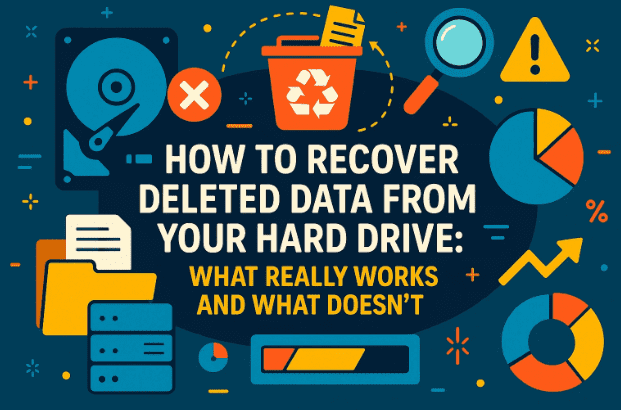
Let’s dive in step by step.
1. Understanding How File Deletion Works
Before we get into recovery, let’s first understand what actually happens when you “delete” something.
When you delete a file, it doesn’t immediately vanish. The system simply marks the space as available for new data. Until something new overwrites that area, the old file data still exists on the disk.
This is why time and activity are critical in recovery. The sooner you stop using the affected drive, the better your chances of getting your files back.
So, if you’ve just realized you’ve deleted something important — stop everything and read on.
2. Can You Recover Data from a Drive Deleted a Year Ago?
Maybe — but it depends on a few crucial conditions. The longer it’s been and the more the drive has been used, the lower the odds. However, even after a year, some data may still be retrievable if parts of the drive haven’t been overwritten.
Let’s break down what affects your chances one by one.
3. Key Conditions That Affect Data Recovery
We’ve done a good job understanding how deletion works, so now let’s look at the specific factors that make recovery easier or harder.







✅ 1. You Performed a “Quick Format,” Not a “Full Format”
Accidentally formatting the wrong drive is one of the most common causes of data loss.
- Quick Format: Only erases file system references. The actual data remains on the disk until overwritten.
- Full Format: Overwrites every sector with zeros, making recovery nearly impossible.
If your format was a “quick” one — congratulations, you just dodged a major bullet.
✅ 2. You’re Recovering from an External Drive
External drives have a big advantage here. Since they aren’t constantly in use by your operating system, deleted files are less likely to be overwritten.
On the other hand, internal drives (especially the system “C:” drive) are constantly writing and updating data — from Windows updates to temporary cache files. That means your deleted files may have already been partially or fully replaced.
So, recovery from external or backup drives is far more successful than from the main system drive.
✅ 3. You Haven’t Used the Drive Much Since Deletion
This is one of the most important factors. The more you write to a drive after deletion, the more data gets permanently destroyed.
For example:
- If you deleted files and haven’t touched the drive — great! You have a strong chance.
- If you deleted them and then stored gigabytes of new data — recovery chances plummet.
Even small files can overwrite the sections where your old data was stored.
Pro tip: The moment you realize data is missing, stop using the drive immediately. Don’t copy, move, or save anything new to it.
✅ 4. Smaller Files Are Easier to Recover
When a large file gets deleted (like a 2GB video), it’s spread across multiple areas of the disk. Even if one of those areas is overwritten, the entire file may be corrupted beyond repair.
Smaller files — like images or documents — often occupy one or two sectors, increasing the odds of complete recovery.
So, if you’re looking for small files like photos, you have a higher chance than if you’re trying to restore a full project folder or system image.
✅ 5. You Get Lucky with File Layout
There’s a bit of randomness involved in how files are stored. If your deleted files were located in a less-used section of the disk, they might still be intact.
Sometimes, recovery success boils down to luck — where your data physically sat on the drive and whether that part of the disk has remained untouched.
✅ 6. And Yes… Sometimes You Just Get Lucky
Even if you’ve used the drive since deletion, fragments of your files might still exist. Recovery software scans every sector for recognizable patterns or file headers — sometimes finding partial or complete files that weren’t completely overwritten.
But again, the keyword here is “sometimes.”
4. The Best Tool for the Job: Recuva by Piriform
Now that you understand what affects your recovery odds, let’s move to the practical side.
When it comes to user-friendly recovery tools, one of the most trusted free options is Recuva, developed by Piriform (the same team behind CCleaner).
It’s lightweight, effective for basic recovery, and works on both internal and external drives.
Let’s walk through how to use it.
5. Step-by-Step: How to Recover Files Using Recuva
Before we begin, remember one golden rule: never install recovery software on the same drive you’re trying to recover from.
Always install it on a different disk or partition (e.g., your C: drive if you’re recovering from an external D: drive).
Now, let’s move to the steps.
🧭 Step 1: Launch Recuva and Start the Recovery Wizard
After installing Recuva, open it. The program launches with a simple wizard that guides you through the process.
Click Next to begin.
🗂️ Step 2: Choose What Type of Files to Recover
You can specify file types like Pictures, Documents, Videos, or All Files.
If you’re not sure what you’re looking for, select All Files. This ensures nothing gets skipped.
📁 Step 3: Choose the Drive or Folder
In our example, we’re focusing on the external drive (D:) that had the deleted photos.
Select that specific location and click Next.
🔍 Step 4: Run a Normal Scan First
Recuva offers a Deep Scan option, but it’s best to start with a regular scan first.
Sometimes, recently deleted files can be found easily without needing a full surface scan.
If no files are found in this step, don’t panic — move on to the next one.
🧩 Step 5: Perform a Deep Scan
Now enable the Deep Scan. This mode takes longer but examines the entire disk surface sector by sector to locate fragments of deleted data.
Depending on the size of your drive, it can take anywhere from minutes to several hours.
When complete, Recuva will list files it found, along with a status indicator:
- Excellent (Green): Fully recoverable
- Poor (Yellow): Partially recoverable
- Unrecoverable (Red): Too damaged or overwritten
💾 Step 6: Recover the Files Safely
Select the files you want to recover and click Recover.
👉 Important: Always save the recovered files to a different drive (not the same one you’re scanning). This prevents overwriting other recoverable data.
Check the recovered files afterward — sometimes the filenames or folder structure may differ, but the content may still be usable.
6. What to Do If Recovery Fails
If your first recovery attempt doesn’t yield results, don’t lose hope yet. There are other tools and professional options to consider.
Let’s move to the next step and look at what you can try.
🧰 Alternative Tools
- PhotoRec – Open-source, powerful, supports multiple file formats.
https://www.cgsecurity.org/ - EaseUS Data Recovery Wizard – Paid software with a deep scanning algorithm.
https://www.easeus.com/ - Disk Drill – Works on Windows and macOS, offers a preview before recovery.
https://www.cleverfiles.com/
Each has its strengths, but the recovery principles are the same.
💼 Professional Data Recovery Services
If your data is extremely valuable (for example, business documents or irreplaceable family photos) and software tools fail, you can contact a data recovery lab.
They use specialized hardware and clean-room environments to recover data even from physically damaged drives — though it’s expensive, often ranging from ₹10,000 to ₹50,000+ depending on complexity.
7. Why Time and Inactivity Are Crucial
The biggest takeaway from all this is simple:
Once you delete something important — stop using that drive immediately.
Every new file you copy or even every background process that writes data (like caches or updates) can overwrite parts of the deleted file forever.
If you act quickly, even year-old deletions can sometimes be recovered — but if the disk has seen heavy use, the odds drop significantly.
8. The Golden Rule: Always Back Up
Data recovery is unpredictable. Even with the best software, there’s no guarantee.
That’s why regular backups are your only reliable protection.
Use at least one of these methods:
- Cloud Backup (Google Drive, OneDrive, Dropbox)
- External Drive Backup using Windows File History or Time Machine (macOS)
- Automated tools like Macrium Reflect or AOMEI Backupper
Once your data is safely backed up, accidental deletions stop being disasters — they’re just mild inconveniences.
9. Frequently Asked Questions (FAQ)
Q1. Can I recover data after formatting a drive?
Yes, if it was a quick format. Full formats overwrite data, making recovery nearly impossible.
Q2. Can I recover files from an SSD?
It’s much harder. SSDs use TRIM, which permanently clears deleted data. You can still try, but success rates are low.
Q3. Is Recuva free?
Yes. The free version works well for most basic recoveries, though a Pro version adds more features.
Q4. Can recovery software damage my drive?
No, as long as you don’t save recovered files to the same drive you’re scanning.
Q5. How soon should I act after deleting data?
Immediately. The sooner you attempt recovery, the better your odds.
10. Final Thoughts
Recovering deleted files is possible — but never guaranteed. It depends on how the drive has been used, what type it is, and how fast you act.
Using a tool like Recuva gives you a good shot, especially for external drives or recently deleted files. But if the data is critical, it’s worth considering professional help.
And finally, remember this golden rule for the future: “Don’t rely on recovery — rely on backups.”
Once you start backing up regularly, you’ll never have to panic about deleted files again.
Disclaimer:
File recovery involves scanning and writing data across drives. Always perform recovery operations carefully and avoid overwriting the original drive. Results vary depending on data loss conditions and disk usage.
Official Tool Link: https://www.ccleaner.com/recuva
#DataRecovery #Recuva #FileRestore #BackupTips #HardDriveRecovery #DeletedFiles #dtptips








