Have you ever uninstalled an application on your Windows PC, only to realize later that it was essential? It’s an easy mistake to make—whether you’re freeing up space, removing bloatware, or cleaning out rarely used tools. But here’s the good news: deleted apps and their data aren’t necessarily gone forever.
This blog post walks you through two reliable ways to recover uninstalled programs on Windows 10 or 11. Whether you lost the installation files, app data, or entire program folders, we’ll guide you in a clear, human-style format to get everything back.
Let’s jump right in.
Why Recovering Uninstalled Programs Matters
Uninstalling unnecessary apps can:
- Free up valuable storage space
- Reduce startup time
- Lower system load
- Extend device lifespan
However, the accidental removal of important programs like Office, productivity tools, media editors, or development software can disrupt your workflow or lead to data loss.
That’s why it’s important to know the right recovery methods.
Step 1: Verify the Program is Truly Uninstalled
Before you go any deeper, let’s ensure that the program is actually gone and not just hidden or misplaced.
Sometimes, an app might not appear in your Start menu, but it’s still installed.
Here’s how to check:
- Go to Settings → Apps.
- In the Apps & Features section, scroll through the list.
- Use the search bar to look for the app by name.
If you find it there, you can simply launch it or pin it back to the Start menu.
✅ If the app is missing, then continue with recovery steps.
Step 2: Recover Uninstalled Programs Using Tenorshare 4DDiG
If the program and its data have been deleted completely (even from the Recycle Bin), a powerful recovery tool like 4DDiG can help.







What is Tenorshare 4DDiG?
4DDiG is a professional data recovery software designed to restore lost files, folders, documents, and yes—uninstalled program files like .exe installers and app data.
🔗 Official Website: https://4ddig.tenorshare.com
Let’s move to the detailed steps:
Step 1: Download and Install 4DDiG
- Visit the official website and download 4DDiG for Windows.
- Install and launch the program.
Step 2: Select the Drive
- Identify the drive where the program was previously installed.
- Typically, it’s the C: drive.
- But if you used a custom install directory (like D: or E:), select that instead.
- Click Start.
Step 3: Choose File Types for Recovery
- When prompted, choose Application Files, Folders, or All File Types.
- Click OK to initiate the scan.
Step 4: Let the Scan Complete
- The scanning process can take several minutes depending on the drive size and deleted data.
- Be patient—this deep scan is searching even in overwritten sectors.
Step 5: Review and Select Files
- After the scan, use the filter or file tree to locate:
.exeinstallers- App folders
- Related documents (like settings or user data)
Step 6: Recover the Program Files
- Select the desired files and click Recover.
- Save them to a different partition than the one you scanned (to avoid overwriting).
Step 7: Reinstall the Application
- Launch the recovered
.exefile and follow installation steps. - Restore any custom settings or configurations (if backed up).
✅ That’s it! You’ve successfully recovered a deleted program using 4DDiG.
Step 3: Use System Restore to Roll Back Uninstalled Programs
If you didn’t permanently delete the files but lost them due to a misconfiguration or uninstall error, System Restore might be your best bet.
Let’s explore how.
What is System Restore?
System Restore is a built-in Windows feature that rolls back system changes—including installed programs, drivers, and settings—without affecting your personal files.
However, it only works if you have restore points enabled before the uninstall event.
How to Use System Restore:
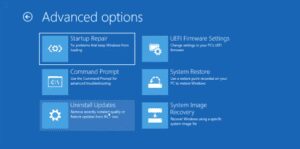
Step 1: Open Recovery Settings
- Click the Start button.
- Type Recovery into the search bar and select it.
Step 2: Launch System Restore
- Click Open System Restore.
- In the new dialog, click Next.
Step 3: Choose a Restore Point
- Select a restore point dated before you uninstalled the app.
- You can click Scan for affected programs to see what will be restored.
Step 4: Confirm and Restore
- Click Next and then Finish to begin the rollback.
- Your system will restart and restore the environment.
📝 Tip: You may need to re-update certain drivers or settings after restoration.
Bonus: What If You Also Lost App Data?
Sometimes recovering the program isn’t enough—you may want your old files, settings, or project data too.
Here’s what to do:
Use 4DDiG to Recover Data Files:
- Repeat the 4DDiG scanning process and filter results for:
.docx,.pdf,.psd,.xlsx(depending on the app)AppDatafolder items- Database files (
.sqlite,.json, etc.)
These files are typically stored in:
C:\Users\[YourName]\AppData\Roaming\[AppName]- Or inside the application’s install folder (e.g.,
Program FilesorProgramData)
Tips to Prevent Future Uninstall Mistakes
Let’s take a moment to prevent this from happening again. These quick tips can help you stay on top of your app management.
Tip 1: Create Restore Points Manually
- Go to System Properties → System Protection.
- Click Create and name your restore point before uninstalling anything.
Tip 2: Use App Backup Tools
Some apps like browser-based IDEs or advanced design tools have their own backup/export settings. Always use them before uninstalling.
Tip 3: Don’t Empty Recycle Bin Immediately
If your uninstall removed files and folders, leave them in the Recycle Bin for a few days in case you need them back.
Frequently Asked Questions (FAQs)
Q1: Will System Restore recover program files and settings?
Yes, if a restore point was created before the uninstall, it will restore the program and its settings.
Q2: Can 4DDiG recover large program folders like Adobe or AutoCAD?
Yes, it can restore .exe, program folders, and even saved projects—depending on how long ago the data was deleted and whether it’s been overwritten.
Q3: What if I don’t have a restore point enabled?
You’ll need to use a third-party recovery tool like 4DDiG, as System Restore will not be available.
Q4: Can I recover a program from another drive (like D or E)?
Yes. Just select the appropriate drive during 4DDiG’s scan process.
Q5: Are recovered .exe files always functional?
Not always. If the executable was partially overwritten or missing dependencies, you may need to redownload or reinstall the latest version.
Final Thoughts
Accidentally uninstalling a program doesn’t have to be a nightmare. With the right tools and a little patience, you can recover deleted programs, associated data, and system stability—no tech support required.
Whether you’re restoring via System Restore or scanning with Tenorshare 4DDiG, the goal is to act fast and avoid overwriting the files. As always, it’s best to keep regular backups and system restore points.
So the next time something important disappears, you’ll know exactly what to do.
Official Website for 4DDiG:
🔗 https://4ddig.tenorshare.com
Tags:
Windows uninstalled app recovery, recover deleted software, restore uninstalled programs, 4DDiG tutorial, system restore windows 11, recover exe file, windows 10 data recovery, rollback apps windows
Hashtags:
#Windows11 #AppRecovery #4DDiG #SystemRestore #DataRecovery #WindowsTips #UninstalledApps #WindowsHelp #TechGuide #RecoverPrograms








