Most of us use our computers every single day, yet the simple act of shutting them down is often misunderstood. Many people still hold the power button and force the machine to turn off — something that feels quick and convenient in the moment, but can quietly harm your operating system. I’ve seen documents get corrupted, Windows boot slowly afterward, and sometimes even user profiles get damaged because of improper shutdowns.
So instead of treating shutdown like a habit you barely think about, it’s worth understanding what happens underneath. Windows, macOS, Linux — all of them rely on a graceful shutdown process, and when you do it properly your system stays healthier, more stable, and less prone to data loss.
Let’s walk through the right way to shut down or restart a PC, and then slowly move towards the deeper options that Windows hides behind shortcuts, command-line tools, and recovery menus.
Understanding the Basic Power Options
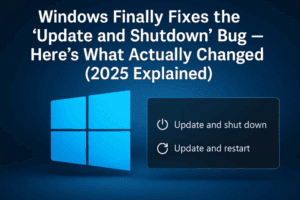
Before exploring the advanced methods, it helps to slow down and take a look at what Windows offers under the Start menu — because this is where everything begins. When you click the Start button, you’ll see a small power icon that holds several options. Each of these does something slightly different, and knowing the difference prepares you to use your system more intentionally.
A lot of people assume “power = off,” but Windows is more nuanced than that.
Lock – Keeping Everything Open While Protecting Your Screen
You may have seen the Lock option but never given it much thought. Locking simply hides your desktop behind the login screen while keeping everything running exactly as it is. Your Word files remain open, your browser tabs stay as they are, and your apps keep running in the background.
You usually use Lock when you step away from your PC but want everything to remain exactly how you left it. Once you type your PIN or password again, the system melts back into your workspace.
This is different from logging out, which we’ll get to shortly.
Sleep – A Quick Pause Without Shutting Down Anything
Sleep mode is the comfortable middle path between being fully on and fully off. It saves your current session in RAM and allows your PC to rest with very low power usage. When you come back, everything wakes instantly.
Your apps remain open, your files remain as they were, and you continue your work without waiting for startup times.
Most computers can also be set to go to sleep automatically after inactivity — something helpful if you frequently step away without remembering to put it to sleep manually.










Shutdown – Turning the Computer Off the Safe Way
Shutting down properly means Windows closes files, saves system state, stops running programs, and safely powers off hardware components. When you click Shut Down, Windows goes through a small but important internal process:
- It finishes writing data from memory to disk
- It closes open programs
- It prepares drivers and services for shutdown
- It powers off the system cleanly
If you skip all of this by pressing and holding the physical power button, the system never completes these steps. That’s when data loss, corruption, and slow boots happen.
Whenever you choose shutdown, it is best to manually close your files and apps first. Windows can force them to close, but you don’t want to risk unsaved data.
Restart – A Fresh Start for the System
A restart is simply a shutdown followed immediately by a power-on. It is helpful when:
- You’ve installed software
- Windows has pending updates
- Apps are acting strange
- Your system feels slow
Restarting refreshes memory, reinitializes drivers, and brings Windows back into a clean state.
You should still close files before restarting, because some programs may not handle forced closure well.
Using ALT + F4 – The Classic Shutdown Menu
There’s a lesser-known but extremely handy shortcut that has existed since the early days of Windows. When you’re on the desktop (and not inside an app), pressing ALT + F4 brings up the classic shutdown dialog.
This older interface doesn’t just give you Shut Down or Restart. It offers:
- Switch User
- Sign Out
- Sleep
- Shut Down
- Restart
Switching users keeps your current session active while handing control of the computer to someone else. Signing out ends your session entirely — which closes all your apps and saves your state.
This small menu quietly gives you more control than the modern Start menu does.
Switching Users vs. Signing Out – Knowing the Difference
It’s easy to mistake “switch user” for signing out. But these two actions affect your programs differently:
- Switch User → Your account remains logged in, your programs stay open, and another user can access their account without closing yours.
- Sign Out → Your programs close, your files close, and your session ends completely.
If you’re sharing the PC with someone and simply want them to log in while keeping your apps running, use Switch User. If you’re done with your work session and want a clean sign-out, choose Sign Out.
Shutting Down and Restarting Through Commands
Now we enter the part of Windows that feels more “technical,” yet remains extremely practical. There are days when the Start menu freezes, the mouse stops responding, or the graphical interface becomes unstable. In those moments, the command line becomes your friend.
Windows has a built-in shutdown command that lets you fully control shutdown and restart behavior.
The key command is simply shutdown — and Windows changes its behavior depending on the switches you add to it.
When typed into Command Prompt:
- shutdown /s /f /t 0
Shuts down the computer instantly - shutdown /r /f /t 0
Restarts the computer instantly
Here’s what the switches mean:
- /s – Shutdown
- /r – Restart
- /f – Force-close applications
- /t 0 – Set the timer in seconds (0 = immediate)
If you mistakenly trigger a shutdown or restart, you can stop it as long as the timer hasn’t expired:
- shutdown /a
Cancels the shutdown sequence immediately
This command-line control is especially helpful when writing scripts, scheduling reboots, or troubleshooting systems that refuse to shut down normally.
Using the Shift Key – Unlocking Two Special Shutdown Behaviors
There’s a hidden layer in Windows that many people never discover: when you hold Shift while choosing Shutdown or Restart, Windows behaves differently.
Let’s break this into two parts, because each action has a very different purpose.
Shift + Shutdown – A True Full Shutdown
Normally, when you shut down your PC, Windows uses a feature called Fast Startup. It saves parts of the system state — such as the kernel session — so the next boot is faster. This means a normal shutdown is not a full reset.
But when you:
- Hold Shift
- Click Shut Down
…Windows performs a complete and cold shutdown, clearing the kernel session and driver states. This is extremely helpful when you’re troubleshooting hardware issues, installing drivers, or noticing strange bugs after waking from sleep or hibernation.
A Shift + Shutdown ensures the next boot starts from a clean slate.
Shift + Restart – Entering Advanced Startup Options
This is one of the most valuable shortcuts in Windows troubleshooting. Holding Shift while selecting Restart takes you to the Advanced Startup Options menu.
This is where you get:
- Safe Mode
- Command Prompt during recovery
- UEFI firmware settings
- System Restore
- Uninstall updates
- Startup Repair
- Troubleshooting tools
- System image recovery
Normally, you would need a USB installer or a recovery disk to reach this menu. But Shift + Restart gives direct access without any external tools — as long as you can open Windows.
It’s one of the fastest ways to fix stubborn issues.
Using Shutdown Without Logging In
One helpful detail many people overlook is that you don’t need to log in to shut down the PC. Even at the login screen, the bottom-right area offers the Power icon. From there you can choose:
- Sleep
- Shut Down
- Restart
This becomes helpful if you just restarted your computer for an update but don’t want to log back in yet, or if you want someone else to access the PC without loading your account first.
Putting It All Together
Learning how to shut down or restart your computer might sound simple, but once you understand the deeper layers — Sleep vs Shutdown, Switch User vs Sign Out, full shutdowns, advanced recovery restarts, and command-line controls — the process begins to feel more intentional and powerful.
A well-managed shutdown keeps your operating system healthy. A proper restart clears problems before they grow. And knowing these advanced tools helps you troubleshoot confidently when things don’t behave the way you expect.
Disclaimer
Force closing programs, using advanced startup tools, or modifying shutdown behavior should be done with care. Always save your work before performing any forced shutdown or restarting into recovery environments.
#WindowsTips #PCGuide #TechBasics #dtptips #ShutdownGuide #RestartWindows