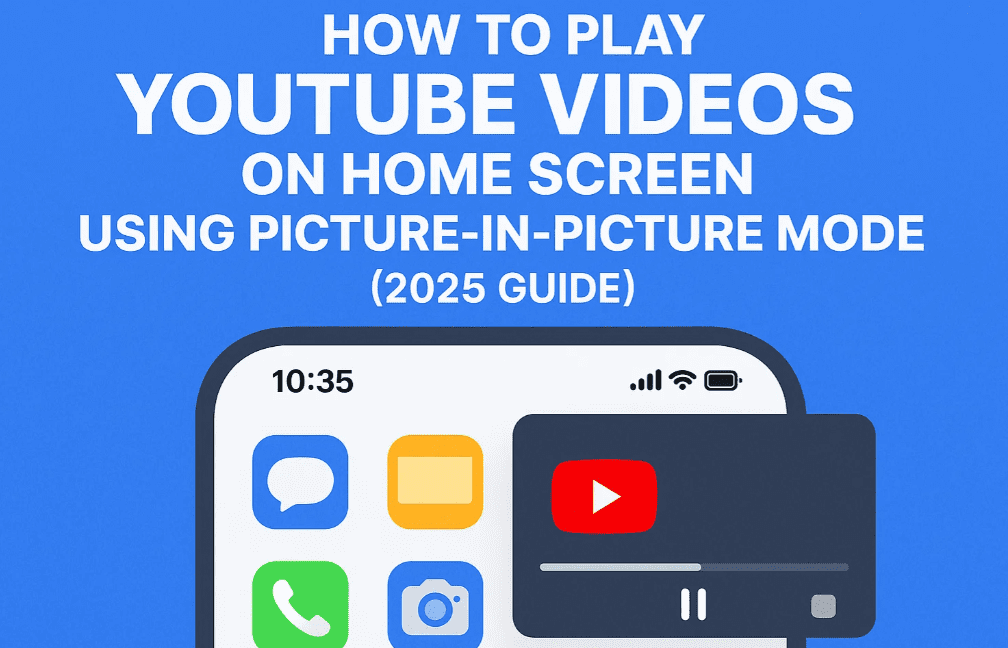
Watching YouTube while using other apps or when you’re on your phone’s home screen is a handy multitasking trick. This blog will guide you through the process of enabling Picture-in-Picture (PiP) mode on your Android device and using third-party apps like VidMate to get pop-up video playback directly on your home screen.
💡 Disclaimer: This tutorial uses VidMate, a third-party app not available on the Google Play Store. Download and use it at your discretion from trusted sources. We are not responsible for any data or security issues that may arise from using third-party applications.
📱 Step-by-Step Guide to Play YouTube Videos on Home Screen
✅ Step 1: Enable Picture-in-Picture Mode for YouTube
- Go to your phone’s Home Screen.
- Long press the YouTube app icon.
- Tap on App Info (or the small “i” icon).
- Scroll down and tap on Picture-in-Picture.
- Turn on the toggle for Allow Picture-in-Picture.
- Press back to return to the App Info screen.
✅ Step 2: Enable “Display Over Other Apps” for YouTube
- In the App Info screen, find and tap Display over other apps.
- Enable the toggle to Allow display over other apps.
- Go back to your home screen.
These steps allow the YouTube app to float in a small window while using other apps, if you’re using YouTube Premium. However, if you’re using the free version of YouTube, you’ll need a workaround using the VidMate app.
🎥 Step 3: Use VidMate for Pop-Up YouTube Playback (Free Users)
📲 What is VidMate?
VidMate is a third-party video downloader and media player that allows YouTube video playback in a pop-up window even without YouTube Premium.
🧩 How to Set it Up:
- First, make sure VidMate is installed on your device. If not, download it from the official VidMate website.
- Open the YouTube app and play the video you want.
- Tap on the Share button beneath the video.
- Swipe through the options and tap More Options.
- Select VidMate from the list.
🪟 Step 4: Enable Pop-Up Mode in VidMate
- When VidMate opens, it may prompt you to download the video. You don’t need to download it.
- Instead, tap the Cancel (X) icon.
- Now, play the video within VidMate.
- Tap the Pop-Up icon on the video player.
- If prompted, select Go to Settings.
- Enable Display over other apps permission for VidMate.
- Go back, and the video should now play in a small floating window on your home screen.
You can now use other apps or browse your phone while the video plays in a resizable, movable window.
❓ Frequently Asked Questions
Q1: Do I need YouTube Premium for this method?
A: No. This method works even without YouTube Premium by using VidMate.
Q2: Is VidMate safe to use?
A: VidMate is not available on the Play Store, so always download it from the official website. Be cautious of fake or modified versions.
Q3: Why is the pop-up not working even after enabling the settings?
A: Double-check both:
- Picture-in-Picture mode
- Display over other apps permissions
Also, make sure the app is not restricted in Battery Optimization settings.
Q4: Can I use this with other video apps?
A: Some apps like MX Player, VLC, or Chrome browser also support floating video windows. The exact steps will vary per app.
🏁 Final Thoughts
With the steps above, you can now enjoy YouTube videos in a pop-up window on your Android phone’s home screen without needing YouTube Premium. Whether you’re replying to messages, browsing social media, or just navigating your phone, your favorite content keeps playing in the background.
If you found this tutorial helpful, consider exploring more Android tips in our other articles.











🏷️ Tags
youtube background playback, picture-in-picture youtube, pop-up video player, play youtube on home screen, android youtube trick, vidmate youtube hack, multitasking with youtube, youtube tips 2025, android tutorial, floating video android
🔖 Hashtags
#YouTubeTips #AndroidTricks #VidMate #PiPMode #YouTubeBackgroundPlay #FloatingVideo #Multitasking #TechGuide2025 #YouTubeHack #HomeScreenVideo #MobileTips #AndroidCustomization








