Are you looking for a way to play Free Fire on your Windows PC or Laptop without using heavy emulators like BlueStacks or LDPlayer? Google Play Games offers a smooth, lag-free solution to enjoy Free Fire MAX on a bigger screen with better performance.
In this guide, we’ll walk you through the step-by-step installation process so you can start playing Free Fire on your PC in no time!
Step 1: Download Google Play Games for PC
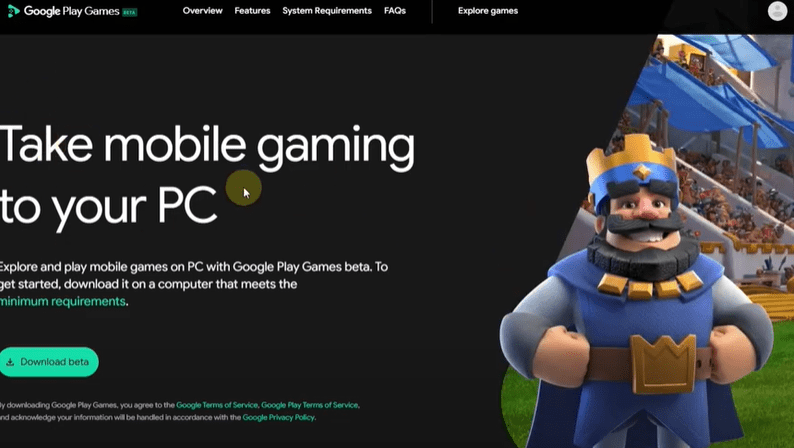
- Open your browser and go to Google Play Games official website.
- Click on the “Download Beta” button.
- Once downloaded, run the installer and follow the on-screen instructions:
- Click “Install” > “Yes” (if prompted by UAC).
- Wait for the installation to complete.
Step 2: Enable Virtualization (Hyper-V) in Windows
For optimal performance, ensure virtualization is enabled in your BIOS and Windows settings:
A. Enable Virtualization in BIOS
- Restart your PC and enter BIOS/UEFI (usually by pressing F2, F12, or DEL during boot).
- Look for “Virtualization Technology (VT-x)” or “AMD-V” (for AMD CPUs).
- Enable it and save changes (F10).
B. Enable Hyper-V in Windows
- Open Control Panel > Programs > Turn Windows features on or off.
- Check “Hyper-V” and click OK.
- Restart your PC.
Step 3: Install Free Fire MAX via Google Play Games
- Open Google Play Games from the Start Menu.
- Sign in with your Google account.
- Search for “Free Fire MAX” in the app.
- Click “Install” and wait for the download to complete.
Step 4: Optimize Game Controls
- Launch Free Fire MAX from Google Play Games.
- Go to Settings > Controls to customize keybindings.
- Set up movement (WASD), shooting (Mouse), and other actions as per your preference.
Step 5: Play Free Fire on PC!
- Use Fullscreen Mode (F11) for the best experience.
- Adjust graphics settings in-game for smoother gameplay.
- Enjoy Free Fire MAX with zero lag and better controls than mobile!
Why Use Google Play Games Instead of Emulators?
✅ No Bloatware – Lightweight compared to BlueStacks/LDPlayer.
✅ Better Performance – Optimized for Windows, reducing lag.
✅ No Extra Setup – No need for VT or BIOS tweaks (unlike emulators).
Troubleshooting Tips
❌ Game not launching? Ensure Hyper-V is enabled.
❌ Lagging? Lower in-game graphics settings.
❌ Controls not working? Reconfigure keybinds in settings.
Conclusion
Now you can play Free Fire MAX on your PC without emulators using Google Play Games—offering a smoother, faster, and more stable experience. Follow these steps, optimize your settings, and dominate the battlefield!
Got questions? Drop them in the comments below!
Tags & Hashtags
#FreeFirePC #FreeFireMAX #GooglePlayGames #FreeFireOnPC #Gaming #WindowsGaming #NoEmulator #FreeFire2025 #GamingGuide #PCGaming #BattleRoyale
🔥 Ready to play? Download now and see the difference! 🔥