Introduction
For gamers and performance enthusiasts, tracking FPS (Frames Per Second), GPU temperature, CPU usage, and RAM consumption is crucial for optimizing gameplay. Whether you’re testing a new game, overclocking hardware, or troubleshooting performance issues, real-time monitoring helps you understand your system’s capabilities.
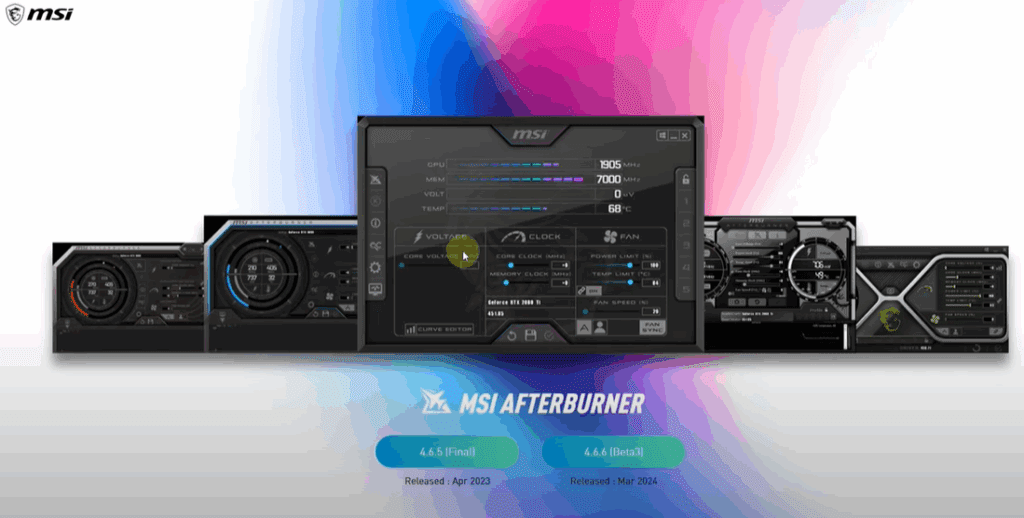
In this guide, we’ll show you how to display in-game performance stats using MSI Afterburner, one of the most reliable and widely used monitoring tools.
Why Monitor In-Game Performance?
✔ Check FPS stability – Ensure smooth gameplay without stuttering.
✔ Monitor GPU/CPU temperatures – Prevent overheating and thermal throttling.
✔ Track resource usage – Identify bottlenecks (e.g., high RAM or CPU usage).
✔ Optimize settings – Adjust graphics for the best balance between visuals and performance.
Step-by-Step Guide: Display FPS & Hardware Stats in Games
Step 1: Download & Install MSI Afterburner
- Go to the official MSI Afterburner website.
- Click Download and install the software (it also includes RivaTuner Statistics Server, essential for on-screen display).
- Run the installer and follow the setup (keep default settings).
Step 2: Configure MSI Afterburner for Monitoring
- Open MSI Afterburner.
- Click the Settings (Gear) icon → Go to the Monitoring tab.
- Here, you can select which stats to display in-game:
- GPU Temperature
- GPU Usage (%)
- CPU Temperature
- CPU Usage (%)
- RAM Usage
- FPS (Framerate)
- For each stat:
- Check the box next to it.
- Enable “Show in On-Screen Display”.
Step 3: Adjust On-Screen Display (OSD) Settings
- Open RivaTuner Statistics Server (installed with Afterburner).
- Under “On-Screen Display”, adjust:
- Zoom (to increase text size).
- Position (move stats to a corner).
- Color & Font (customize appearance).
Step 4: Test in a Game
- Launch any game.
- The selected stats (FPS, GPU/CPU temps, etc.) will appear in the corner.
- If stats are too small, go back to RivaTuner and increase the Zoom level.
Alternative Tools for Performance Monitoring
If MSI Afterburner doesn’t work for you, try these alternatives:
- NVIDIA GeForce Experience (for FPS counter)
- AMD Radeon Software (for AMD GPU users)
- FRAPS (Legacy FPS monitor)
- HWMonitor (For advanced hardware tracking)
Conclusion
Monitoring FPS, GPU, and CPU usage helps optimize gaming performance and prevent hardware issues. MSI Afterburner + RivaTuner is the best free solution for real-time stats.
🔧 Pro Tip: Use this data to tweak in-game settings—lower graphics if GPU usage is at 100%, or cap FPS if CPU is overheating.
Tags & Hashtags
Tags:
FPS monitor, GPU temperature tracker, CPU usage monitor, MSI Afterburner guide, in-game performance stats, gaming optimization, PC performance tracking
Hashtags:
#FPSMonitor #GPUUsage #CPUTemperature #MSIAfterburner #GamingPerformance #PCGaming #HardwareMonitoring #OptimizeGaming #TechGuide
🚀 Try it out and see the difference in your gameplay! Have questions? Drop them in the comments below.