Upgrading your old, slow laptop or desktop by replacing the hard drive (HDD) with a solid-state drive (SSD) is one of the smartest ways to boost performance. But let’s be honest — the hassle of reinstalling Windows, setting up all your apps again, reapplying your preferences, and copying data can be a real headache. Wouldn’t it be great if you could just move everything—your operating system, applications, files, and settings—from your old drive to the new SSD in one go?
Well, good news: You absolutely can! In this article, I’ll walk you through a complete disk cloning and migration process using 4DDiG Partition Manager, a powerful and user-friendly tool that helps you switch from your old HDD to a new SSD without reinstalling Windows.
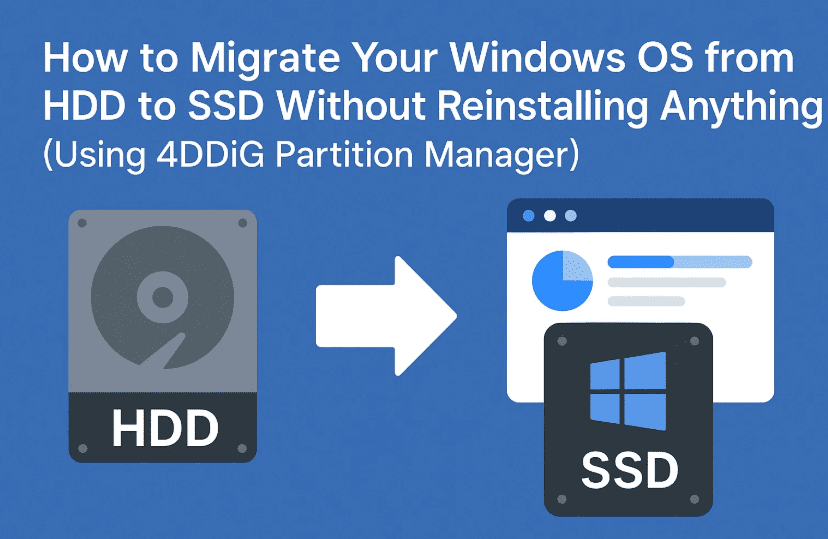
Let’s break it down step by step.
🧠 Why You Should Migrate Instead of Reinstalling Everything
Before we dive into the steps, let’s clarify the benefits of migrating instead of starting fresh:
- ✅ You save time by skipping OS reinstallation.
- ✅ All installed apps remain intact.
- ✅ You keep your personal files and settings as they are.
- ✅ No need to activate Windows again if the license is tied to your hardware.
So far, so good? Great—let’s move to the next step.
🔌 Step 1: Connect Your New SSD to the PC
If your SSD isn’t already installed in your system, connect it using a USB-to-SATA adapter or docking station. Once connected:
- Open Disk Management (
Right-click Start > Disk Management). - You’ll see a prompt asking to initialize the new disk.
- Choose the correct partition style:
- MBR (Master Boot Record) – Older systems
- GPT (GUID Partition Table) – Modern systems with UEFI
📝 Tip: Check the partition style of your existing system disk to match the new SSD.
To check:
Open Command Prompt → typediskpart→list disk→ See if your current disk has a*under GPT.
🧰 Step 2: Download and Install 4DDiG Partition Manager
The tool we’re using is called 4DDiG Partition Manager by Tenorshare. It’s simple, clean, and gets the job done quickly.
👉 Visit the official website to download 4DDiG Partition Manager
Once installed:
- Launch the tool.
- Allow admin permissions when prompted.
Let’s move on to the fun part—migrating the OS.
🧭 Step 3: Decide Between “Clone” and “Migrate”
Here’s the difference:
- Clone Disk: Copies everything (all partitions) from the old disk to the new SSD.
- Migrate OS: Only copies the system partition (C drive) and necessary boot partitions to the SSD.
❗ Problem:
You may run into a situation where your current hard disk is, say, 169GB, and your new SSD is only 128GB. In that case, cloning won’t work due to size mismatch.
Solution? Use the “Migrate OS” option.
Let’s continue with OS migration.
⚙️ Step 4: Migrate OS to SSD
Ready to begin? Follow these steps in 4DDiG Partition Manager:
- Select “Migrate OS” from the main menu.
- Choose your source disk (usually C drive with the Windows logo).
- Select the target disk (your new SSD).
- The software will automatically allocate the boot partition, recovery partition, and system partition onto the new SSD.
- Click “Migrate” and confirm.
The process begins and will take a few minutes depending on data size.
💡 Don’t use your PC while migration is in progress for best results.
🧪 Step 5: Test the Migration (Optional but Recommended)
Before physically replacing the old HDD with your SSD, you can test whether everything migrated properly:
- Reboot your system.
- Enter the BIOS boot menu (usually by pressing
F12,ESC, orDELduring startup). - Select the new SSD as the primary boot drive.
- Boot into Windows.
If everything went well, your system should start exactly the same as before—only faster!
🔧 Step 6: Replace the Old Drive (Final Step)
Now that you’re confident the SSD works:
- Power down your system.
- Remove the old HDD.
- Replace it with the new SSD.
- Secure it inside the drive bay or slot.
That’s it! You’ve successfully migrated your OS and apps without reinstalling anything.
Looking for another way: How to Create and Restore System Image Backups Using Macrium Reflect
❓ FAQs
Q: Will I lose my files during the migration?
No, as long as you follow the steps carefully, your files, apps, and settings will be exactly as they were.
Q: Is 4DDiG Partition Manager free?
The tool offers a free download, but the full OS migration feature is paid. Still, it’s a worthy investment for a hassle-free experience.
Q: Can I clone to a smaller SSD?
Yes, but only if the used space on your old disk is smaller than the new SSD. Otherwise, use the Migrate OS feature instead of full disk clone.
⚠️ Disclaimer
This tutorial involves modifying system partitions and boot settings. Make sure to back up important data before proceeding. dtptips.com is not responsible for any data loss caused by incorrect usage.
🎯 Final Thoughts
Migrating your Windows OS from a slow hard drive to a fast SSD is no longer a techie-only task. With tools like 4DDiG Partition Manager, you can upgrade your system without breaking a sweat—or reinstalling anything.
Whether you’re working on an old laptop or refreshing your desktop setup, this approach will breathe new life into your device.
If you found this guide useful, don’t forget to bookmark it for future upgrades or share it with a friend facing similar slowdowns.
🔖 Tags:
SSD migration, OS cloning, disk clone, migrate Windows, 4DDiG Partition Manager, laptop upgrade, HDD to SSD, bootable SSD
#Hashtags:
#SSDUpgrade #CloneOS #WindowsTips #LaptopSpeedBoost #4DDiG #MigrateWindows #TechTutorials #dtptips #WindowsMigration
💡 Bonus Tip: Want to keep your old HDD as extra storage? You can use it as an external drive with a USB hard drive enclosure. Perfect for backups or media storage!








