If you’re a content creator, entrepreneur, or freelancer juggling multiple accounts, devices, and identities, you might be asking: “Is it finally time to upgrade to Google Workspace for business?” If you’re craving a unified, professional setup that separates personal chaos from business productivity, the answer is a resounding yes.
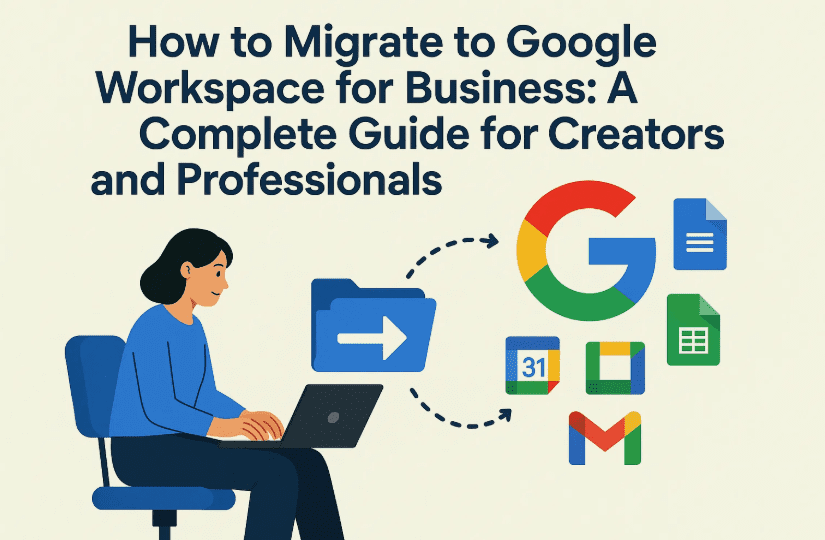
In this article, we’ll walk through the full journey of setting up a Google Workspace business account, migrating your existing Gmail and YouTube data, setting up domain emails, and working smarter using Google’s cloud-based ecosystem. Along the way, we’ll also answer common questions and show you how a concierge migration service can help.
📅 Why Make the Switch?
Many creators and small business owners start with a free Gmail account and continue to build everything around it—emails, YouTube, Google Docs, calendars, passwords. It works… until it doesn’t.
Here are the top reasons to move to Google Workspace for Business:
- Professional Email: Use your own domain (e.g., yourname@yourbusiness.com)
- Data Ownership: Keep personal and business separate
- Device Sync: Access your bookmarks, passwords, history, and extensions anywhere
- Security: Business-grade control and recovery features
- Brand Management: Assign roles for your YouTube, Docs, Calendar, and Drive
Let’s now get into the exact steps to help you get started the right way.
🔄 Step 1: Decide Whether to Create a New Account or Migrate
First things first: you cannot convert an existing Gmail.com address into a Google Workspace account.
If you have a personal Gmail account, you’ll need to:
- Create a new Workspace business account using your own domain
- Migrate necessary emails, files, and data
- Continue using your old Gmail as a personal account
✉️ Pro Tip: Migrate only essential data. Keep the old Gmail for personal use and declutter your business identity.
🏢 Step 2: Purchase Google Workspace and Set Up Your Domain
Head over to Google Workspace and choose the plan that fits you. If you’re a solo creator, the Business Starter plan is often enough.
- Sign up with your new business email (e.g., name@yourdomain.com)
- Verify your domain (if you already own one)
- Add DNS records to enable email sending/receiving (Google will guide you)
- Add alias addresses if needed (e.g., support@, hello@)
You only pay per mailbox, not per alias. That means if you use dtptips@domain.com as the primary account, you can also send and receive as info@domain.com or contact@domain.com from the same login.
📁 Step 3: Migrate Your Gmail and Google Data
Now that you have your Workspace account, you probably want to transfer:




- Emails
- Contacts
- Google Calendar
- Drive files
There are two options here:
Option 1: Do It Yourself
Use the Data Migration tool in your Google Admin Console.
- Login to admin.google.com
- Navigate to
Data Migration - Choose source account (Gmail)
- Input login credentials and select what to import
Option 2: Hire a Migration Expert
Migration can be messy. If your Gmail account includes:
- Thousands of emails
- YouTube or brand assets
- Google Analytics / My Business
…you may benefit from a concierge migration partner like IT Genius, who will handle:
- Email migration
- Downtime management
- YouTube ownership transfer
- Domain alias setup
- Service verification (Google Ads, Analytics, etc.)
Their one-time migration fee includes three months of support—perfect for creators needing extra guidance.
🌟 Step 4: Set Up Sync Across Devices (Chrome & Cloud Sync)
One of the best parts of Google Workspace is the seamless Chrome experience.
Once logged in with your business account:
- Chrome will sync bookmarks, tabs, passwords, and history
- All saved extensions, autofill data, and payment info sync automatically
- Your Chromebook, desktop, and mobile devices all stay in sync
If you lose a device? Just log in on a new one—everything comes back instantly.
📅 This eliminates the need for massive hard drives—cloud-first storage encourages smarter delegation and easier backups.
🎩 Step 5: Migrate Your YouTube Channel Ownership
Already have a YouTube channel tied to your Gmail? Great news: you can transfer ownership to your new business Workspace account.
Here’s how:
A. Convert Your Channel to a Brand Account (if needed)
- Go to YouTube Studio
- Under Settings > Permissions, click “Go back to brand account management”
- This enables brand-based permission sharing
B. Add Your Workspace Account as Owner
- Go to myaccount.google.com/brandaccounts
- Select your channel
- Add your new Workspace email as a Manager/Owner
After 7 days, you can promote it to Primary Owner and fully separate the YouTube identity from your personal Gmail.
⚠️ Important: This process ensures your YouTube watch history and personal recommendations don’t affect your brand content.
🔍 Step 6: Review Other Google Services Tied to Your Old Gmail
Google services are deeply interconnected. If you’ve used your Gmail account to set up:
- Google Analytics
- Google Ads
- Google My Business (now Google Business Profile)
- Google Domains
…you may need to reassign permissions to your Workspace account.
Check each service individually and transfer ownership or add the new email as an Admin.
🤝 Step 7: Consider a Concierge Migration Service
Let’s face it—all this can get overwhelming fast, especially if you run a brand, manage multiple Google properties, or monetize your content.
If you need:
- Step-by-step handholding
- Zero downtime
- Google Workspace setup with domain aliases
- YouTube + Google account consolidation
- Ongoing support for 3 months or more
Then search for a concierge service.
🌐 Real-World Use Case: Mac + Chromebook Setup
Let’s say you’re using a MacBook for personal tasks and a Chromebook for business.
- With Google Workspace, your business tabs, bookmarks, and passwords stay in sync
- If the Chromebook is lost, stolen, or reset—just log in again, and you’re back
- No need to back up massive files locally; emails, Docs, and Sheets are in the cloud
This setup also encourages you to delegate heavy-lifting tasks like video editing to others while you stay focused on creative work.
❓ Frequently Asked Questions (FAQs)
Q: Can I convert my Gmail to a business account directly?
A: No, Gmail accounts cannot be upgraded. You must create a Workspace account from scratch and migrate the data.
Q: What happens to my old Gmail after migration?
A: You can keep using it for personal communication. Your business email will be your new professional identity.
Q: Can I manage YouTube from my Workspace account?
A: Yes. By switching to a brand account and assigning your Workspace address as the owner, full control is possible.
Q: How much storage do I need on my business laptop?
A: Not much. Most data lives in the cloud. Unless you do heavy local video editing, lightweight Chromebooks are perfect.
🌟 Final Thoughts
Making the move to Google Workspace isn’t just about email—it’s about running your brand like a business. From custom domain emails to seamless YouTube management and Chrome sync, it’s a shift toward better organization and professional growth.
So if you’re ready to stop mixing personal with business, and truly level up your tech stack, this is your sign. Whether you do it yourself or hire pros to help, the result is the same: clarity, efficiency, and scalability.
Tags:
google workspace migration, youtube brand account, chrome sync, gmail to workspace, domain email setup, google admin panel, data migration, google apps support, IT genius, workspace setup for creators
Hashtags:
#GoogleWorkspace #WorkspaceMigration #YouTubeManagement #ChromeSync #BusinessEmail #ContentCreators #ITSupport #GmailMigration #GoogleWorkspaceTips








