🖥️ Introduction: The Best Free Alternative to Microsoft Office
If you’ve ever wanted a full-featured, free, and open-source replacement for Microsoft Office, LibreOffice is usually the first name that comes up. It’s compatible with Windows, macOS, and Linux, offers a full suite of tools (Writer, Calc, Impress, Draw, Base, and Math), and can handle almost any document format you throw at it.
But while LibreOffice is powerful, it can feel a bit different for those coming from Microsoft Office. The menus, interface style, icons, and even some default behaviors may confuse first-time users.
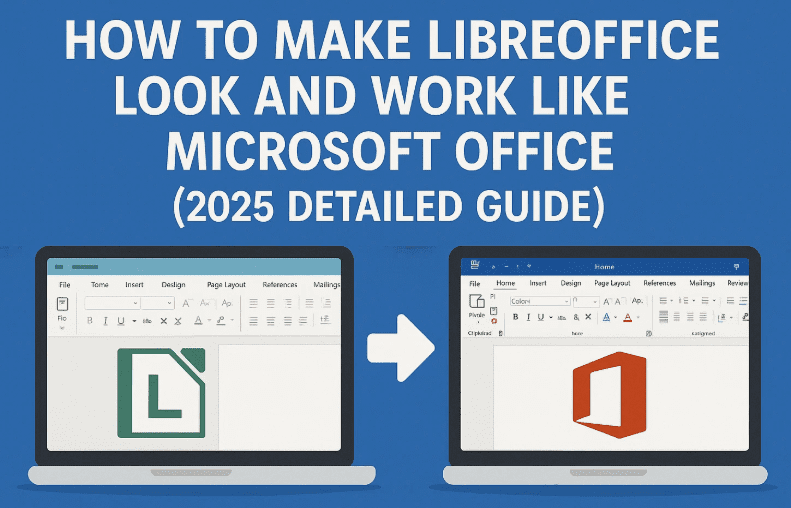
So, in this article, we’ll go step-by-step through how to make LibreOffice look, feel, and behave more like Microsoft Office, including setting up the interface, fixing icon visibility, tweaking file formats, and configuring cloud and auto-save options.
Let’s begin by understanding what LibreOffice includes out of the box.
🧩 1. Getting to Know LibreOffice and Its Tools
LibreOffice was originally forked from Apache OpenOffice, another open-source suite that aimed to rival Microsoft’s ecosystem. It has since evolved into a more active and advanced project.
Here’s what comes inside the suite:
- Writer – Word processor (like Microsoft Word)
- Calc – Spreadsheet application (like Excel)
- Impress – Presentation tool (like PowerPoint)
- Draw – Vector graphics and diagramming app (similar to Microsoft Visio)
- Math – Equation and formula editor
- Base – Database management tool (similar to Microsoft Access)
Each program is integrated into one suite, which you can download for free from the official LibreOffice website.
On Linux, you can install it directly through your distribution’s package manager (for example, using Ubuntu Software or sudo apt install libreoffice).
💡 2. Understanding the Interface Differences
If you’re coming from Microsoft 365, you’ll immediately notice that LibreOffice uses a classic menu interface instead of the ribbon-style layout that Microsoft popularized.
This can feel a bit overwhelming at first — lots of text-based menus, drop-downs, and small buttons. Fortunately, LibreOffice now supports a Tabbed (Ribbon-like) interface called the Notebook Bar, which you can enable to make it look familiar.
🪄 How to Enable the Tabbed Interface
Let’s set up LibreOffice to resemble Microsoft Office:


- Open any LibreOffice app (like Writer or Calc).
- Go to View → User Interface.
- Select Tabbed (or Tabbed Compact for a cleaner layout).
- Choose whether to apply this change to just the current program or the entire suite.
That’s it — your menus are now organized into tabs like Home, Insert, Layout, and so on.
🌙 3. Fixing Icon Visibility and Themes
If you’re using Linux with dark mode (especially GNOME desktop), you might find that LibreOffice’s icons turn completely white — making them hard to see.
To fix this, we’ll adjust the icon theme manually.
🖌️ How to Change Icon Style
- Go to Tools → Options → View.
- Under Icon Style, choose Colibre.
- Use Colibre (Dark) for dark mode.
- Use Colibre (Light) for normal themes.
- Click Apply → OK.
The Colibre theme is actually the default icon set for the Windows version of LibreOffice, so it’ll immediately feel more familiar.
👉 Tip: You can also try SVG-based icons if you use fractional scaling (HiDPI monitors), as they scale more smoothly.
🖱️ 4. Enabling Auto Scrolling (Middle Click Fix on Linux)
If you’ve recently switched to Linux, you may have noticed that middle-click doesn’t auto-scroll in LibreOffice. Instead, it pastes text (a standard Linux behavior).
To restore the Microsoft-style auto-scroll function:
- Go to Tools → Options → LibreOffice → View → Mouse.
- Change the middle-click behavior from Paste to AutoScroll.
- Apply and restart LibreOffice.
Now, scrolling through long documents will work exactly as it does in Word.
⚙️ 5. Customizing the Notebook Bar Tabs and Toolbars
After enabling the tabbed interface, you may find some options missing or hidden under drop-downs. Don’t worry — LibreOffice allows deep customization.
🔧 How to Customize Tabs
- Go to View → User Interface → Customize.
- Under Notebook Bar, pick a target tab (like “Home”).
- Enable or disable the elements you want to appear there.
- Unfortunately, drag-and-drop rearranging isn’t supported yet, but you can toggle what’s visible.
At this stage, you can also create custom toolbars — small, floating tool palettes that stay visible across all tabs.
🧰 To Create or Edit a Toolbar
- Right-click anywhere near the toolbar area.
- Choose Customize Toolbar → Add → Select your favorite commands.
- Pin it to the top, side, or bottom of the screen.
This is especially useful if you frequently use functions like “Word Count,” “Track Changes,” or “Table Tools.”
📄 6. Default File Formats: Saving in Microsoft Office Format
LibreOffice’s default file formats are .odt (Writer), .ods (Calc), and .odp (Impress) — part of the OpenDocument standard. While these are great for open-source users, compatibility can sometimes break when sharing with Microsoft Office users.
To avoid that, you can set LibreOffice to save files in Microsoft formats by default.
💾 Here’s How
- Go to Tools → Options → Load/Save → General.
- Find the option Always save as:
- Choose from:
.docxfor Writer.xlsxfor Calc.pptxfor Impress
- Click OK.
This ensures your files open smoothly in Office 365, OneDrive, or Google Docs.
💡 Bonus: While you’re here, enable AutoSave and AutoBackup to protect your work in case of crashes. You can set the interval to every 5 or 10 minutes.
🌍 7. Cloud Compatibility and Online Editing
Many users today rely on cloud drives like Google Drive, OneDrive, or Nextcloud. While Microsoft Office integrates seamlessly with these services, LibreOffice requires a bit of setup.
There are two main ways to connect LibreOffice with your online storage:
🧭 Option 1: OS-Level Integration
On Linux (especially GNOME), you can connect your online accounts directly:
- Go to Settings → Online Accounts.
- Add your Google or Microsoft account.
- Your cloud drives will now appear in LibreOffice’s file picker.
🗂️ Option 2: Remote File Access
LibreOffice also has a built-in remote access feature:
- Go to File → Open Remote File.
- Choose your service type (WebDAV, FTP, Google Drive, etc.).
- Log in and save credentials.
⚠️ Note: This method can sometimes be unstable depending on your distro and version, so your mileage may vary.
🧮 8. Using LibreOffice Calc (Excel Alternative)
LibreOffice Calc is powerful — and once you adjust its look and feel, it becomes a genuine Excel contender.
📊 Enabling the Tabbed Interface
Just like Writer:
- Go to View → User Interface → Tabbed.
🔍 Customizing Context Menus
You can modify right-click menus to match Excel’s order:
- Right-click anywhere → Customize Context Menu.
- Add or remove items like “Insert Row,” “Delete Column,” or “Format Cells.”
📈 Working with CSV and Formulas
When importing CSV files:
- Choose File → Open → Select your CSV file.
- LibreOffice automatically shows a delimiter dialog (like Excel’s “Text Import Wizard”).
For formulas, you can use the Function Wizard (Σ icon) or type directly, just as you would in Excel.
Calc also supports AutoFilter, Table Styles, and now even experimental collaboration, though simultaneous multi-user editing is still under development.
🔠 9. Fonts, Localization, and Compatibility
One of the most common formatting problems when switching from Microsoft Office is font substitution.
To fix this, you can manually install Microsoft Core Fonts on Linux.
🪶 Install Microsoft Fonts (Linux Example)
sudo apt install ttf-mscorefonts-installer
After installation, restart LibreOffice and verify fonts like Calibri, Arial, and Times New Roman appear in the list.
Also, check Tools → Options → Language Settings → Locale to ensure that date, number, and currency formats match your region.
Finally, enable Word-compatible trailing blanks under LibreOffice Writer → Compatibility to ensure consistent spacing in shared documents.
🧰 10. Final Adjustments and Tips
After setting all of this up, LibreOffice starts to feel much closer to Microsoft Office — though a few quirks remain.
Here are a few final tweaks to improve your experience:
- Enable AutoCorrect: Tools → AutoCorrect Options → “While Typing.”
- Adjust Zoom Defaults: View → Zoom → Set preferred percentage.
- Use Templates: Create your own Word-style templates and set them as default.
- Backup User Profile: You can export your LibreOffice configuration (stored in your user directory) to reuse on another PC.
With these adjustments, LibreOffice becomes not just usable, but genuinely enjoyable — especially for those who value freedom and open-source ethics without sacrificing comfort.
❓ Frequently Asked Questions
Q1. Is LibreOffice 100% compatible with Microsoft Office files?
Mostly yes. It handles .docx, .xlsx, and .pptx files well, though complex formatting and macros may need adjustment.
Q2. Can I use OneDrive or Google Drive directly?
Yes — either via your system’s cloud integration or LibreOffice’s “Remote Files” feature.
Q3. Does LibreOffice have real-time collaboration?
Currently limited, but the feature is in development for future versions of Calc and Writer.
Q4. Is LibreOffice completely free?
Yes. It’s open-source and maintained by The Document Foundation, relying on community donations.
Q5. Can I install it alongside Microsoft Office?
Absolutely. Both can coexist peacefully on the same system.
💬 Final Thoughts
Switching to LibreOffice can feel different at first — but once you tweak the interface and file settings, it becomes a reliable, powerful alternative to Microsoft Office.
It may not be as polished or cloud-integrated yet, but its independence, speed, and open nature make it a great choice for students, professionals, and Linux users alike.
If you’re looking to save money, reduce software lock-in, and support open-source innovation, LibreOffice is absolutely worth your time.
⚠️ Disclaimer
LibreOffice is free and open-source software maintained by The Document Foundation. This guide is for educational purposes only. Always download from the official website to ensure authenticity and security.
#LibreOffice #OpenSource #MicrosoftOfficeAlternative #LinuxApps #ProductivityTools #OfficeSuite #Calc #Writer #DocumentEditing #TechGuide
