Microsoft has officially released Windows 11 IoT Enterprise LTSC (Long-Term Servicing Channel), a version that many users with older PCs have been eagerly waiting for. This release is specifically optimized for low-resource systems, making it perfect for older laptops and desktops that can’t meet the strict requirements of standard Windows 11 versions.
In this article, we’ll dive deep into what LTSC is, how to install it, what makes it different from other versions of Windows, and whether it’s the right choice for you. Along the way, we’ll cover system requirements, setup steps, performance comparisons, and even how to add features like the Microsoft Store if you miss them.
So, let’s begin this journey step by step.
1. What is Windows 10 Enterprise LTSC?
Let’s start with the basics. LTSC stands for Long-Term Servicing Channel. Unlike regular versions of Windows 10 (Home, Pro, or Enterprise Semi-Annual Channel), LTSC is designed for devices that need to remain consistent and reliable for years.
- It only receives security patches and critical updates, not frequent feature updates.
- It does not include unnecessary apps like Xbox, Cortana, or Copilot that you might never use.
- It’s ideal for industries like medical equipment, banking systems, or kiosks, but individuals also find it useful for lightweight, distraction-free setups.
In short, if you’ve ever wished Windows was “just Windows” without all the extras, LTSC is exactly that.
2. System Requirements: Surprisingly Lightweight
Here’s where LTSC shines for older hardware. Unlike Windows 11, which enforces strict requirements like TPM 2.0 and Secure Boot, LTSC is much more forgiving.
Minimum Requirements for Windows 10 LTSC:
- Processor: 1 GHz dual-core CPU
- RAM: 2 GB (for 64-bit)
- Storage: 16 GB free space
- Graphics: DirectX 9 or later with WDDM driver
- Display: 800×600 resolution
That means almost any PC from the last 10–15 years can run LTSC comfortably. If you’ve got an older laptop gathering dust, this version might breathe new life into it.
3. How to Download the LTSC ISO
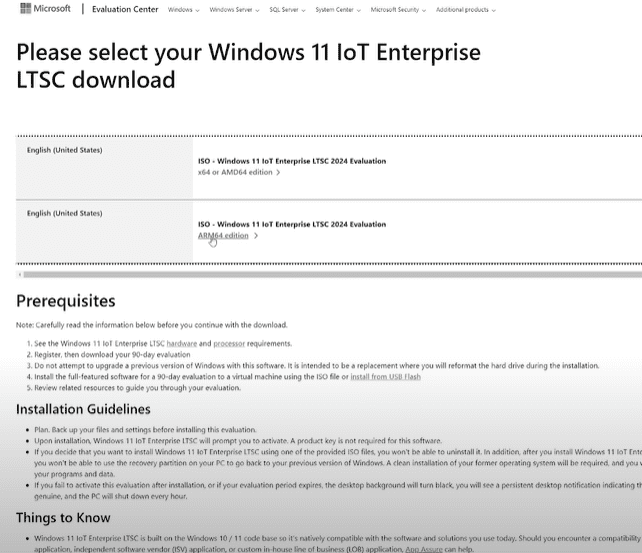
The first step is to get the official ISO file. Microsoft provides this through its evaluation center.
- Visit the Microsoft Evaluation Center.
- Register with basic details (name, email, etc.).
- Choose Windows 10 Enterprise LTSC.
- Select the x64 version (standard for modern computers).
- Download the ISO file (around 4.7 GB).
💡 Tip: Ensure you have a reliable internet connection because the download may take time.
4. Creating a Bootable USB with Rufus
Now that you have the ISO, you’ll need to create a bootable USB. This process allows you to install LTSC on your machine.









We’ll use a free tool called Rufus. You can get it from rufus.ie.
Steps:
- Insert a USB drive (minimum 16 GB).
- Open Rufus.
- Select your USB drive under “Device.”
- Click “Select” and choose the LTSC ISO file you downloaded.
- Choose the partition scheme:
- GPT for UEFI systems (newer PCs).
- MBR for BIOS systems (older PCs).
- Click Start.
Rufus will format your USB and make it bootable. This takes a few minutes. Once done, your USB is ready.
5. Installing Windows 10 Enterprise LTSC
Now comes the exciting part: installing LTSC.
- Restart your computer and boot from the USB drive (use F12, F9, or Esc depending on your PC).
- Choose your language and keyboard layout.
- Select Windows 10 Enterprise LTSC and accept the license agreement.
- Choose Custom Install.
- Delete existing partitions on your target drive for a clean install.
- Select the drive and click Next.
Windows will now copy files and set up the OS. This may take 15–20 minutes.
6. Setting Up a Local Account Instead of Microsoft Account
One big annoyance with modern Windows is the forced Microsoft Account login. Luckily, LTSC doesn’t push it aggressively.
- When asked to connect to the internet, click “I don’t have internet.”
- You’ll then see the option to create a local account.
- Enter your username, set a password, and choose security questions.
This way, you keep control of your system without tying it to Microsoft’s cloud services.
7. First Look After Installation: No Bloat, Just Windows
Once LTSC boots up, you’ll immediately notice how clean it feels.
- The Start Menu is simple—no Candy Crush, no Xbox, no Copilot.
- Installed apps are minimal: Notepad, Paint, Calculator, and a few essentials.
- No background services like Cortana or OneDrive auto-start.
This gives you a “fresh start” where you install only what you need.
8. LTSC vs Windows 10 Home/Pro: Performance Comparison
Let’s compare LTSC with a standard Windows 10 Home installation under the same conditions.
| Feature / Aspect | Windows 10 Enterprise LTSC | Windows 10 Home Edition |
|---|---|---|
| Target Audience | Enterprises, organizations, mission-critical systems (ATMs, medical devices, kiosks) | General consumers and home users |
| Update Policy | Security updates & critical patches only (no feature updates) | Frequent feature + security updates |
| Stability | Extremely stable, unchanged for years | Moderate, new features may break things |
| Bloatware / Pre-installed Apps | Minimal (just system essentials) | Includes Xbox, Cortana, Copilot, OneDrive, trial apps |
| Microsoft Store | Not included by default (can be re-enabled manually) | Pre-installed and fully supported |
| System Requirements | Very lightweight (1 GHz CPU, 2 GB RAM, 16 GB storage) | Higher requirements, especially for Windows 11 upgrade |
| Background Processes | ~140–150 | 200+ |
| Idle RAM Usage | ~2.5 GB | ~5+ GB |
| Licensing | Evaluation (90 days) or Enterprise license via IT | Pre-installed on most laptops/PCs, easy retail license |
| Customization Freedom | High (install only what you need) | Lower (many bundled services run by default) |
| Gaming Support | Works fine, but lacks Xbox/Game Bar features by default | Full gaming support with Xbox features |
| Ideal Use Case | Stability, long-term reliability, business IT setups | Home entertainment, casual use, gaming |
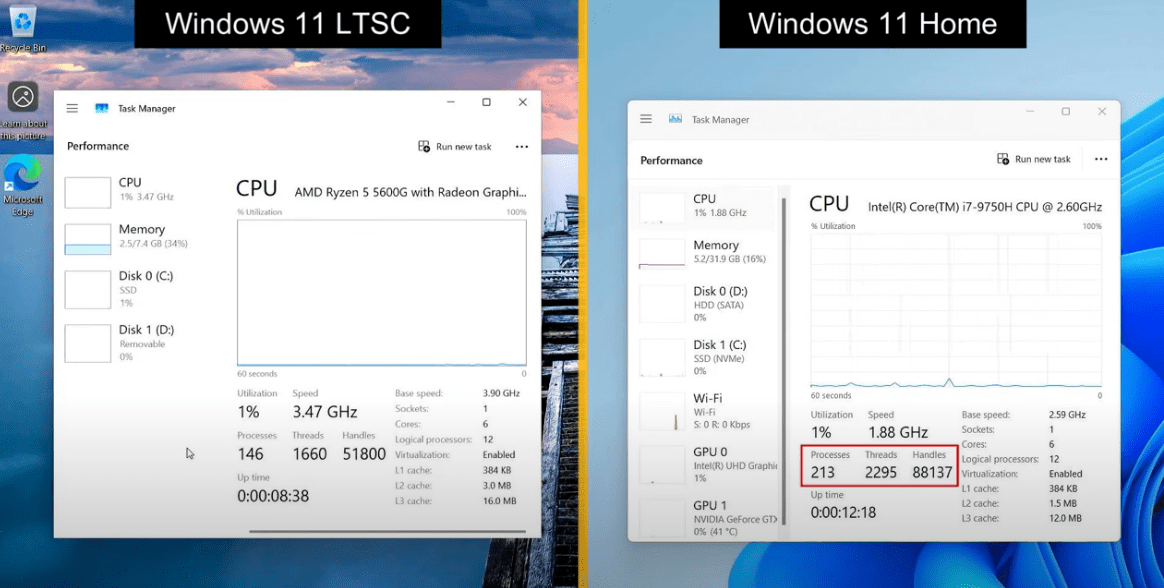
Clearly, LTSC is much more resource-friendly. If you’re running an older PC or just want maximum efficiency, it’s the better choice.
9. How to Add Microsoft Store to LTSC
One trade-off is that LTSC doesn’t include the Microsoft Store by default. But you can still add it back:
- Open PowerShell as Administrator.
- Type the following command and press Enter:
wsreset -i
This reinstalls the Store and allows you to download apps like Spotify or Netflix if needed.
So, you get the best of both worlds: a clean system with the option to add what you want.
10. Updates and Long-Term Stability
One of the best things about LTSC is its update policy.
- You won’t get disruptive feature updates every six months.
- You’ll only receive security updates and critical patches.
- This means your PC stays consistent and stable for years.
For businesses and individuals who value stability over new features, this is a huge win.
11. Licensing and Availability
Here’s the catch: LTSC is technically meant for businesses and organizations.
- The evaluation version is free to use for 90 days.
- After that, you need a proper license.
- Licenses are usually managed through IT departments.
👉 For more details, check Microsoft’s official LTSC Licensing Information.
12. Frequently Asked Questions (FAQs)
Q1: Can I use LTSC as my daily driver?
Yes, absolutely. Many users prefer it for its stability and clean setup. However, you may miss out on some consumer features like Cortana, Xbox integration, or Widgets.
Q2: Does LTSC run faster than regular Windows?
Yes, especially on older hardware. It uses less RAM and fewer background processes, making it smoother.
Q3: Can I upgrade from LTSC to Windows 11 later?
Not directly. LTSC is meant to remain stable. If you want Windows 11, you’ll need to reinstall.
Q4: Is LTSC legal for home use?
Technically, it’s meant for enterprises. Individuals can use the evaluation version, but long-term licensing is business-focused.
13. Conclusion
So far, we’ve explored what Windows 10 Enterprise LTSC really is: a lightweight, bloat-free, stable version of Windows designed for long-term use. Whether you’re running an older machine or just tired of constant feature updates, LTSC is a refreshing alternative.
It’s official, it’s reliable, and it gives you control over your system. While licensing may be tricky for individuals, even the evaluation version is worth trying if you want to experience a clean Windows environment.
If stability and efficiency are your top priorities, LTSC is the clear winner.
Disclaimer
This guide is for educational purposes. Windows 10 LTSC is officially intended for enterprise use. Individuals should consult Microsoft’s licensing terms before adopting it long term.
Tags
windows 10 ltsc, windows 10 enterprise, windows installation guide, microsoft windows lightweight version, windows without bloatware, windows 10 vs ltsc, how to install ltsc, windows 10 performance tips, windows licensing
Hashtags
#Windows10 #LTSC #Microsoft #WindowsGuide #TechTips #CleanWindows #BloatwareFree #Performance









But can this be activated if you have a Key for Windows 11 LTSC.
Yes, if you have the key, but technically, it’s meant for enterprises. For individuals can use the evaluation version, but long-term licensing is business-focused.