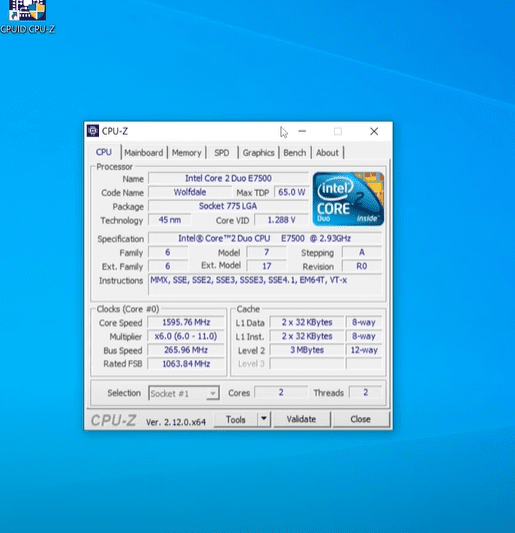
Are you holding on to an old but sturdy computer and wondering if you can breathe new life into it with Windows 11? Good news — yes, you can! In this blog post, we’ll walk you through how to install Windows 11 version 23H2 on an older system that lacks SSE4.2, TPM 2.0, and Secure Boot, specifically a Dell OptiPlex 780 with a Core 2 Duo E7500 or Core 2 Quad Q9650 processor.
Let’s dive into the step-by-step process — including how to upgrade RAM, swap processors, and do both in-place and clean installations using official Microsoft tools.
💡 What You’ll Need
- An old desktop PC (e.g., Dell OptiPlex 780)
- Processor: Core 2 Duo or Core 2 Quad
- Minimum 8 GB RAM (Upgrade to 16 GB recommended)
- SSD (Highly recommended for speed)
- A flash drive (at least 8GB)
- 7-Zip (to extract ISO files)
- Rufus (for creating bootable USB with bypass options)
- Media Creation Tool + Auto ISO Downloader
🔧 Step 1: System Overview
Start by checking your current system specs.
- Boot into Windows 10.
- Right-click on This PC > Properties.
- Note your CPU, RAM, and whether the disk is SSD or HDD.
- Optional: Use CPU-Z to confirm your processor’s instruction set (it likely supports SSE4.1 but not SSE4.2 — which 24H2 requires).
🚫 Why 24H2 Won’t Work
Windows 11 24H2 enforces support for SSE4.2, TPM 2.0, and Secure Boot. If your CPU lacks these, attempting to install this version will result in:
- Boot loops
- Setup failure
- Unsupported hardware errors
So, we’re going with Windows 11 version 23H2, which is more forgiving and still quite efficient on older systems.
💾 Step 2: Download Windows 11 23H2
- Search for “Auto ISO Media Creation Tool” on Google.
- Download the utility and run it as Administrator.
- Select Windows 11 23H2 ISO in your language and region.
- The tool will download the correct ISO directly from Microsoft’s servers — no third-party sources.
📦 Step 3: Extract the ISO
- Install 7-Zip if not already installed.
- Right-click the downloaded ISO > Extract to folder.
- Inside the extracted folder, go to
/sources/and locate setup.exe or setupprep.exe.
⚙️ Step 4: In-Place Upgrade from Windows 10
- Open CMD as Administrator.
- Navigate to the extracted ISO folder:
cd path\to\ISO\source - Type:
setupprep.exe /product server - Proceed through the wizard:
- Accept terms
- Choose Keep files and apps
- Begin upgrade
⚠️ Make sure your disk is MBR (not GPT) if you’re using legacy BIOS.
🧠 Step 5: Hardware Upgrade (Optional but Recommended)
- Processor Upgrade: Replace Core 2 Duo with Core 2 Quad Q9650 for better performance (4 cores, 4 threads).
- RAM Upgrade: Move from 8 GB to 16 GB DDR3 (match frequency across modules).
- SSD: Swap HDD for SSD — massive performance boost.
- NVMe Adapter (Optional): If supported, use an adapter to add an NVMe SSD.
🧹 Step 6: Clean Install Using Rufus
- Download Rufus 4.6 or later.
- Insert your flash drive (min 8GB).
- Select the Windows 11 ISO.
- Important Rufus options:
- Partition scheme: MBR (for legacy BIOS)
- Check all options to:
- Remove TPM/Secure Boot/RAM requirements
- Bypass Microsoft account setup
- Disable data collection
- Click Start to create the bootable USB.
💻 Step 7: Install Windows 11 (Clean Install)
- Plug in the flash drive and boot into the BIOS (F12/F2/DEL).
- Select your USB as the boot device.
- Proceed with the Windows installation:
- Delete old partitions
- Install fresh on the SSD
- Follow prompts to set up a local account
🔄 Post-Installation Setup
After installation:
- Go to Settings > Windows Update and install updates.
- Check System > About to verify:
- Version: Windows 11 23H2
- Activation status (it should remain activated if upgrading from an activated Windows 10)
Yes, Windows 11 will keep your existing license!
📈 Performance Insights
With these upgrades:
- Boot time drops dramatically with SSD.
- Core 2 Quad handles multitasking far better than Core 2 Duo.
- Windows 11 23H2 feels snappier than Windows 10 on the same hardware.
You may notice:
- CPU usage is high during updates, but settles post-install.
- Memory usage is around 4–6 GB with basic tasks, so upgrading RAM pays off.
📝 Final Notes
- Windows 11 24H2 will not work on Core 2 Duo/Quad due to missing SSE4.2.
- Windows 11 23H2 is the most stable and compatible version for older PCs.
- Keep this version until Microsoft ends support (expected late 2025).
- Stay tuned for Windows 12 — maybe it will offer better backward compatibility!
🔚 Conclusion
Yes, your old desktop still has some life in it! With just a few budget upgrades and the right version of Windows, you can enjoy a modern OS on vintage hardware. Windows 11 23H2 is surprisingly responsive and performs well on older systems — especially with a quad-core CPU and SSD.











If you’re facing installation issues or performance hiccups, refer back to this article for help — every step is covered.
Tags: windows 11 installation, windows 11 23h2, unsupported pc, dell optiplex, core 2 duo, core 2 quad, upgrade old pc, windows 11 clean install, windows 11 sse4.2, rufus windows 11, windows 11 iso download, windows 11 performance
Hashtags:
#windows11 #windows11install #unsupportedpc #oldpcupgrade #core2duo #core2quad #windows11tips #rufusbootableusb #windows11cleaninstall #techguide








