Need to install Windows 11 or Windows 10 on a new SSD but don’t have a USB flash drive? This guide will show you how to install Windows directly from an existing drive using EasyBCD and an ISO file.
Why Install Windows Without a USB?
✔ No USB drive required – Perfect if you don’t have one handy.
✔ Faster installation – No need to create bootable media.
✔ Works for both Windows 10 & 11 – Same method applies.
What You’ll Need
- A new SSD (connected to your PC)
- An existing Windows installation (to create the installer)
- EasyBCD (Free for non-commercial use)
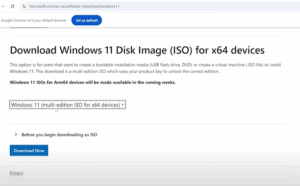
- Windows 11/10 ISO (Download from Microsoft)
Step 1: Prepare the New SSD
- Open Disk Management (
Win + X> Disk Management). - Initialize the SSD:
- Right-click the unallocated SSD > Initialize Disk.
- Select GPT (GUID Partition Table) > OK.
- Create a partition for Windows:
- Right-click unallocated space > New Simple Volume.
- Assign a drive letter (e.g.,
E:) and label it “Windows 11”. - Choose NTFS and perform a Quick Format.
- Shrink the partition to create an installer space:
- Right-click the new volume > Shrink Volume (~10GB is enough).
- Create a second partition (label it “Windows Installer”).
Step 2: Download & Extract Windows ISO
- Download Windows 11/10 ISO from Microsoft’s official site.
- Mount the ISO:
- Right-click the ISO > Mount.
- Copy files to the installer partition:
- Open the mounted ISO, select all files, and paste into the “Windows Installer” partition.
Step 3: Set Up Boot Menu with EasyBCD
- Download & install EasyBCD (Free version).
- Open EasyBCD > Add New Entry.
- Under Portable/External Media, select WinPE.
- Name it (e.g., “Windows 11 Installer”).
- Browse to the
boot.wimfile in:
[Windows Installer Partition]\sources\boot.wim- Click Add Entry > Save Settings.
Step 4: Boot into Windows Installer
- Restart your PC.
- Select “Windows 11 Installer” from the boot menu.
- Follow the Windows setup:
- Choose the “Windows 11” partition (not the installer).
- Complete installation as usual.
Step 5: Clean Up (Optional)
After installation:
- Delete the “Windows Installer” partition (Disk Management).
- Extend the main partition to reclaim space.
Final Thoughts
This method is perfect for users without a USB drive and works seamlessly for Windows 10 & 11.
🔹 Pros:
✔ No USB needed
✔ Faster than traditional USB installation
✔ Works on any PC with an existing Windows install
🔹 Cons:
❌ Requires an existing Windows OS
❌ Not as portable as a USB installer
Tags
Windows 11, Windows 10, SSD Installation, No USB Install, EasyBCD, Windows Setup
Hashtags:
#Windows11 #Windows10 #SSDInstallation #NoUSBInstall #TechGuide
Disclaimer: This method is for legitimate Windows installations only. Ensure you have a valid license. EasyBCD is free for non-commercial use—check licensing for business use.