Are you tired of browsing websites, downloading EXE files, clicking “Next” a dozen times, or even hunting down uninstallers buried in your system? Imagine managing all your software using just one tool and a few simple commands. Sounds like magic? It’s not—it’s called Winget, the official Windows Package Manager.
In this guide, we’ll walk you through installing, updating, and uninstalling any software using Winget—right from your command line. No third-party downloaders, no shady scripts—just pure Microsoft-backed power.
Let’s dive in!
🧰 What is Winget?
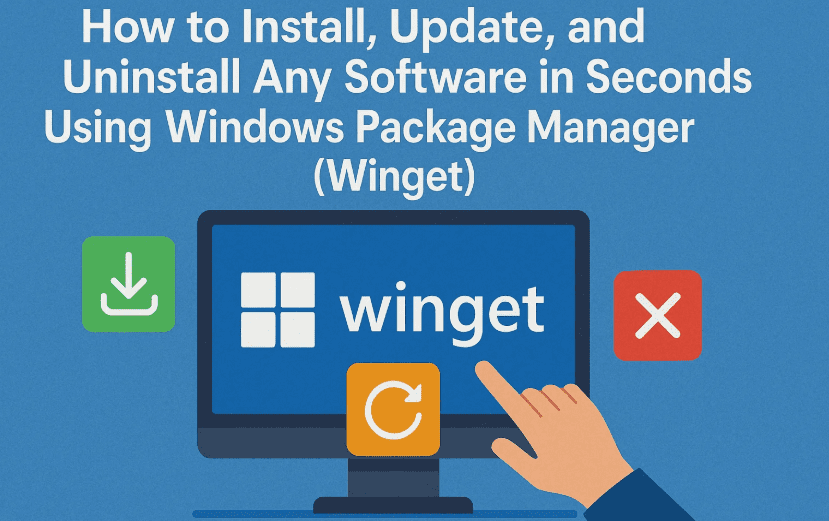
Winget is Microsoft’s official package manager for Windows. It allows you to:
- Install software in seconds via commands.
- Update all apps at once with a single command.
- Uninstall any software easily, even those with no shortcuts in your Start Menu.
- Search and explore thousands of applications in the public software repository.
It’s like apt-get on Linux or Homebrew on macOS—but for Windows users.
✅ You must be on Windows 10 1809 or later or Windows 11 to use Winget.
🔍 Step 1: Check If Winget is Already Installed
Let’s start by checking if Winget is available on your system.
🖥️ Open Command Prompt or PowerShell and type:
winget
If installed, you’ll see a help message listing all Winget command options. If not, no worries—you can get it easily.
📥 Download Link:
You can download App Installer (includes Winget) directly from Microsoft Store:
👉 https://apps.microsoft.com/store/detail/app-installer/9NBLGGH4NNS1
Once installed, you’re ready to go!
🔎 Step 2: Search for Software to Install
Now let’s say you want to install the Brave Browser. First, we’ll search for it.


Run:
winget search brave
This will return multiple entries, but we’re interested in the one with ID: Brave.Brave.
What is this ID?
It’s a unique identifier used by Winget to install the correct app. Always use the ID for accuracy.
💾 Step 3: Install Software Using Winget
Now that we have the app ID, let’s install Brave.
winget install --id Brave.Brave
You’ll see Winget downloading the installer and silently installing Brave without any manual clicks.
✅ Once installed, you can launch Brave just like any other app from your Start menu.
📋 Step 4: View All Installed Software
Curious to see what’s already installed on your PC? Winget can list it for you.
Run:
winget list
This will show a list of installed software, including their version numbers and Winget IDs.
📝 You’ll also see apps like Microsoft Teams, Chrome, VLC, Streamlabs, etc.—whatever’s on your system.
🔄 Step 5: Update Your Software via Winget
Ready to update your apps? You don’t need to open multiple installers or go to different websites anymore.
To check which apps need an update:
winget upgrade
Winget will show a list of all apps with available updates, including:
- Current version
- Available version
To update one specific app (e.g., Microsoft Teams):
winget upgrade --id Microsoft.Teams
To upgrade all updatable software at once:
winget upgrade --all
⚠️ Caution: Use --all only when you’re ready. It may close running apps to complete updates.
❌ Step 6: Uninstall Any App Using Winget
Now, let’s learn how to uninstall an app the same easy way.
First, find the app ID using:
winget list
Let’s say you want to remove a Brother Printer utility called Brother Print&Scan.
Find its ID (e.g., Brother.PrintScan) and use:
winget uninstall --id Brother.PrintScan
Some apps may open a standard uninstaller GUI where you need to click “Next,” while others will silently uninstall.
🔁 Summary of Useful Winget Commands
Here’s a quick recap of the essential commands:
| Task | Command |
|---|---|
| Check Winget availability | winget |
| Search for software | winget search <app-name> |
| Install an app | winget install --id <app-id> |
| List all installed apps | winget list |
| Check for updates | winget upgrade |
| Update a specific app | winget upgrade --id <app-id> |
| Update all apps | winget upgrade --all |
| Uninstall an app | winget uninstall --id <app-id> |
❓ FAQs About Winget
Q1. Is Winget safe to use?
Yes. It’s a Microsoft tool and uses trusted sources like GitHub, Microsoft Store, and developer websites.
Q2. Can I use Winget in scripts or automation?
Absolutely. Winget is great for IT admins and power users who want to automate app setup or maintenance.
Q3. Does it support third-party apps like Chrome, Zoom, or VLC?
Yes! The Winget community repository includes thousands of popular apps.
Q4. What if Winget doesn’t find the app I want?
Make sure you’re searching with the right keyword. You can also browse the Winget package repository here:
👉 https://github.com/microsoft/winget-pkgs
📌 Final Thoughts
So far, we’ve done a pretty solid job learning how to make software management painless on Windows using Winget. Whether you’re installing a new browser, updating Teams, or uninstalling bloatware—Winget makes your life easier and faster.
No more manual downloads. No more tedious setups. Just clean, fast, and efficient command-line control.
🏷️ Tags & Hashtags
Tags: winget tutorial, windows package manager, install software cmd, uninstall apps cmd, windows automation, command line tools, brave browser installation, windows software updater
Hashtags:
#Winget #Windows10 #Windows11 #CommandLine #InstallSoftware #UpdateApps #UninstallPrograms #ProductivityTools #MicrosoftWinget #TechTips








