If you’re looking to install Ubuntu Linux 2025 on your PC or laptop, you’re at the right place! This article will guide you through the entire process, from downloading Ubuntu to creating a bootable USB drive and completing the installation – all explained clearly and simply.
Let’s dive right in!
Step 1: Download Ubuntu Linux 2025
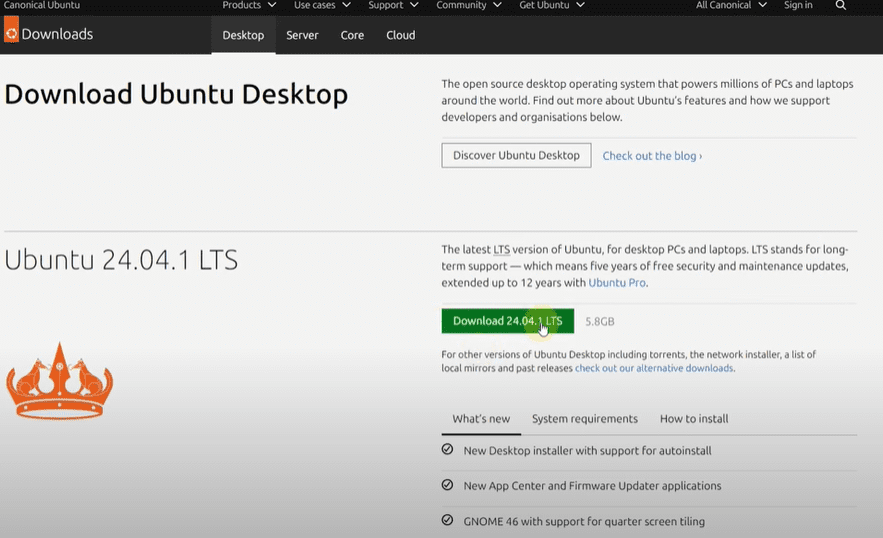
First, visit the official Ubuntu website: ubuntu.com.
- Navigate to the Download section.
- Click on Download Ubuntu Desktop.
- Choose the latest version, and click on the Download button.
- The file size will be around several gigabytes, so make sure you have a stable internet connection.
Once downloaded, this ISO file will be used to create a bootable installation USB.
Step 2: Download Rufus Tool
Next, download the Rufus software, which helps create a bootable USB:
- Visit the official Rufus website.
- Download the latest version of Rufus (around 1MB file size).
- Rufus will help you easily transfer the Ubuntu ISO to your USB drive.
Step 3: Prepare a USB Drive
You will need a USB drive with at least 8GB of space.
- Insert the USB into your PC.
- Make sure to backup any important data, as the USB will be formatted during the process.
Step 4: Create a Bootable USB with Rufus
- Open Rufus.
- In the Device section, select your inserted USB drive.
- Click on SELECT and browse to locate the downloaded Ubuntu ISO file.
- Before proceeding, check your system’s partition style:
- Right-click Start > Disk Management.
- Right-click your system disk (usually “C:”), select Properties, go to Volumes, and check if the partition style is GPT or MBR.
- Based on your partition style:
- Select GPT if it says GPT.
- Select MBR if it says MBR.
- Keep the other settings at default and click START.
- Choose “Write in ISO Image Mode” and click OK.
- The process will take a few minutes. Once complete, you will have a bootable Ubuntu installation USB.

Step 5: Boot from the USB
Now it’s time to install Ubuntu:
- Shut down your PC.
- Power it on and immediately start pressing your Boot Menu Key (varies by brand – e.g., F9, F12, Esc, etc.).
- From the Boot Menu, select your USB drive.
If you’re unsure how to access the Boot Menu on your PC, refer to your device manual or look up the key online.
Step 6: Install Ubuntu Linux 2025
- After booting, choose your preferred language (for example, English (US)).
- Click Next.
- Connect to the internet if possible. Otherwise, you can continue offline.
- Choose Install Ubuntu and continue.
- Select Normal Installation and proceed.
- When asked about third-party software (for graphics, Wi-Fi hardware, etc.), you can tick the option if you’re connected to the internet for automatic driver installation.
- In installation type:
- Choose Erase disk and install Ubuntu (this will clean your drive and install Ubuntu).
- Warning: Make sure you have backed up important data if choosing this.
- Set up your region/location.
- Create your Username, Computer Name, and Password.
- Click Next, and installation will start.
The installation might take around 30 minutes depending on your system.
Step 7: Finishing Touches
Once installation is complete:
- You will see a prompt: “Please remove installation media and press Enter”.
- Remove your USB drive and press Enter.
- Log in with your newly created username and password.
- You will now see the beautiful Ubuntu Linux 2025 desktop!
You can also customize your desktop layout, move the taskbar, and set wallpapers according to your preference.






Conclusion
That’s it! You’ve successfully installed Ubuntu Linux 2025 on your PC or laptop. Ubuntu offers a clean, fast, and flexible operating system experience perfect for both beginners and advanced users.
Give it a try and explore all the awesome features that Ubuntu Linux 2025 has to offer!
Tags:
Ubuntu, Ubuntu Installation, Ubuntu Linux, Linux Installation, How to Install Ubuntu, Bootable USB, Rufus Bootable Drive, Ubuntu Boot Menu, Ubuntu 2025 Installation, Ubuntu Tutorial
Hashtags:
#Ubuntu #UbuntuLinux #LinuxInstallation #BootableUSB #UbuntuTutorial #UbuntuGuide #TechTips #Linux #OpenSource #Ubuntu2025








