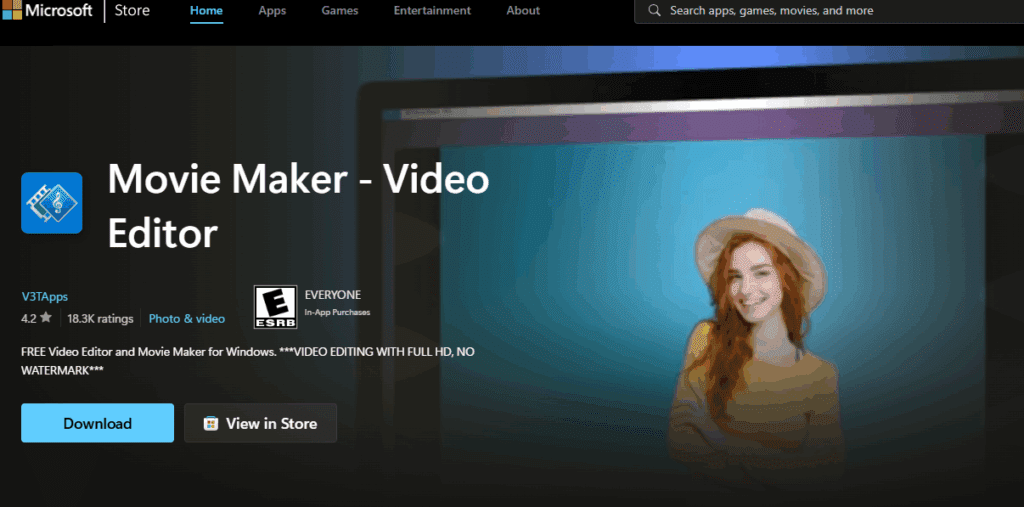
If you’ve been feeling nostalgic about the good old days of video editing with the classic Windows Movie Maker, you’re not alone. While Microsoft officially discontinued Movie Maker years ago, it’s still possible to install and use it on modern versions of Windows—including Windows 11 (23H2).
This article walks you through how to safely install the original Windows Movie Maker on Windows 11 using the official and legitimate Windows Essentials 2012 setup. Whether you’re a beginner or just prefer the simplicity of the classic interface, this guide will get you up and running in no time.
✅ What You’ll Need
- A PC running Windows 11, version 23H2
- A working internet connection
- Administrative privileges on your computer
- The Windows Essentials 2012 installer (available from trusted sources)
- .NET Framework 3.5 enabled or installed
🔽 Step 1: Download Windows Essentials 2012
- Open your browser and search for “Windows Essentials 2012 offline installer.”
- Locate a safe and verified source to download the official setup file. (This is the original package that includes Movie Maker.)
- Download the installer to your system.
⚙️ Step 2: Install .NET Framework 3.5
Before installing Windows Movie Maker, you’ll need to enable .NET Framework 3.5, which is required for Windows Essentials to function properly.
Here’s how to install it:
- Press Windows + S, type “Windows Features”, and select “Turn Windows features on or off”.
- Check the box next to “.NET Framework 3.5 (includes .NET 2.0 and 3.0)”.
- Click OK, and let Windows download and install the necessary files.
Alternatively, if this doesn’t work or throws an error, download the .NET Framework 3.5 installer from the official Microsoft website and install it manually.
💻 Step 3: Install Windows Movie Maker
- Once .NET Framework 3.5 is installed, right-click on the downloaded Windows Essentials 2012 setup file and select “Run as administrator.”
- If prompted, allow administrator access.
- When the installation window appears, choose “Choose the programs you want to install.”
- Deselect all options except Photo Gallery and Movie Maker.
- Proceed with the installation by clicking Install.
The setup will take a few minutes to complete. Once it’s done, you’ll see Movie Maker listed in your Start menu or Windows search.
🎬 Step 4: Launch and Use Movie Maker on Windows 11
After installation, open Movie Maker and test it out:
- Import a video clip and try basic editing tasks like trimming, adding text, and transitions.
- Movie Maker should function normally, even on Windows 11 23H2, despite being originally developed for older systems.
📝 Note: This is a legacy application, so performance might vary depending on your hardware. Still, it works remarkably well for basic video editing tasks.
🎥 Alternatives: Use Clipchamp for Modern Features
If you’re looking for a more modern video editing experience, Windows 11 comes preinstalled with Clipchamp, Microsoft’s new cloud-based editor:
- It supports drag-and-drop editing, stock media, effects, and export options.
- You can launch Clipchamp directly from the Start menu and start editing with modern tools.
While Movie Maker is great for quick and nostalgic projects, Clipchamp is better suited for higher-quality videos with more features.
👍 Final Thoughts
Installing the classic Windows Movie Maker on Windows 11 is not only possible—it’s surprisingly easy with the right steps. Whether you’re looking to edit a simple video or just revisit the past, this setup brings back a familiar, user-friendly experience. It’s an excellent tool for beginners, casual editors, or those who prefer a lightweight editing tool over modern, complex alternatives.
Tags: windows movie maker, install movie maker, windows 11 movie maker, windows essentials 2012, movie maker setup, .net framework 3.5, video editing windows, legacy software windows 11, install old apps windows, clipchamp alternative








Hashtags:
#Windows11 #MovieMaker #VideoEditing #WindowsEssentials #ClassicSoftware #InstallMovieMaker #Clipchamp #WindowsTips #VideoTools #LegacyApps








