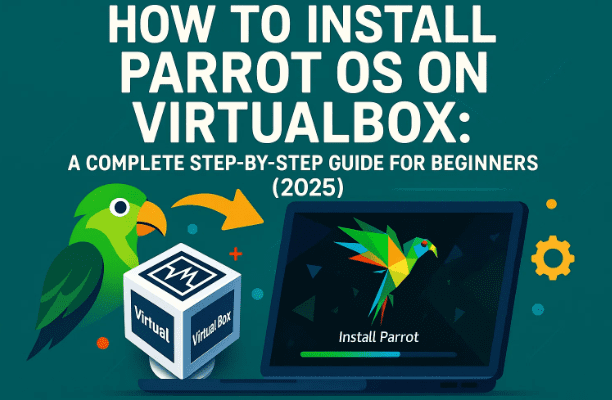
If you’ve ever wanted to learn ethical hacking, penetration testing, or just explore a secure Linux environment without affecting your main system, then Parrot OS is a great place to start.
Developed by Parrot Security, this operating system is designed especially for cybersecurity professionals, ethical hackers, and digital privacy enthusiasts. And the best part? You can install it safely inside a VirtualBox virtual machine — meaning your experiments won’t affect your main computer at all.
In this guide, we’ll walk through every step — from downloading Parrot OS to setting it up on VirtualBox — with detailed explanations, extra context, and helpful tips to get you started confidently.
🦜 What Is Parrot OS and Why Use It?
Before jumping into installation, let’s understand what makes Parrot OS so special.
Parrot Security OS is a Debian-based Linux distribution built for cybersecurity, privacy, and development. It comes preloaded with hundreds of tools used for:
- Penetration testing
- Digital forensics
- Vulnerability analysis
- Reverse engineering
- Anonymous browsing
It’s similar to Kali Linux but with more emphasis on anonymity and resource efficiency, making it ideal for both learners and professionals.
You can visit the official website here: https://www.parrotsec.org/
💻 What Is VirtualBox and Why You Need It
Before installing Parrot OS, you need a way to run it without replacing your main operating system. That’s where VirtualBox comes in.
VirtualBox (developed by Oracle) is a free, open-source virtualization software that allows you to create and run virtual machines — essentially, computers inside your computer.
🧠 Here’s the idea:
- Your physical computer = Host machine
- The virtual machine running Parrot OS = Guest system
Anything that happens inside this virtual machine (like testing exploits or tools) stays safely contained, without touching your main system.
You can download VirtualBox from its official site:
👉 https://www.virtualbox.org/









📥 Step 1: Download Parrot OS (Virtual Image)
Let’s start by downloading the correct version of Parrot OS.
- Open Google and type “Parrot OS”.
- Click the link for Parrot Security — the official website.
- On the homepage, click Download.
- You’ll see three categories:
- Live – for direct booting from USB
- Virtual – for VirtualBox/VMware users
- IoT – for lightweight embedded devices
Since we’re installing it inside VirtualBox, select Virtual.
Next, you’ll see two main versions:
- Security Edition: Includes all penetration-testing and forensic tools.
- Home Edition: For regular privacy-focused use.
If you’re interested in ethical hacking or security learning, choose Security Edition.
Now you’ll see download options for:
- AMD64 (x86_64) – for Intel or AMD 64-bit PCs
- ARM – for Apple Silicon or Raspberry Pi devices
Most Windows and Linux users should select AMD64.
Once you click it, the .ova (Open Virtual Appliance) file will start downloading — for example:Parrot-security-6.0.ova
This OVA file contains a pre-built virtual machine image, meaning you won’t have to install Parrot manually; everything is ready to run.
🧰 Step 2: Download and Install VirtualBox
While Parrot OS downloads, let’s get VirtualBox installed.
- Go to the official VirtualBox website → https://www.virtualbox.org/wiki/Downloads
- Under VirtualBox platform packages, choose your system:
- Windows hosts if you’re on Windows
- macOS hosts for Mac users
- Linux distributions if you’re already using Linux
- Once the installer downloads, double-click it and follow the setup steps:
- Click Next several times
- Accept the license agreement
- Keep default options checked
- Click Install
After installation, open VirtualBox. You’re now ready to import the Parrot OS image.
🗂️ Step 3: Import the Parrot OS Image into VirtualBox
By now, your Parrot OS .ova file should be downloaded. This file is a complete virtual machine configuration — all you need to do is import it.
Here’s how:
- Open File Explorer and locate your downloaded
.ovafile. - Double-click it. VirtualBox will automatically open the Import Virtual Appliance window.
- Review the settings (CPU, RAM, storage, etc.).
- Click Import.
VirtualBox will now unpack and register your Parrot OS virtual machine. This process might take a few minutes.
Once complete, you’ll see Parrot-Security-6.0 (or similar) listed in the left pane of VirtualBox.
⚙️ Step 4: Adjust Virtual Machine Settings (Optional but Recommended)
Before you power it on, let’s optimize a few settings.
Right-click on Parrot OS in VirtualBox → choose Settings.
Recommended adjustments:
- System → Base Memory:
Increase to 4096 MB (4 GB) or more for smoother performance. - Processor:
Set at least 2 CPU cores if available. - Display → Video Memory:
Increase to 128 MB and enable 3D acceleration. - Network:
Choose Bridged Adapter for direct network access, or NAT for basic connectivity.
These tweaks help Parrot OS run faster and more fluidly inside your virtual machine.
Click OK to save.
▶️ Step 5: Start Parrot OS and Log In
Now comes the exciting part — launching Parrot OS!
- In VirtualBox, select Parrot-Security-6.0.
- Click Start.
- Wait a few moments while the system boots.
When prompted for login:
- Username:
parrot - Password:
parrot
This is the default credential for Parrot’s virtual machine images.
After login, you’ll be greeted with the sleek Parrot OS desktop environment. You now have a fully functional, isolated hacking lab running right inside your computer!
🖥️ Step 6: Fix Full-Screen Display in Parrot OS
By default, your virtual machine might not occupy the full screen. Let’s fix that.
- Inside Parrot OS, go to the top menu bar → System → Preferences → Hardware → Displays.
- Under Resolution, select 1920×1080 (or your monitor’s native resolution).
- Click Apply, then Keep this configuration.
You now have a full-screen Parrot OS desktop experience.
If it still doesn’t scale correctly, install the VirtualBox Guest Additions from the VirtualBox menu (Devices → Insert Guest Additions CD Image). This adds better drivers for display, mouse, and clipboard sharing.
🔄 Step 7: Update System Packages
Before using any security tools, always update the system to ensure you have the latest patches.
Open a terminal inside Parrot OS and type:
sudo apt update && sudo apt upgrade -y
When prompted for a password, enter parrot.
This will fetch the latest packages and security updates from Parrot’s official repositories.
Depending on your internet speed, the process might take a few minutes.
🧑💻 Step 8: Start Ethical Hacking Practice
Congratulations — you now have Parrot OS running safely on your computer!
Inside Parrot OS, explore the Penetration Testing menu to discover pre-installed tools like:
- Metasploit Framework – for exploit testing
- Nmap – for network scanning
- SQLMap – for database vulnerability detection
- Aircrack-ng – for Wi-Fi security analysis
- Burp Suite Community Edition – for web testing
- Hydra – for password brute forcing
These tools are widely used in professional cybersecurity environments.
You can also connect to learning platforms like Hack The Box, TryHackMe, or practice Capture-The-Flag (CTF) challenges right within your VM.
💬 Frequently Asked Questions (FAQ)
Q1: Is Parrot OS safe to install on my main computer?
A: Yes, but it’s safer to use it in a virtual machine first. That way, any mistakes or malware tests won’t affect your actual system.
Q2: What’s the difference between Parrot OS and Kali Linux?
A: Both are penetration-testing Linux distributions. Parrot focuses more on privacy, encryption, and resource optimization, while Kali targets professional penetration testing environments.
Q3: What are the default Parrot OS login credentials?
A: For the VirtualBox image —
Username: parrot
Password: parrot.
Q4: My screen is too small in VirtualBox. How do I fix it?
A: Install VirtualBox Guest Additions or manually adjust display settings to your monitor’s resolution.
Q5: Can I connect Parrot OS to Wi-Fi?
A: VirtualBox connects through your host system’s network adapter. If your main computer has Wi-Fi, your VM can access the internet using the same connection.
Q6: Is this legal to use for hacking?
A: Parrot OS is meant for ethical hacking and learning cybersecurity. Always use it in controlled environments or with permission.
🏁 Conclusion: Your Safe Cybersecurity Lab Is Ready
You’ve successfully set up Parrot Security OS inside VirtualBox — a secure, virtual hacking environment that runs right on your desktop.
From scanning networks to learning ethical hacking tools, you can now explore safely without risking your main system.
This setup gives you the freedom to:
- Experiment with cybersecurity tools
- Learn Linux commands
- Practice safe penetration testing
- Build real-world hacking skills
The key takeaway?
Virtualization = safety + flexibility.
Keep your system updated, stay ethical, and continue exploring the fascinating world of cybersecurity — one command at a time.
#ParrotOS #VirtualBox #CyberSecurity #EthicalHacking #Linux #PenTesting #VirtualMachine #ParrotSecurity #HackingTools #InfoSec
Disclaimer:
This guide is intended for educational purposes only. Always perform penetration testing and security research in authorized environments. Download software only from official sources — Parrot Security and VirtualBox. Unauthorized or malicious use of these tools may violate laws and terms of service.








