Boost Your Gaming and Graphics Performance with This Step-by-Step AMD Driver Guide
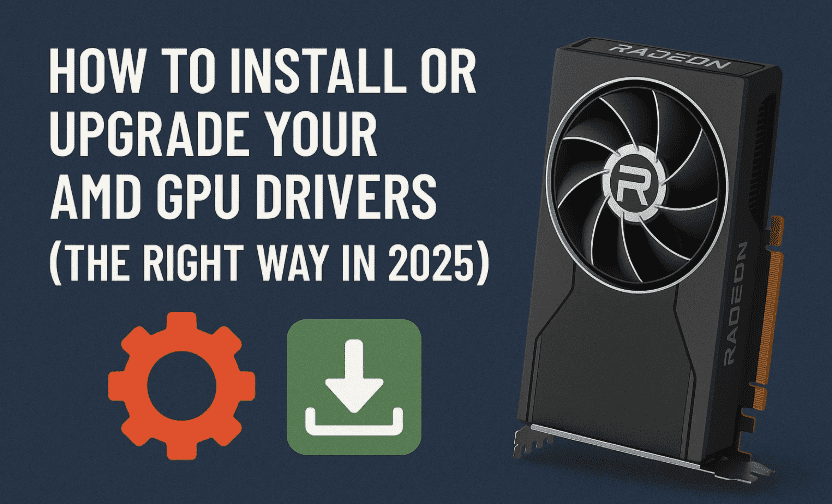
Keeping your AMD GPU drivers up to date is one of the easiest ways to enhance your system’s performance, stability, and compatibility — whether you’re a gamer, video editor, or casual PC user. In this detailed guide, we’ll walk you through each step of the AMD driver installation or upgrade process using AMD’s official tools.
We’re not skipping any steps here — from selecting the right driver to configuring AMD Adrenalin Software. So grab a cup of coffee, and let’s do this right!
🔧 Step 1: Visit AMD’s Official Driver Download Page
First things first, we need to download the correct drivers. Avoid third-party sites — always get your drivers from AMD’s official website to ensure safety and compatibility.
👉 Go to: https://www.amd.com/en/support
Here’s what you’ll do:
- Open your browser.
- Type the AMD support URL or just Google “AMD GPU drivers”.
- Click on “Drivers & Support” from the main navigation menu.
This will take you to the official AMD Driver & Support page.
🕵️ Step 2: Choose the Right Driver for Your GPU
Now that you’re on the right page, it’s time to get the correct driver.
You have two options:
Option A: Use AMD Auto-Detect Tool (Recommended for Beginners)
If you’re unsure about your GPU model, this is the best way to go.
- Click “Download Windows Drivers” under the “Auto-Detect and Install” section.
- This tool will automatically:
- Identify your AMD GPU or integrated graphics (like Ryzen APU).
- Recommend the correct driver.
- Guide you through the installation.
📌 Tip: This tool also works for AMD CPU drivers (e.g., Ryzen chipsets) if applicable.




Option B: Manual Driver Selection
If you already know your GPU model (like Radeon RX 6700 XT or RX 580):
- Scroll down and select your GPU manually from the dropdown list.
- Choose the appropriate driver version and download it directly.
📥 Step 3: Run the AMD Auto-Detect Tool
Once downloaded, follow these steps to begin the installation:
- Go to your Downloads folder.
- Double-click the downloaded
.exefile (likely namedAMDSoftwareInstaller.exe). - Click “Yes” if Windows asks for permission.
The AMD Installer will now scan your system to:
- Detect your exact GPU and CPU.
- Check for current driver status.
- Recommend whether to upgrade, reinstall, or perform a clean install.
🛠️ Step 4: Customize Your Installation
So far, so good — now let’s customize the install.
When the installer gives you the driver info:
- Click “Additional Options” if available.
- Here you can choose between:
🔹 Default Installation (Recommended):
- Installs AMD Adrenalin Software along with your drivers.
- Best for gamers and users who want tuning and overlay features.
🔹 Driver-Only Installation:
- Installs only the driver files.
- Ideal if you don’t want the extra software or have limited storage.
🔹 Factory Reset (Optional but Useful):
- Wipes previous driver settings and files.
- Recommended if you’ve had problems with older installations or are switching from NVIDIA.
✅ Final Step in This Phase:
- Choose your installation path (or leave it default).
- Click “Accept and Install” to begin.
The installer will now:
- Download required files.
- Install or update the driver.
- You may notice your screen flicker or change resolution — that’s normal.
⏱️ This process may take several minutes depending on your internet and hardware.
🔄 Step 5: Restart Your PC
Once the installation completes:
- You’ll be prompted to Restart your computer.
- Click Start Menu → Power → Restart.
This ensures all driver services and system-level changes are applied correctly.
✅ Step 6: Verify the Driver Installation
Once your PC is back on, let’s make sure everything went well.
- Right-click on the desktop.
- Select “AMD Software: Adrenalin Edition”.
Inside the software:
- Go to the top-right corner.
- Check the driver version and status.
If it says “Your drivers are up to date” — congratulations! Your AMD GPU is now fully updated and ready to roll.
🎮 Step 7: Explore AMD Adrenalin Software (Optional But Powerful)
Now comes the fun part — using AMD’s control center to optimize your experience.
Here’s what you can do with AMD Adrenalin:
- Gaming Tab:
Optimize specific games, apply custom performance profiles, monitor FPS, and more. - Performance Tab:
Track GPU temperature, clock speed, and fan RPM. Ideal for overclockers or power users. - Driver Updates:
Automatically check for driver updates directly from the app.
📝 We’ll be covering advanced Adrenalin settings in a future article — stay tuned if you want to unlock even more power from your AMD GPU!
❓ Frequently Asked Questions (FAQ)
Q: What if I have an NVIDIA GPU?
A: This guide is specifically for AMD. If you use NVIDIA, refer to their GeForce Experience software.
Q: Do I need to uninstall old AMD drivers manually?
A: Not usually. The installer handles it, but you can choose Factory Reset to ensure a clean slate.
Q: Why is my screen flickering during install?
A: It’s perfectly normal — the old driver is being unloaded and the new one applied.
Q: Can I use AMD Adrenalin to overclock my GPU?
A: Yes, it includes overclocking features. Just proceed cautiously and monitor temperatures.
⚠️ Disclaimer
This tutorial is intended for updating AMD desktop or laptop GPU drivers on Windows systems. Always back up important data before making system-level changes. Ensure you download drivers only from AMD’s official site.
🚀 Final Thoughts
Updating your AMD GPU drivers doesn’t have to be complicated. Whether you’re a seasoned builder or a beginner learning the ropes, AMD’s tools make the process simple, safe, and efficient.
From better gaming performance to improved system stability, keeping your drivers current is a must-do maintenance task. And now that you’ve done it right — you can enjoy smoother gameplay, higher framerates, and fewer crashes.
Tags: AMD GPU driver update, Radeon RX drivers, AMD Adrenalin setup, AMD auto detect tool, graphics card optimization, Windows GPU drivers, AMD installer tutorial
Hashtags:
#AMDGPU #AdrenalinEdition #GPUDrivers #PCGaming #AMDRadeon #TechTips #DriverUpdate #Windows11 #RadeonRX #dtptips







