The Apple Silicon revolution—from M1 to M4—has brought massive performance and efficiency gains, but for Linux enthusiasts and developers, there’s one recurring question:
Can I run Ubuntu natively or in a virtual environment on my M-series Mac with GPU acceleration?
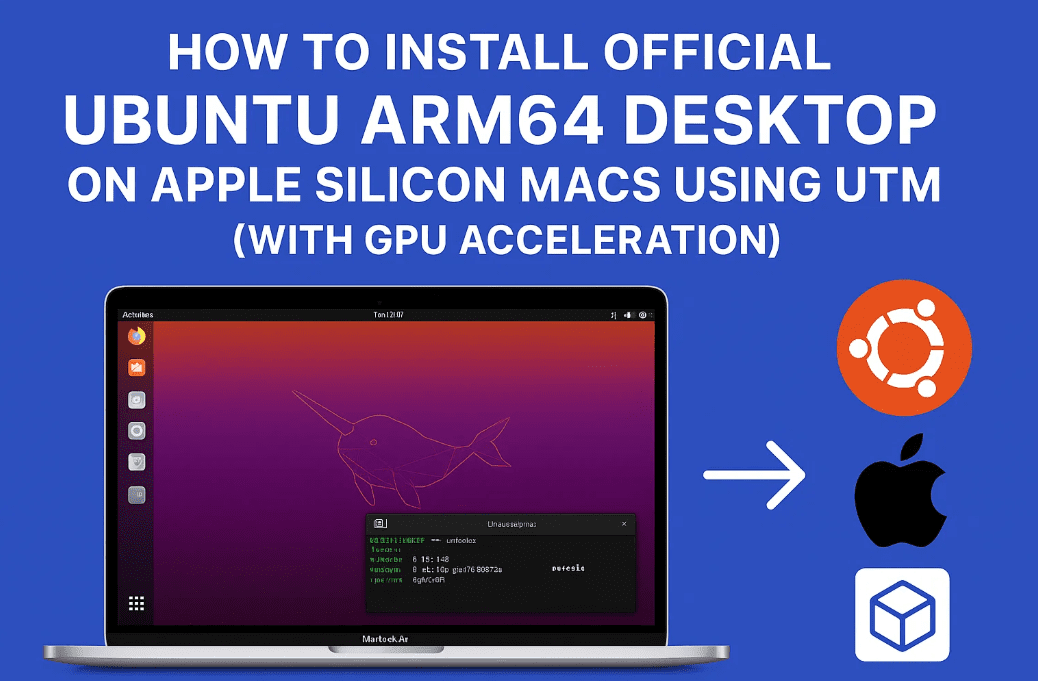
The answer is yes—with the help of UTM, a free virtual machine tool built for Apple Silicon, you can easily install and run Ubuntu ARM64 Desktop Edition on any Apple Silicon Mac—including M1, M2, M3, and M4.
This detailed guide will walk you through every step of setting up Ubuntu using UTM, including enabling GPU acceleration for a smooth and crisp desktop experience. We’ll also cover optional tips like Retina Mode scaling, UI fixes, and how to remove the VM when you’re done.
Let’s get started.
🧰 Prerequisites: What You’ll Need Before Installing
Before diving into the installation, make sure your system meets the following requirements:
- Apple Silicon Mac (M1, M2, M3, M4 – MacBook Air, Pro, Mac Mini, iMac, or Studio)
- Minimum 50GB free disk space
- A stable internet connection for downloading files
- Familiarity with basic macOS operations like mounting a DMG or accessing the Applications folder
Now, let’s break down the tools you’ll need.
1. Download Ubuntu ARM64 ISO
- Visit the official Ubuntu releases page:
🔗 https://ubuntu.com/download/desktop/arm - Download the latest ARM64 ISO (e.g., Ubuntu 25.04 at the time of writing).
2. Download UTM for macOS
- Go to the official UTM website:
🔗 https://mac.getutm.app - Download the latest DMG file.
Once both files are downloaded, move them to an easily accessible location like your Downloads or Desktop folder.
📦 Step-by-Step: Installing Ubuntu ARM64 in UTM
Let’s now move through the installation process.
Step 1: Install the UTM App
- Double-click the downloaded
.dmgfile for UTM. - Drag the UTM icon into your Applications folder.
- Open UTM from Launchpad or Applications.
You should now see the clean, minimal UTM interface.
Step 2: Create a New Virtual Machine (VM)
- Click the “+” button to start creating a new VM.
- When prompted, choose “Virtualize” (not Emulate) since Apple Silicon uses ARM architecture.
- Select “Linux” from the list of OS options.
- Click Browse and load the Ubuntu ARM64 ISO file you downloaded earlier.
Step 3: Configure the VM Hardware
Before continuing, let’s fine-tune some hardware settings. For a smooth experience:




- RAM: Allocate at least 4GB
- CPU Cores: Assign 4 cores (or more if your Mac has resources to spare)
- Storage: Set at least 30GB, preferably 50GB for comfortable space
- Directory Sharing: You can skip this for now
Once configured, name your VM something like Ubuntu ARM64 and click Save.
Step 4: Adjust Display Settings for GPU Acceleration
Now that the VM is created:
- Click on your newly created VM in the left sidebar
- Press the Settings icon (gear icon at top-right)
- Go to the Display section
- Ensure GPU emulation is enabled
- Enable “Resize display to window size”
- Optionally, increase the disk space using VirtIO drive if needed
- Click Save to confirm the settings
🖥️ Step 5: Install Ubuntu ARM64 in the Virtual Machine
Let’s boot the virtual machine and start the Ubuntu installation.
- Click the Play button to start the VM
- Click inside the VM window to interact with it Tip: Your mouse may get captured inside the VM—press
Ctrl + Optionto release it
Installing Ubuntu:
- Choose the first boot option in the list and press Return
- Ubuntu installer will now load
- Select your system language, then click Next
- Skip accessibility settings (unless needed)
- Choose a keyboard layout and proceed
- Leave the internet connection as “Wired” (default setting is fine)
- Choose Install Ubuntu
- Select Interactive Installation
Step 6: Customize App Packages and Drivers
- On the Apps page, you’ll be given two choices:
- Default Selection: Installs essential apps only
- Extended Selection: Includes more apps like LibreOffice, Thunderbird, etc.
Choose the Extended Selection for a more complete desktop experience.
- Tick both checkboxes to install recommended drivers and optimizations
- For installation type, select “Erase Disk” and continue
- Set up:
- Username
- Password
- Time Zone
Click Next, review the summary, and finally click Install Ubuntu.
This will take a few minutes—be patient.
Step 7: Restart and Unmount the Ubuntu ISO
After installation is complete:
- Click Restart when prompted
- Return to the UTM interface
- Select the Ubuntu VM > Click CD/DVD icon
- Choose “Clear” to unmount the Ubuntu ISO
Back in the VM, press Enter to boot into your fresh Ubuntu system.
🖼️ Step 8: Enable GPU Acceleration with Retina Mode
If the UI elements appear blurry or pixelated, don’t worry—it’s easy to fix.
Here’s how to enable Retina Mode and improve display clarity:
- Shut down the Ubuntu VM
- In UTM, go to VM Settings > Display
- Enable Retina Mode
- Save and reboot the VM
Once Ubuntu boots:
- Go to Settings > Display
- Set Scaling to 200% for best text and icon sharpness
Now, your UI should look crisp, smooth, and high-resolution—perfect for development and daily tasks.
⚙️ Performance and Use Case Insights
With GPU acceleration enabled, you’ll enjoy a nearly native-like Ubuntu experience on your Apple Silicon Mac.
Ideal for:
- Web browsing
- Document creation
- Python/C++/Java development
- Linux terminal work
- Git-based workflows
- Testing apps or Linux tools in isolation
Thanks to Apple’s powerful M-series architecture, even lightweight Macs like the M1 MacBook Air can run Ubuntu smoothly inside UTM.
❗ Troubleshooting Tips
- If GPU acceleration causes visual glitches, you can:
- Switch back to default display card
- Disable Retina Mode for improved stability
- If installation fails:
- Ensure you downloaded the ARM64 version of Ubuntu
- Make sure Virtualize was selected, not Emulate
🧼 Bonus: How to Delete the Ubuntu VM (If Needed)
If you no longer wish to use the Ubuntu VM:
- Ensure the VM is shut down
- Open UTM’s main interface
- Right-click on the VM
- Select “Delete”
This will remove all associated files and reclaim the storage space.
❓ Frequently Asked Questions
Q1: Can I install other Linux distributions using UTM?
Yes! You can install other ARM-compatible Linux distros like Fedora, Debian, Arch, or even lightweight variants like Xubuntu—just be sure to download the ARM64 ISO.
Q2: Can I dual-boot Ubuntu on Apple Silicon?
As of now, dual-booting is not officially supported on Apple Silicon. Using UTM is the safest and most compatible way to run Linux.
Q3: Will this affect my macOS or data?
No. UTM runs completely in a sandboxed virtual machine. It won’t touch your macOS files or partitions.
🧠 Final Thoughts: The Best Way to Experience Ubuntu on Apple Silicon
With tools like UTM, Linux on Apple Silicon has gone from “experimental” to “practical.” Whether you’re a developer, student, or just curious about Linux, this method provides a safe, easy, and optimized environment for learning and productivity.
The ability to allocate resources, enable GPU acceleration, and resize the display to match your workflow makes this setup surprisingly robust.
🔖 Tags:
ubuntu on mac, ubuntu arm64 install, utm virtual machine, apple silicon vm, linux on mac m1, m2 mac ubuntu, utm gpu acceleration, retina mode linux, ubuntu virtualize macos, ubuntu m4 mac
📢 Hashtags:
#UbuntuOnMac #AppleSilicon #UTMVirtualMachine #LinuxOnM1 #MacM2Ubuntu #ARM64Linux #GPUAcceleration #RetinaMode #LinuxOnMacOS #UbuntuARM
Disclaimer:
This tutorial is based on publicly available methods using UTM and Ubuntu ISO files. Always download software from official sources. Virtualization performance may vary based on your specific Mac model and macOS version. This guide is for educational purposes.








