If you are facing display issues, performance drops, or need to update your system’s graphics drivers, you’re in the right place. In this article, we’ll guide you through three easy methods to install or update your NVIDIA graphics drivers on Windows 11 or later. Whether you want a manual approach or an automatic tool, we have covered everything step-by-step.
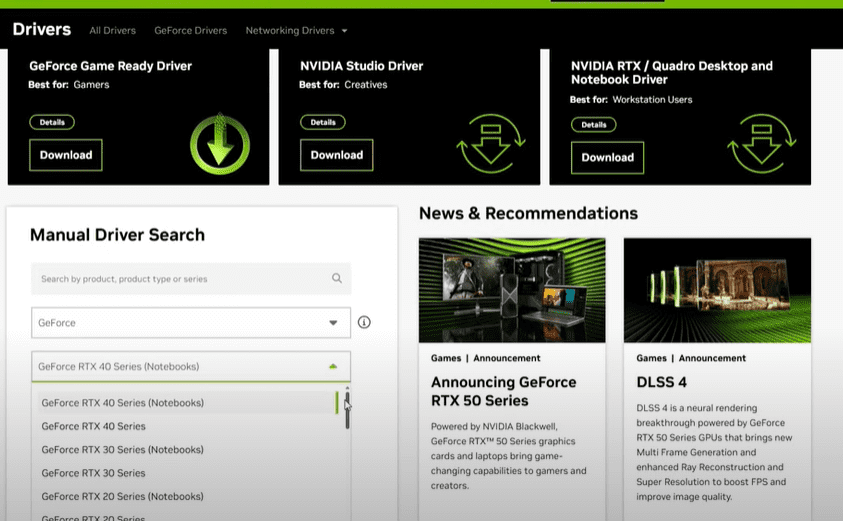
Method 1: Manually Download and Install from the Official NVIDIA Website
The most reliable method to install your NVIDIA graphics driver is by downloading it directly from the official NVIDIA website. Here’s how you can do it:
- Open your web browser.
- Go to the official NVIDIA website: www.nvidia.com.
- Navigate to the “Drivers” section.
- Click on “Manual Driver Search”.
- Now, you’ll need to select the following details:
- Product Type (e.g., GeForce, Quadro, etc.)
- Product Series (e.g., GeForce GT, RTX series)
- Product (e.g., GeForce GT 710)
- Operating System (e.g., Windows 11)
- Once selected, click on the “Search” button.
- A list of available drivers will appear. Choose the latest version.
- Click “Download” and once downloaded, open and install the driver.
- After installation, your graphics settings will improve, and you will also get the NVIDIA Control Panel when you right-click on your desktop.
Tip: Always ensure you select the correct graphics card model and operating system to avoid compatibility issues.
Method 2: Using a Driver Updater Tool (Automatic Method)
If you prefer an easier, automated solution, you can use a driver updater tool. One highly recommended tool is AVG Driver Updater. Here’s the process:
- Open your web browser.
- Search for “AVG Driver Updater”.
- Visit the official AVG website and download the tool.
- Install the AVG Driver Updater on your PC.
- Open the tool and click on “Scan Drivers”.
- The tool will scan your system for missing, outdated, or faulty drivers.
- It will list all drivers, including your graphics drivers.
- Select only the drivers you need (especially the graphics driver) and click “Update Selected”.
- Let the updater install the latest versions automatically.
Note: While AVG Driver Updater is excellent, only update necessary drivers to avoid unnecessary changes to your system.
Method 3: Updating Drivers Through Windows Update
Windows Update is another simple and automatic method for updating graphics drivers:
- Open Settings on your PC.
- Navigate to Update & Security > Windows Update.
- Click on “Check for updates”.
- If an NVIDIA graphics driver update is available, Windows will automatically download and install it.
- Restart your PC after installation to apply the changes.
Windows Update is a convenient option, but sometimes it may not offer the latest version available from NVIDIA. In that case, method 1 is your best bet.
Conclusion
Updating your graphics drivers is crucial for optimal performance, gaming, and smooth visual experience.
Whether you choose the manual method through the NVIDIA website, the automatic tool using AVG Driver Updater, or via Windows Update, make sure you pick the method that best suits your comfort level.
Regularly updating drivers can also fix system errors, prevent crashes, and enhance overall system performance.
If you have any questions or run into any issues while updating your drivers, feel free to leave a comment. We’re here to help!
Tags: Windows 11, NVIDIA Drivers, Graphics Card, Driver Installation, AVG Driver Updater, Windows Update, PC Maintenance, Computer Tips






Hashtags: #Windows11 #NVIDIA #GraphicsDriver #DriverUpdate #TechTips #PCPerformance #ComputerSupport








