Chromebooks have evolved far beyond their humble beginnings as web-only machines. Today, ChromeOS includes a full-fledged Linux (Crostini) environment, allowing users to install real Linux applications. However, the missing piece for many users is an easy-to-use app store interface for installing and managing these Linux apps.
In this article, you’ll learn how to install two of the most popular Linux app stores — Plasma Discover and Flatpak (Flathub) — directly on your Chromebook. By the end, you’ll be able to browse, install, and manage Linux applications just like you would on a traditional desktop.
We’ll go step by step, explaining every command, its purpose, and what you can expect during installation. Let’s begin!
1. 🌟 Introduction: Why Install a Linux App Store on Chromebook?
ChromeOS is designed for simplicity and security, but when Google added Linux support (via Crostini), it opened the door to an entirely new ecosystem. This means you can now install tools like GIMP, VS Code, Kdenlive, or even Audacity — all Linux-based applications — right on your Chromebook.
However, Linux on Chromebook doesn’t come with a built-in app store by default. That’s where Plasma Discover (a graphical store) and Flatpak + Flathub (a universal packaging and app distribution system) come in. Together, they make it easy to discover, install, and manage hundreds of Linux apps without complex terminal commands.
Before we move to the fun part — installation — let’s first make sure Linux is properly enabled on your Chromebook.
2. ⚙️ Step 1: Enable Linux (Beta) on Your Chromebook
If you haven’t yet enabled Linux support on your Chromebook, you’ll need to do that first. Here’s how:
- Open Settings from your app drawer.
- Scroll down to Developers (or Advanced > Developers depending on your version).
- Under Linux development environment, click Turn On.
- Follow the setup instructions — this will take a few minutes.
- Once setup is complete, a Terminal window will automatically open.
This environment is your Linux container — it runs Debian by default, a lightweight but powerful Linux distribution.
💡 Note: Make sure you allocate at least 5–10 GB of disk space for Linux apps if you plan to install multiple applications later.
Once Linux is enabled, it’s time to update the system to ensure smooth installations.
3. 🔁 Step 2: Update the Linux Environment
Before installing any new software, always update your Linux environment. This ensures you get the latest security patches and package lists.






Open your Terminal and enter the following commands:
sudo apt update
sudo apt upgrade -y
Here’s what these do:
- apt update: Refreshes the list of available software and versions.
- apt upgrade: Installs the latest versions of all currently installed packages.
This step ensures your Chromebook’s Linux subsystem is ready for the app store installations we’ll do next.
So far, we’ve done a good job preparing the ground. Now, let’s move on to the exciting part — installing our first Linux App Store!
4. 🛍️ Step 3: Install Plasma Discover App Store (GUI Method)
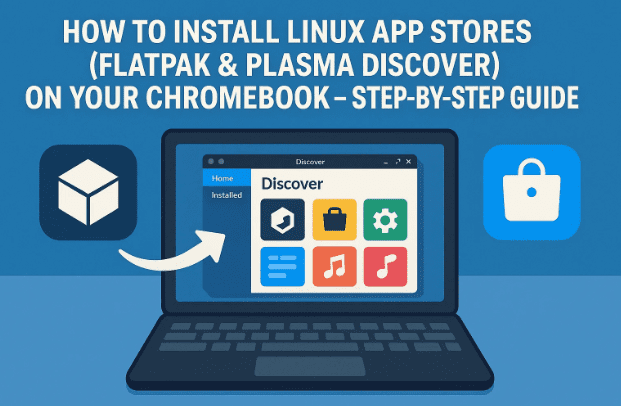
If you prefer a graphical interface (GUI) similar to Google Play or Microsoft Store, Plasma Discover is the perfect choice.
Plasma Discover is part of the KDE ecosystem — it’s polished, easy to navigate, and allows you to install Linux apps with a single click.
Let’s install it step by step.
Step-by-Step Installation
- Open your Linux Terminal (you can find it in the “Linux apps” folder).
- Run the following command to install Discover:
sudo apt install plasma-discover -y
- Wait for the installation to complete — it may take several minutes as it downloads multiple components.
Once done, you can find Plasma Discover in your Chromebook Launcher under the Linux Apps folder.
How to Use Plasma Discover
After launching it, you’ll see a clean interface with categories such as:
- Internet
- Graphics
- Multimedia
- Office
- Development
- Education
You can browse apps by category or use the search bar to find something specific.
To install an app:
- Click on the app you want.
- Press the Install button.
- Wait for installation to finish — the app will now appear in your Linux Apps folder.
How to Uninstall Apps via Plasma Discover
Right-click the installed app icon in your Launcher and choose Uninstall, or open Plasma Discover, navigate to the “Installed” section, and remove it from there.
✅ Tip: Plasma Discover also updates apps automatically through its “Updates” tab — making it a user-friendly, complete software management center.
If for any reason Plasma Discover doesn’t launch correctly or feels slow, there’s another excellent alternative — Flatpak with Flathub. Let’s move on to that next.
5. 📦 Step 4: Install Flatpak and Flathub Repository (Command-Line Method)
While Plasma Discover is GUI-based, Flatpak is a universal package manager that works across nearly all Linux distributions. Its official app repository — Flathub — hosts thousands of verified Linux apps.
What Is Flatpak?
Flatpak allows applications to run in an isolated sandbox environment. This makes it safer and easier to install software without worrying about breaking system dependencies.
Flathub is the main online store for Flatpak packages — it’s like an “App Store for all Linux distros,” including ChromeOS’s Debian container.
You can visit it at:
👉 https://flathub.org
Let’s go ahead and set it up.
Step-by-Step Installation of Flatpak
- Open your Linux Terminal.
- Run the following command to install Flatpak:
sudo apt install flatpak -y
- Next, add the Flathub repository to your system using this command:
sudo flatpak remote-add --if-not-exists flathub https://flathub.org/repo/flathub.flatpakrepo
This links your Chromebook’s Linux environment to Flathub, giving you access to thousands of apps.
🔍 Note: Some Chromebooks may need a reboot after installing Flatpak for the system to recognize new paths.
6. 💡 Step 5: Installing and Removing Apps via Flatpak
Now that you’ve installed Flatpak and added the Flathub repository, you can start installing apps.
Let’s walk through an example — installing Discord, the popular chat platform.
Installing an App (Example: Discord)
- Visit Flathub.org and search for Discord.
- On the Discord page, click the arrow next to Install and choose “Install via Command Line.”
- You’ll see a command similar to this:
flatpak install flathub com.discordapp.Discord
- Copy this command and paste it into your Terminal.
- Press Enter and wait for the installation to finish.
Once complete, you’ll find Discord listed in your Chromebook’s Linux Apps section.
Uninstalling an App via Flatpak
If you ever want to remove an app, use the same command you used to install it — just replace the word install with uninstall.
Example:
flatpak uninstall flathub com.discordapp.Discord
Flatpak will then remove the app cleanly, freeing up space.
Bonus Tip: Viewing All Installed Flatpak Apps
You can list all installed Flatpak applications by running:
flatpak list
And to update all your Flatpak apps at once:
flatpak update
That’s it! You now have full control of Linux app installation and management on your Chromebook — both via GUI (Plasma Discover) and CLI (Flatpak).
7. ❓ FAQ – Common Questions Answered
Q1. Do I need both Plasma Discover and Flatpak?
No, you can use either one. Plasma Discover is graphical and beginner-friendly, while Flatpak offers command-line flexibility and broader compatibility. In fact, Plasma Discover itself can use Flatpak as a backend if both are installed.
Q2. Will installing Linux apps affect my Chromebook’s performance?
Not significantly. Linux runs in a containerized environment on ChromeOS, isolated from your main system. However, installing many large apps can consume storage space, so keep an eye on your Linux disk allocation.
Q3. Can I install other app stores too?
Yes! Alternatives like GNOME Software Center or AppImageLauncher also work, but Plasma Discover and Flatpak are the most stable and widely supported options on ChromeOS.
Q4. What if I get a “permission denied” or “command not found” error?
Make sure your Linux environment is properly updated with sudo apt update && sudo apt upgrade. Restart your Chromebook after installation if needed.
Q5. Is it safe to use Flatpak apps from Flathub?
Yes, Flathub hosts vetted apps from trusted developers. Flatpak also isolates apps in sandboxes for better security.
8. 🏁 Final Thoughts
Congratulations — you’ve successfully turned your Chromebook into a full-featured Linux workstation!
Whether you prefer Plasma Discover for its simplicity or Flatpak for its versatility, you now have access to a rich world of Linux software — from coding tools and creative suites to games and productivity apps.
If you want a straightforward, click-based experience, go with Plasma Discover.
If you prefer maximum control and command-line flexibility, use Flatpak + Flathub.
Both are excellent, and you can even keep them side by side.
Official Resources:
- Plasma Discover (KDE): https://kde.org/applications/system/org.kde.discover
- Flathub Repository: https://flathub.org
Disclaimer: This article is for educational purposes only. The commands provided are tested on ChromeOS’s Debian-based Linux environment. However, steps and package names may vary depending on ChromeOS updates. Always back up your data before making system changes.
#Chromebook #LinuxApps #Flatpak #PlasmaDiscover #ChromeOS #Flathub #LinuxOnChromebook








