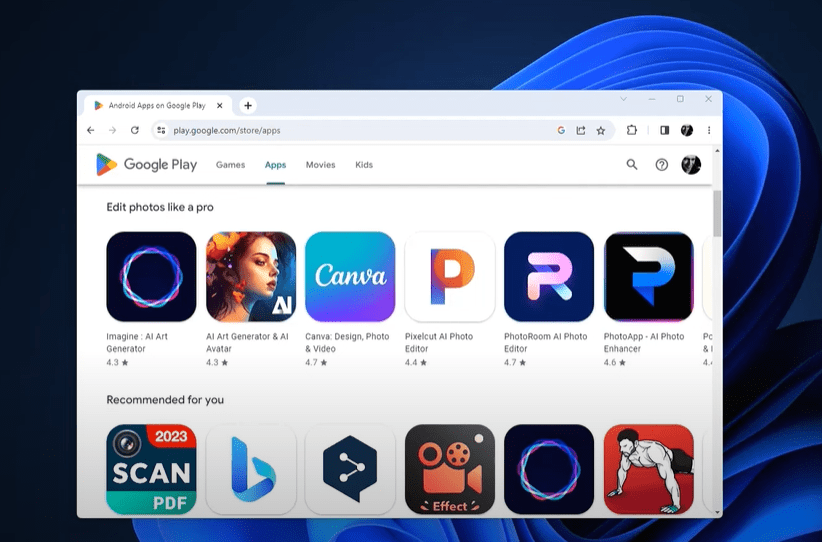
If you’ve ever wanted to run Android apps natively on your Windows PC, you’re in luck. This article explains how to install the Google Play Store on your Windows 11 or Windows 10 Pro system, so you can access all your favorite Android apps and games right from your desktop. While this is not an official method from Microsoft or Google, it works reliably and doesn’t require complex configurations.
Why You Need Windows 11 Pro or Windows 10 Pro
Before diving into the process, it’s important to check your version of Windows. This method requires Hyper-V virtualization, which is only available on Pro or higher editions of Windows.
Step 1: Check Your Windows Version
- Open Settings → System → About.
- Look under Windows specifications to see your edition.
- If you’re on Windows 11 Home, you will not be able to enable Hyper-V.
If you’re on Windows Home and want to upgrade to Windows Pro, you can do so using a licensed reseller. A verified and affordable option is OneByOneSoft, an official Microsoft partner where you can purchase a Windows 11 Pro license for a much lower price compared to Microsoft’s official store.
Step 2: Upgrade to Windows 11 Pro (if required)
If you’re upgrading:
- Purchase a key from a trusted partner like OneByOneSoft.
- Go to Settings → Activation → Change product key.
- Enter the new license key and activate.
- After activation, your system should now be Windows 11 Pro, unlocking virtualization capabilities.
Step 3: Enable Required Features
To support Android apps, you need to enable both Hyper-V and Virtual Machine Platform.
- Search for Turn Windows features on or off in the Start Menu.
- Enable the following:
- Virtual Machine Platform
- Hyper-V
- Click OK and restart your computer when prompted.
Step 4: Uninstall Previous Android Subsystems (if any)
If you’ve previously installed Windows Subsystem for Android (WSA):
- Open Microsoft Store.
- Go to Library and search for Windows Subsystem for Android.
- If it’s installed, uninstall it to avoid conflicts.
Step 5: Download the Pre-Built Google Play Store Subsystem
A developer on GitHub has created a pre-built WSA package that includes Google Play Store:
- Visit the GitHub page (link provided on the reference website).
- Scroll to Assets under the latest release and download the ZIP file.
- Extract the contents to a new folder (don’t run from the ZIP directly).
- Look for a file called
Run.bat.
Step 6: Install Google Play Store on Windows
- Right-click
Run.batand select Run as administrator. - Windows PowerShell will open and automatically install the subsystem.
- Follow the prompts to complete installation.
- Once done, you’ll see Google Play Store installed on your system.
Step 7: Launch Google Play Store and Sign In
- Go to Start Menu → All Apps → Play Store.
- Open it and log in using your Google account.
- Authenticate via your mobile device if prompted.
- Once logged in, you’re ready to download Android apps.
Step 8: Test by Installing an Android App
To confirm everything works:
- Open the Play Store.
- Search for a game like Candy Crush or any app you prefer.
- Click Install.
- Once installed, the app will appear in your Start Menu, ready to launch.
Final Notes
- This method works with Windows 11 Pro and also with Windows 10 Pro.
- Windows Home editions do not support Hyper-V, and thus cannot follow this method without upgrading.
- If you’re attempting this on a Home edition and it works through alternative means, feel free to share your experience.
By following the steps above, you can bring the full functionality of Android apps, including the Play Store, to your Windows desktop. It’s a powerful way to enjoy mobile apps with the performance and screen space of your PC.
Tags:
windows 11, google play store, android apps on pc, install play store windows, run android apps windows, hyper-v, windows subsystem for android, upgrade windows 11 pro, virtual machine platform, candy crush windows, sideload android apps, windows 10 pro, play store on pc
Hashtags:
#Windows11 #GooglePlayStore #AndroidOnPC #WindowsTips #TechGuide #WindowsPro #HyperV #WSA #TipsToFix #PCApps #AndroidAppsOnWindows #InstallPlayStore #WindowsHacks