If you’re looking to install Fortnite on your Windows PC or laptop in 2025, this article will guide you through the complete process step-by-step. Whether you already have an Epic Games account or need to create a new one, this guide ensures a smooth setup experience. Let’s get started!
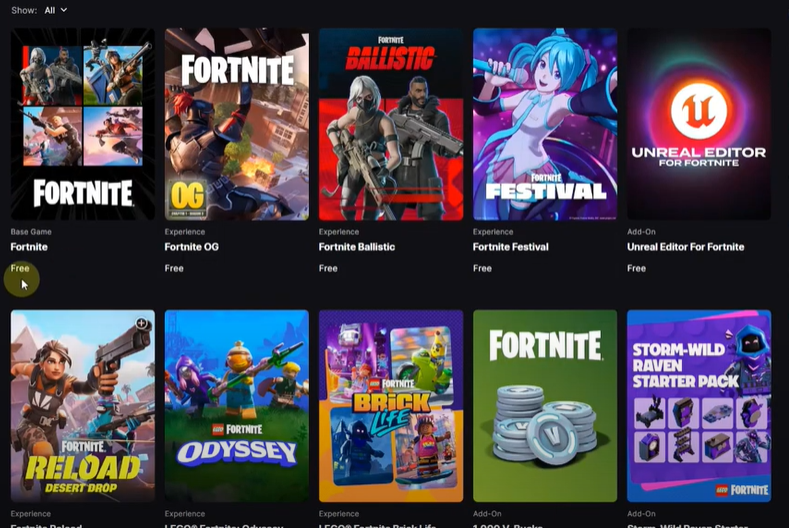
Step 1: Visit the Official Fortnite Website
First, you need to visit the official website: fortnite.com. Once you’re on the homepage, look for the “Install on Windows” button and click it. This action will start downloading the installer for the Epic Games Launcher.
The Epic Games Launcher is necessary because Fortnite is available through Epic Games. Allow the download to complete. Depending on your internet speed, this could take a few minutes.
Step 2: Install the Epic Games Launcher
Once the installer file is downloaded, open it to start installing the Epic Games Launcher on your PC. The launcher may take a few minutes to install as it also downloads updates during the setup.
After the installation is complete, the Epic Games Launcher will automatically open.
Step 3: Log In or Create an Epic Games Account
When the launcher opens, you’ll need to log in with your Epic Games account. If you already have an account, simply enter your credentials and log in.
If you don’t have an account yet, click on “Create Account” and follow the instructions to set up a new account. This process usually requires entering basic details like your email address, username, and password.
Step 4: Access Fortnite and Start Installation
After logging in:
- Search for Fortnite in the Epic Games Store inside the launcher.
- Click on the “Get” button for Fortnite.
- You’ll be directed to a purchase-like screen (don’t worry, Fortnite is free).
- Click on “Place Order” to add Fortnite to your library.
Once completed, Fortnite will be added to your Epic Games Library.
Step 5: Install Fortnite from the Library
Now that Fortnite is in your library:
- Navigate to the Library section in the Epic Games Launcher.
- You will see Fortnite listed there with an “Install” button.
- Click on “Install”.
You will be prompted to choose the installation location. By default, Fortnite installs on the C: drive. However, if you are low on space on your C: drive, you can select another drive:






- Click on the “Browse” button.
- Choose the desired drive and folder (for example, D: or I: drive) where you want Fortnite installed.
- Click “Select Folder” and continue.
Make sure you have a stable and fast internet connection, as Fortnite’s installation package is quite large (around 70 GB as of 2025).
Step 6: Complete the Installation
Once you select the location, the download and installation process will begin. Depending on your internet speed and system performance, this might take some time.
After the download and installation are complete:
- Go back to the Library section in the Epic Games Launcher.
- You will now see a “Play” button next to Fortnite.
- Click on “Play”, and you are ready to jump into the world of Fortnite!
By following these simple steps, you can successfully install Fortnite on your Windows PC or laptop in 2025. Enjoy your gaming experience!
Tags: fortnite, fortnite installation, install fortnite pc, install fortnite windows, epic games launcher, create epic games account, fortnite tutorial, fortnite pc 2025, gaming setup, windows gaming
Hashtags: #Fortnite #InstallFortnite #EpicGames #GamingSetup #WindowsPC #PCGaming #FortniteGuide #2025Gaming #EpicGamesLauncher








