Installing compressed PC games like FitGirl repacks can be tricky if you don’t follow the right process. Errors like ISDone.dll or unarc.dll often occur due to background tasks, antivirus interference, or improper settings. This article provides a complete step-by-step guide to installing FitGirl repack games properly in 2025 — ensuring a smooth installation and error-free gameplay experience.
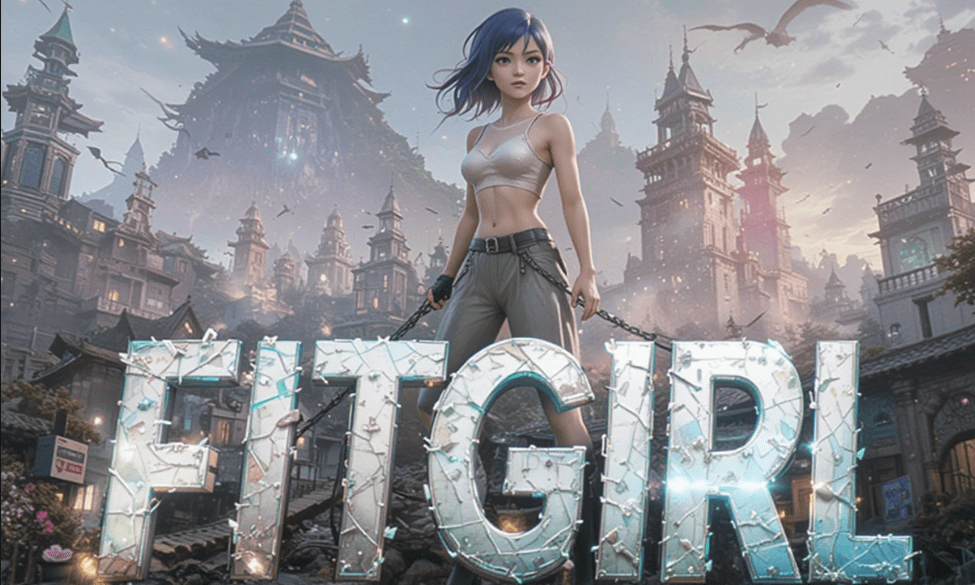
✅ Step-by-Step Guide to Install FitGirl Repack Games
Step 1: Disable Antivirus Protection Temporarily
To avoid interference during installation, you must temporarily disable Windows Security:
- Open the Start menu, type “Virus & threat protection”, and open it.
- Click on “Manage settings” under Virus & threat protection settings.
- Turn off all protections including real-time protection, cloud-delivered protection, and tamper protection.
Note: This is a temporary step. You’ll turn them back on after installation.
Step 2: Close Unnecessary Background Processes
Too many apps running in the background can slow down or interrupt the installation.
- Right-click on the Taskbar and open Task Manager.
- End tasks like Google Chrome, media players, or other heavy applications.
- Avoid closing essential system processes, but shut down unnecessary third-party apps.
Step 3: Start the Game Installation
- Open the game folder.
- Double-click the setup.exe file to begin the installation.
- If prompted, click Yes to allow installation.
- On the initial window:
- If your system has low RAM, check the box for “Limit installer to 2 GB RAM”.
- Click the sound icon to mute installer sounds.
Step 4: Select Installation Path and Game Options
- Click Next and then again on the next screen.
- Use the Browse option to choose a drive with enough space.
- Click OK and then Next.
- Uncheck the box that says “Update DirectX”.
- You’ll now see a list of game components. Carefully:
- Only check the following:
- Main game file
- English language
- Verify game files
- Uncheck everything else.
- Only check the following:
- Click Install to begin the setup.
Step 5: Finalize Installation
- Once installation is complete, uncheck any options that launch third-party websites or programs.
- Do not launch the game yet.
Step 6: Add Game Folder to Windows Security Exclusions
This step prevents future false flags from your antivirus:
- Go back to the Virus & threat protection window.
- Scroll down to “Exclusions” and click “Add or remove exclusions.”
- Select “Add an exclusion” > “Folder.”
- Navigate to the folder where your game is installed (e.g.,
C:\Games\GameFolder) and select it.
Step 7: Re-enable Windows Security
After adding the game folder to exclusions:
- Return to Manage Settings in Windows Security.
- Turn ON all the protections that were disabled earlier.
✅ You’re Done!
Now, launch the game from the installed folder. You should no longer face errors like missing files, bad files, or other installer-related issues. Always follow this method when installing FitGirl repack or any similar compressed PC game to avoid problems.
⚠️ Disclaimer:
This article is for educational purposes only. We do not promote piracy or the use of unauthorized game copies. Always consider purchasing games from official platforms to support the developers. Visit FitGirl‘s official website for more information on available repacks.
🔖 Tags:
FitGirl repack installation, game installation without errors, ISDone.dll fix, unarc.dll error solution, Windows Security settings for games, low RAM game install, game installation troubleshooting
🔗 Hashtags:
#FitGirlRepack #GameInstallationGuide #ISDoneDllFix #UnarcDllError #PCGaming2025 #WindowsSecurity #GameInstallTips #LowRAMGaming #ErrorFreeGaming
By carefully following these steps, you can enjoy a hassle-free installation experience with your favorite games. Happy gaming!