Looking to breathe new life into your old Windows PC? Bliss OS, based on Android 13, allows you to run a full-fledged Android operating system on your x86 computer. Whether you want a lightweight alternative to Windows or just love Android’s flexibility, this guide will walk you through the installation process step by step.
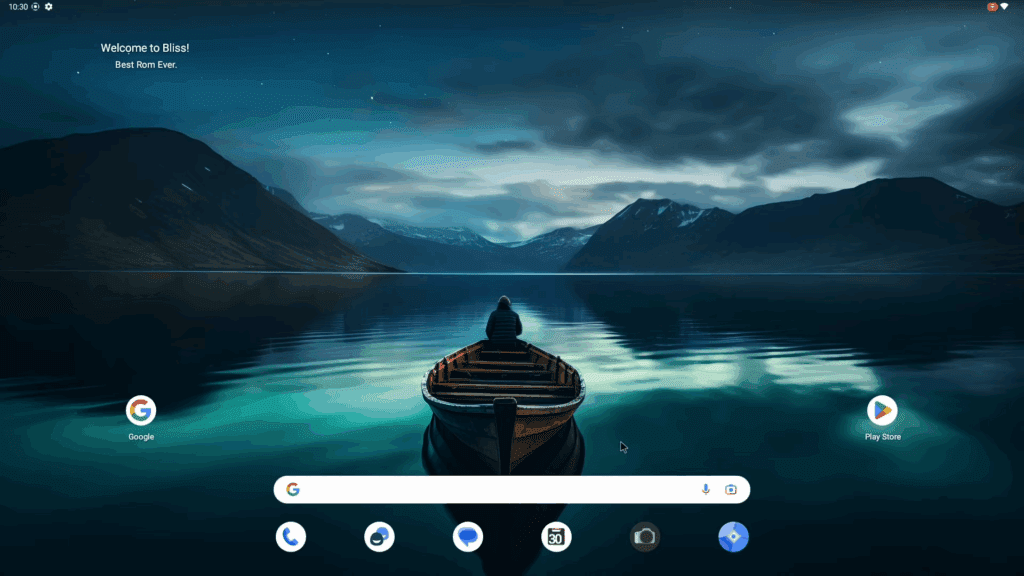
What is Bliss OS?
Bliss OS is an open-source Android-based operating system optimized for Intel and AMD PCs. It brings the full Android experience—including Google Play Store, app compatibility, and gaming—to desktops and laptops.
System Requirements
- Processor: Intel/AMD x86 (64-bit recommended)
- RAM: Minimum 4GB (8GB recommended for smooth performance)
- Storage: At least 16GB free space
- USB Drive: 8GB or larger (for bootable installation)
Step-by-Step Installation Guide
Step 1: Download Bliss OS ISO
- Visit the official Bliss OS website.
- Scroll down and download the latest Bliss OS 16.9 (Android 13-based) ISO.
- Choose the “Stable” version for best compatibility.
Step 2: Create a Bootable USB Drive
- Download Rufus (a free bootable USB tool).
- Insert your USB drive (ensure no important data is on it, as it will be formatted).
- Open Rufus, select the downloaded Bliss OS ISO, and click Start.
- Wait for the process to complete.
Step 3: Boot from USB
- Restart your PC and enter the Boot Menu (usually by pressing F8, F12, or ESC depending on your motherboard).
- Select the USB drive from the boot options.
Step 4: Install Bliss OS
- In the Bliss OS installer, choose “Install to Hard Disk”.
- Select your hard drive (ensure you choose the correct one if dual-booting).
- Partition Setup:
- Delete existing partitions (if needed).
- Create a new 100MB EFI partition (required for booting).
- Allocate the remaining space for Bliss OS (ext4 format).
- Confirm and proceed with installation.
Step 5: First Boot & Setup
- After installation, reboot and select Bliss OS from the boot menu.
- Follow the Android setup wizard (language, Wi-Fi, Google account, etc.).
- Enjoy Bliss OS on your PC!
Features & Performance
✅ Full Android 13 Experience (Play Store, apps, games)
✅ Smooth Performance (tested on Intel i3 and above)
✅ Wi-Fi, Bluetooth, and Sound Working
✅ Customizable UI (multiple launchers, display scaling)
Gaming & App Compatibility
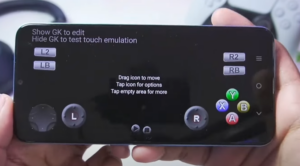
- Casual games (e.g., Beach Buggy Racing) work perfectly.
- Some heavy games (like Free Fire Max, BGMI) may crash due to compatibility issues.
- Office apps, social media, and streaming apps run smoothly.
Dual Boot with Windows
If you want to keep Windows alongside Bliss OS, select “Dual Boot” during installation. This allows you to choose between OSes at startup.
Final Thoughts
Bliss OS is an excellent way to revive old PCs or experiment with Android on a desktop. While not all apps are perfectly optimized, it offers a fast, lightweight, and fun alternative to traditional operating systems.
🔗 Download Bliss OS: https://blissos.org
🔗 Rufus Tool: https://rufus.ie
Tags:
Android on PC, Bliss OS, Android 13, Dual Boot, Lightweight OS
Hashtags:
#BlissOS #AndroidOnPC #TechGuide #ReviveOldPC #DualBoot
Disclaimer: Bliss OS is a community-developed project and not officially supported by Google. Some apps and games may not work correctly. Always back up your data before installation.