If you’re a PC gamer who’s ever dreamed of turning your laptop or desktop into a powerful Steam Deck-like machine, then Bazzite Linux is the distro you need to try. Built on Fedora and optimized for gaming, Bazzite comes packed with features like KDE Plasma, Steam Gaming Mode, built-in GPU drivers, and excellent support for AMD and Nvidia GPUs.
In this guide, we’ll walk through the complete process of installing Bazzite Linux on your system — no shortcuts, no skipped steps, and with all the clarity a new Linux gamer needs.
🧠 What is Bazzite Linux?
Before we dive into the setup, let’s understand what Bazzite Linux actually is.
Bazzite is a Fedora-based Linux distribution tailored specifically for gaming on desktop PCs, laptops, and handheld devices like the Steam Deck, ROG Ally, and Legion GO. It uses the Open Container Initiative (OCI) to deploy a full Linux system with:
- Steam Gaming Mode
- Pre-installed GPU drivers (Nvidia & AMD)
- Flatpak support
- A KDE desktop environment (visually similar to SteamOS)
Whether you’re into emulators or AAA Steam games, Bazzite offers an out-of-the-box gaming experience with minimal setup.
🧰 What You’ll Need
Before starting the installation, let’s get the essentials ready:
- A USB flash drive (16GB minimum)
- A PC or laptop with a free drive or partition for installation
- A working internet connection
- ISO image of Bazzite (customized for your GPU)
- Rufus or Balena Etcher for creating a bootable USB
💡 Bazzite works best with AMD GPUs. Nvidia is supported too, but Steam Gaming Mode is still in beta for Nvidia users.
⬇️ Step 1: Download Bazzite Linux ISO
Let’s begin by downloading the Bazzite ISO file:
- Visit the Bazzite Download Page.
- Click on Download and fill out the form to match your hardware:
- Choose your device type (e.g., Other Laptop or Desktop)
- Select your primary GPU vendor (e.g., Nvidia RTX 3050)
- Choose the desktop environment: we recommend KDE (SteamOS-like)
- Select the Steam Gaming Mode build
Once you submit, you’ll get a download link for the correct ISO file. It should be about 8GB, so be patient while it downloads.
💿 Step 2: Create a Bootable USB Drive
Now that you have the ISO, it’s time to create a bootable USB:
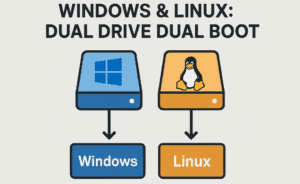





- Download Rufus from rufus.ie or use Balena Etcher.
- Insert your USB drive into the computer.
- Open Rufus and:
- Select your USB device
- Import the Bazzite ISO file
- Choose GPT partition scheme (for UEFI systems)
- File system: Leave as default
- Click Start and wait for the process to complete.
💡 This process may take several minutes depending on your USB write speed.
⚙️ Step 3: Boot into USB & Configure BIOS
Once your USB is ready, it’s time to boot into Bazzite:
- Restart your PC and enter the BIOS/UEFI settings.
- Common keys:
F2,F12,Esc, orDel(varies by motherboard)
- Common keys:
- In BIOS:
- Enable USB Boot
- Disable Secure Boot (optional, but recommended unless configured with signed keys)
- Set the USB Drive as the first boot device
- Save changes and exit.
Your system will now boot into Bazzite’s live environment.
📥 Step 4: Begin Bazzite Installation (Anaconda Installer)
You’ll now be greeted with the Bazzite Linux live interface and the Anaconda installer:
- Choose your language and click Continue.
- Go to Installation Destination:
- Select the drive where you want to install Bazzite (e.g., your 120GB SSD)
- Enable Automatic partitioning
- Click Done
- Head to User Creation:
- Set a username and password
- Open Network & Hostname:
- Connect to the internet using Wi-Fi or Ethernet
- Set your Time and Date and choose your region
Once everything is set, click Begin Installation.
⏳ Sit back and relax. This can take a few minutes based on your drive speed.
🔁 Step 5: Final Reboot & Initial Setup
When the installation finishes:
- Click Reboot System
- When the screen goes black, remove the USB drive
- Press Enter to Continue Booting into Bazzite
Voilà! Bazzite Linux is now installed and running.
🎮 Step 6: Post-Installation & Steam Gaming Mode
Once booted, you’ll enter Steam Gaming Mode directly:
- Follow the on-screen prompts to finish setup
- Emulators, applications, and dependencies will auto-install
- Steam will update automatically — log in with your credentials
🕹️ You can access your entire Steam game collection as usual.
Want to switch to Desktop Mode?
- Click Menu > Power > Desktop Mode
- This launches KDE Plasma, where you can:
- Access apps
- Use Flatpak apps
- Configure your system
You can return to Steam Mode anytime by clicking the Steam icon on the desktop.
✅ Features of Bazzite Desktop Mode
- KDE Plasma Desktop (SteamOS-like)
- Pre-installed Nvidia/AMD drivers
- Full Flatpak support for app installation
- Great emulator and controller support
- Regular OTA updates
🙋 FAQ: Frequently Asked Questions
Q1. Can I dual boot Bazzite with Windows?
Yes! Just ensure you have a separate partition or drive for Bazzite and do not overwrite your Windows disk during setup.
Q2. Does Bazzite support Secure Boot?
Yes, but you’ll need to manually enroll keys. Follow this guide: Enable Secure Boot on Bazzite
Q3. Is it beginner-friendly?
Yes! Bazzite is made for gamers, not developers. The installer is GUI-based, and Steam Mode boots directly.
Q4. What devices are supported?
Steam Deck, ROG Ally, Legion GO, GPD devices, gaming laptops and desktops (AMD/Nvidia/Intel GPUs supported).
🔚 Final Thoughts
So far, we’ve done a great job walking through the complete setup process of Bazzite Linux — from downloading the ISO to experiencing the joy of Steam Gaming Mode and KDE Plasma. Whether you’re using a gaming laptop or a DIY desktop build, Bazzite transforms your system into a powerful Linux-based gaming machine.
If you’re ready to leave behind the limitations of Windows for gaming, Bazzite is the perfect bridge.
🖥️ Downloads & Links
Tags: bazzite linux, linux gaming, steam os alternative, kde plasma gaming, install bazzite linux, steam deck alternative, linux gaming setup, fedora gaming distro
Hashtags:
#BazziteLinux #LinuxGaming #SteamOS #GamingOnLinux #FedoraLinux #OpenSourceGaming #SteamDeckPC #GamingDistro #KDEPlasma #BazziteSetup
Disclaimer:
Installing Bazzite Linux involves modifying your system’s boot configuration. Please backup important data before proceeding. dtptips is not responsible for any data loss or hardware issues. Always refer to official documentation for secure boot, hardware compatibility, and advanced configuration.








