PUBG (PlayerUnknown’s Battlegrounds) remains one of the most popular battle royale games, and many players want to enjoy it on their PCs or laptops. If you’re looking for a step-by-step guide on how to download, install, and play PUBG PC, you’re in the right place.
In this article, we’ll cover:
- How to download PUBG PC
- How to install PUBG PC on Windows
- Whether a BGMI PC version exists
- Troubleshooting common issues
Let’s get started!
Step 1: Downloading PUBG PC
PUBG PC is officially available on multiple platforms, including:
- Steam (Primary platform)
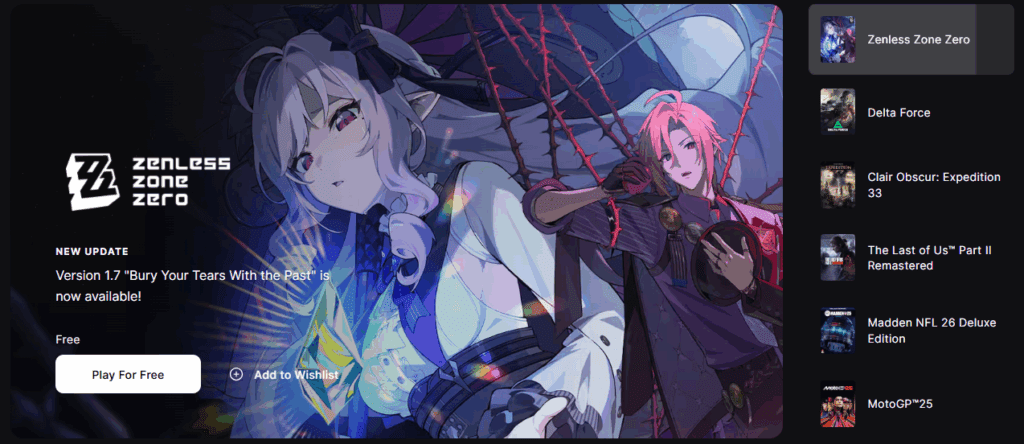
- Epic Games Store
Method 1: Downloading via Steam
- Visit the Steam Website – Go to store.steampowered.com.
- Search for PUBG – Use the search bar to find “PUBG: Battlegrounds.”
- Download & Install Steam – If you don’t have Steam installed, download it first.
- Create a Steam Account – Sign up if you don’t have one.
- Purchase/Download PUBG – Click “Add to Cart” (if paid) or “Play Game” (if free).

Method 2: Downloading via Epic Games
- Visit the Epic Games Store – Go to store.epicgames.com.
- Search for PUBG – Find and select the game.
- Download the Epic Games Launcher – Install it if you haven’t already.
- Install PUBG – Follow the on-screen instructions.
Step 2: Installing PUBG PC
Once downloaded, follow these steps:
For Steam Users:
- Open Steam and log in.
- Go to Library → Find PUBG.
- Click Install and choose your preferred storage drive.
- Wait for the download to complete.
For Epic Games Users:
- Open the Epic Games Launcher.
- Navigate to Library → Locate PUBG.
- Click Install and select an installation directory.
- Let the installation finish.
Step 3: Launching & Playing PUBG PC
After installation:
- Open Steam/Epic Games Launcher.
- Go to Library and click PLAY on PUBG.
- The game will launch—adjust settings like graphics and controls as needed.
- Start playing in Solo, Duo, or Squad mode!
FAQs About PUBG PC & BGMI
1. Is There a BGMI PC Version?
No, BGMI (Battlegrounds Mobile India) is designed for mobile devices only. However, you can use Android emulators like Gameloop to play BGMI on PC.
2. Can PUBG PC Run on Low-End PCs?
PUBG PC has minimum system requirements:
- OS: Windows 10 64-bit
- CPU: Intel Core i5-4430 / AMD FX-6300
- RAM: 8GB
- GPU: NVIDIA GeForce GTX 960 / AMD Radeon R7 370
If your PC is weaker, try lowering in-game graphics settings.
3. Is PUBG PC Free?
Yes! PUBG transitioned to a free-to-play model in 2022.
Final Thoughts
Installing PUBG PC is straightforward if you follow the steps above. Whether you choose Steam or Epic Games, ensure your PC meets the requirements for smooth gameplay.







If you encounter any issues, check the official support pages or drop a comment below!
Tags & Hashtags
Tags: PUBG PC, PUBG download, PUBG installation, BGMI PC, Steam, Epic Games, Windows gaming
Hashtags: #PUBGPC #HowToInstallPUBG #GamingGuide #PCGaming #BattleRoyale #FreeGames #BGMI #SteamGames








