If you’re curious about Linux or simply want to explore a sleek, minimal, and fast operating system, Elementary OS is one of the best choices available. Designed with aesthetics similar to macOS and built on the solid foundation of Ubuntu, Elementary OS is perfect for beginners and lightweight system lovers alike.
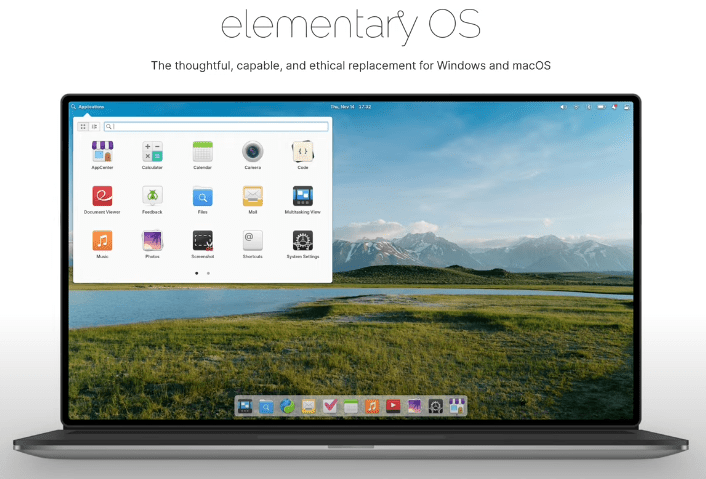
In this article, we’ll walk you through how to install and optimize Elementary OS using VirtualBox, making sure it runs as smoothly as possible—especially if your system has multiple CPU cores and ample RAM.
🧠 What is Elementary OS?
Elementary OS is a free and open-source Linux distribution based on Ubuntu. Its standout feature is its clean, modern, and elegant user interface—reminiscent of macOS. It’s a great starting point for Linux newcomers and an excellent choice for:
- Users switching from Windows or macOS
- Developers and students
- Lightweight or older computers
- Privacy-conscious users
Key Features of Elementary OS:
- Beautiful and minimal desktop environment (Pantheon)
- Low resource usage
- Built-in app center
- Default apps: File manager, web browser, email client, calendar
- Strong focus on user privacy
🔗 Visit the official Elementary OS website
💻 Why Use VirtualBox?
VirtualBox allows you to run another operating system inside your current one—without formatting your hard drive or dual-booting. This is perfect for testing and learning Linux.
✅ Minimum & Recommended System Requirements
Host Machine Requirements:
- RAM: Minimum 8 GB (Recommended: 12 GB or more)
- CPU: Quad-core or higher for smoother virtualization
- Storage: At least 20 GB free space
- Virtualization: Enable VT-x/AMD-V in BIOS settings
Elementary OS in VM:
- RAM for VM: At least 2 GB (Recommended: 4–6 GB)
- CPU Cores: 2–4
- Video Memory: 128 MB
- Storage for VM: 20 GB minimum (Recommended: 30 GB)
🛠️ Step-by-Step Guide: Installing Elementary OS in VirtualBox
Step 1: Download ISO Image
Download the latest version of the Elementary OS ISO from:
👉 https://elementary.io
You can set your own price ($0 is allowed) or donate to support the project.
Step 2: Create a New Virtual Machine
- Open VirtualBox
- Click “New”
- Set:
- Name: Elementary OS
- Type: Linux
- Version: Ubuntu (64-bit)
- Allocate RAM (at least 4096 MB)
- Create a virtual hard disk (25–30 GB recommended)
Step 3: Configure the VM
- System > Processor
- Allocate 2–4 CPU cores
- Enable PAE/NX
- Display > Screen
- Set video memory to 128 MB
- Enable 3D acceleration
- Storage > Controller IDE
- Click “Empty”, then “Choose a disk file”
- Select the Elementary OS ISO
Step 4: Start the Installation
- Boot the VM.
- Select “Try or Install Elementary OS”
- Choose your language, keyboard layout, time zone, and disk partition.
- Proceed with installation.
Wait for the process to finish and reboot the virtual machine.
🔄 Step 5: Post-Installation Optimization
1. Update the System
Open the Terminal and run:



sudo apt update && sudo apt upgrade
2. Install VirtualBox Guest Additions
To enable:
- Higher screen resolutions
- Better performance
- Clipboard sharing
- Drag & drop
Steps:
- In VirtualBox menu: Devices > Insert Guest Additions CD Image
- Open the mounted CD in Elementary OS
- Right-click and choose “Open in Terminal”
- Run the following:
sudo ./VBoxLinuxAdditions.run
- Restart the VM after installation.
⚡ Performance Tips
- Allocate more RAM and CPU if your host machine allows.
- Enable full-screen mode from the VirtualBox menu for better immersion.
- Keep Guest Additions up to date for best compatibility.
- Use “Scaled Mode” in VirtualBox if screen size doesn’t adjust properly.
🧩 Comparison with Other Operating Systems
| Feature | Elementary OS | Windows 11 | macOS |
|---|---|---|---|
| Resource Usage | Low | High | Medium |
| Design | Minimal, macOS-inspired | Feature-rich, cluttered | Sleek, polished |
| Software Ecosystem | Moderate (AppCenter) | Vast (Microsoft Store) | Strong (Mac App Store) |
| Ideal For | Beginners, developers | Gamers, enterprise users | Creatives, Apple users |
❓Frequently Asked Questions (FAQs)
Q1: Is Elementary OS free to use?
A: Yes. You can download it for free from the official site.
Q2: Can I use Elementary OS as my main OS?
A: Absolutely. It’s suitable for daily tasks like browsing, email, office work, and media consumption.
Q3: Why install in VirtualBox?
A: It’s a safe way to explore Linux without changing your current operating system.
Q4: Will it support software like Zoom or LibreOffice?
A: Yes, you can install many open-source and compatible tools from the AppCenter or through APT.
⚠️ Disclaimer:
This article is for educational purposes only. While Elementary OS and VirtualBox are legal and open-source, always download software from their official websites to avoid malware or pirated distributions.
📎 Tags:
Elementary OS, VirtualBox, install Linux on Windows, Linux tutorial, Ubuntu-based OS, open-source operating systems, Linux for beginners, Linux in VirtualBox, Guest Additions, Linux optimization
📢 Hashtags:
#ElementaryOS #VirtualBox #LinuxForBeginners #UbuntuBasedOS #OpenSource #InstallLinux #LinuxDesktop #VirtualMachine #GuestAdditions #LinuxTutorial
Final Thoughts:
Elementary OS is a beautifully crafted and efficient Linux distribution. Running it in VirtualBox is an excellent way to experience its features, test compatibility, or learn Linux basics—all without altering your primary system. Follow this guide step-by-step, and you’ll have a fast, optimized Linux virtual machine up and running in no time.








