Hey theme lovers! If you’re someone who loves customizing your Xiaomi or MIUI-based phone and wants a fresh, futuristic feel—then you’re in for a treat. Today, we’re diving into a beautifully redesigned HyperOS 3.0-inspired control center that offers a transparent layout, stunning toggles, and a vibrant color scheme.
This control center is part of a MIUI theme called “Crying Verse”, and in this blog post, I’ll walk you through its features and show you exactly how to apply it correctly to your device.
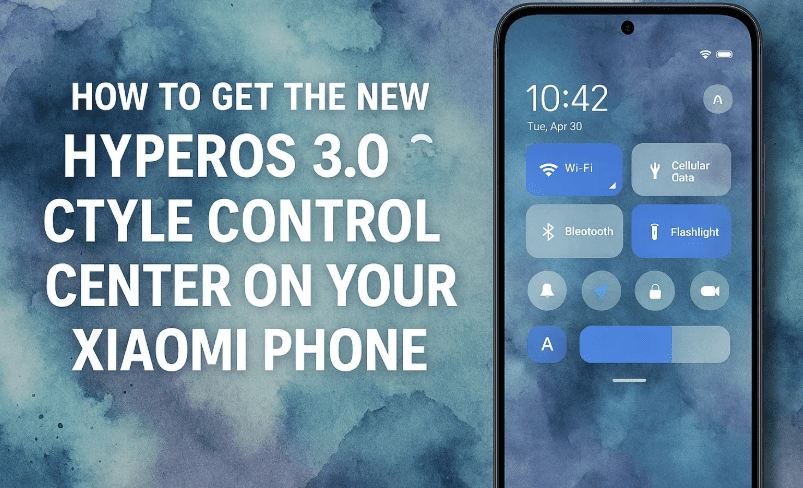
So, ready to revamp your UI with the latest HyperOS-style design? Let’s go step by step!
🌟 What’s Special About the HyperOS 3 Control Center?
Before we jump into the installation, let’s take a moment to appreciate what makes this control center so unique. It’s not just about looks—it also enhances usability and brings a modern, card-like design to your MIUI interface.
💡 Key Highlights of the HyperOS 3.0 Control Center
Let’s break down the visual features and what you can expect once applied.
🔳 Transparent Layout
One of the standout elements is the transparent control center background, which gives a clean and minimalist feel. You’ll still see your wallpaper subtly behind your toggles—perfect for anyone who prefers a modern UI aesthetic.
🎨 Dual-Toned Toggle Color Scheme
Here’s something that really catches the eye:
- Top toggles (like Wi-Fi and Mobile Data): Deep blue capsules
- Bottom toggles (like Flashlight, Rotation, etc.): Red-toned buttons
The color contrast is bold and stylish, providing clear visual hierarchy for frequently used toggles.
🟦 Unique Toggle Shapes and Animations
Now this is where the magic happens:
- Wi-Fi & Mobile Data toggles are designed like capsules, animated smoothly when turned on/off.
- The remaining toggles use rounded rectangle or square designs.
- The Smart Hub toggle in the center is fully transparent, making it stand out subtly in the middle of the screen.
🔁 While the top toggles are animated, the bottom ones are static—which keeps performance optimized on budget devices.
🧾 Card-Style Notification Panel
The notifications area follows a card layout, which gives a structured and elevated look.




- The clear notifications icon has been replaced with a clean text option for dismissing notifications.
- The status bar displays the date on the left and all other system icons (Wi-Fi, battery, etc.) neatly aligned on the right—offering a balanced and uncluttered visual appearance.
🔆 Brightness & Volume Sliders
Let’s not forget the sliders:
- These use the same red and blue dual-tone scheme as the toggles.
- They retain stock MIUI animation, which helps maintain system smoothness while enhancing visuals.
So far, we’ve done a good job exploring this stunning control center’s look and feel. Now, let’s move on to the part you’ve all been waiting for—how to get and apply it.
📲 How to Install the HyperOS 3 Control Center (Crying Verse Theme)
Now that you’re convinced about the aesthetics, here’s how to get this beautiful layout on your phone. The process is pretty simple, but there’s one crucial thing you need to know during the application process.
📝 Requirements:
- MIUI Theme app installed (comes pre-installed on Xiaomi phones)
- Xiaomi or POCO phone running MIUI (preferably MIUI 13/14 or HyperOS)
- Internet connection
🧩 Step-by-Step Guide:
- Download the Crying Verse Theme
You can download it via the MIUI Theme Store or directly from trusted theme community forums. - Open the Theme Store App
Navigate to:Themes App > My Account > Themes - Apply the Theme
Locate the Crying Verse theme in your downloaded themes section. Tap on it and select Apply. ⚠️ Important: Don’t just apply individual components like status bar or control center. Apply the full theme first—otherwise, the control center won’t reflect the correct design. - Customize Components (Optional)
After applying the full theme, you can now:- Customize your icons
- Change fonts
- Switch wallpapers
…from the Customize option if needed.
- Restart or Swipe Down to Preview
Swipe down from the top right to see your new HyperOS-inspired control center in action!
❓Frequently Asked Questions (FAQs)
Q1: Will this theme work on POCO or Redmi devices?
Yes! As long as your device supports MIUI theme customization, you’re good to go.
Q2: Why is the control center not changing after applying?
Make sure to apply the entire theme and not just parts like the status bar or lock screen. Only full theme application reflects the control center changes.
Q3: Does this theme support Dark Mode?
Most custom themes do, but visual appearance may vary slightly. Test it by enabling dark mode in your system settings.
Q4: Will it affect system performance?
This theme is optimized for MIUI and uses stock animations, so you shouldn’t experience any lag unless your device has limited RAM.
📌 Final Thoughts
So there you have it—a stunning, stylish, and highly customizable HyperOS 3.0-style Control Center brought to life through the Crying Verse theme. With its transparent layout, smart toggle design, and dual-tone sliders, it’s one of the most visually appealing control center makeovers currently available for MIUI.
Whether you’re a Xiaomi enthusiast or just someone who loves personalization, this theme is definitely worth trying. So go ahead, download it, apply it fully, and enjoy a whole new control center experience.
⚠️ Disclaimer
This article is for educational and customization purposes only. Always download themes from trusted sources. Xiaomi does not officially endorse third-party custom themes outside of its Theme Store. If you experience any issues, revert to the default theme.
🏷️ Tags & Hashtags
Tags:
HyperOS control center theme, Crying Verse theme, Xiaomi MIUI customization, MIUI 14 control center, transparent control center Xiaomi, MIUI theme install guide
Hashtags:
#MIUIThemes #HyperOS #XiaomiCustomization #ControlCenter #MIUITips #XiaomiThemes #CryingVerseTheme
Feel free to share this guide with fellow Xiaomi users and theme enthusiasts! And if you want more such guides on MIUI customizations and HyperOS themes, let us know—we’re always excited to explore and share.








