If you’re constantly running out of storage on your laptop or want a reliable way to back up your documents, photos, and videos, Google Drive might just be the perfect solution. What makes it even better? Google offers 15GB of free cloud storage just by creating a Google account!
In this guide, I’ll walk you through how to download and set up Google Drive for Desktop on Windows, so you can seamlessly access and sync your files with your PC.
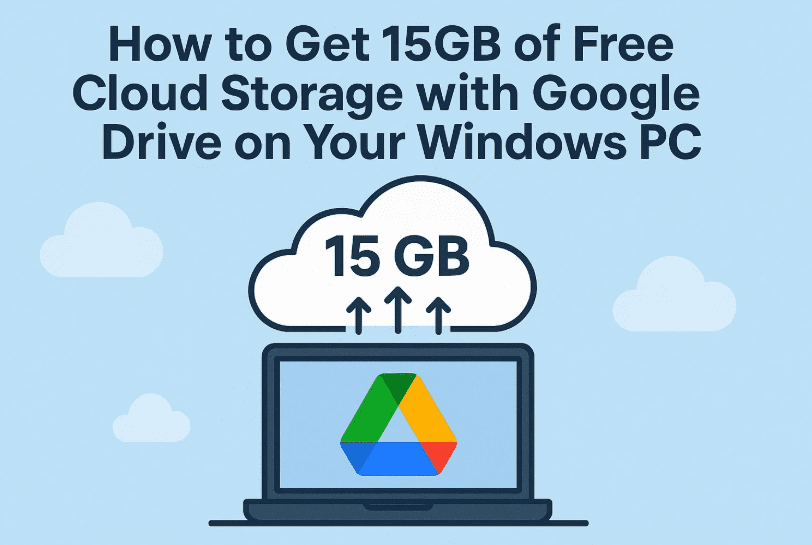
☁️ Why Use Google Drive for Desktop?
Before we jump into the setup, let’s understand why this is worth doing:
- 15 GB free storage without paying a single penny.
- Sync files easily between your computer and the cloud.
- Backup important data so it’s safe even if your PC crashes.
- Access your files anywhere using mobile or web.
- Works seamlessly with Google Docs, Sheets, Slides, and Gmail.
Let’s move on to setting this up on your Windows system!
🛠️ Step-by-Step: Download and Set Up Google Drive for Desktop
You’ve got your Google account ready, now here’s how to bring Google Drive directly to your PC. This process is beginner-friendly and takes just a few minutes.
✅ Step 1: Visit the Google Drive for Desktop Page
We’ll begin by downloading the official desktop app from Google’s own site.
- Open your web browser (like Chrome or Edge).
- In the search bar, type:
Download Google Drive for Desktop - Click the official Google link (usually the first one).
Direct Link:
👉 https://www.google.com/drive/download/
✅ Make sure you’re already signed into your Google account in your browser. If not, sign in first.
💾 Step 2: Download the Installer for Windows
Once you land on the download page, you’ll see two options:
- Download for Windows
- Download for macOS
Since we’re on Windows, click the “Download for Windows” button.
- Wait for the
.exefile to download. - Once it’s done, double-click the file to begin the installation process.
🧭 Step 3: Install Google Drive for Desktop
Now it’s time to install it.







- After launching the installer, click “Install”.
- Let the setup run. This should only take a minute.
- Once installation completes, click “Launch” to open Google Drive.
🔐 Step 4: Sign In with Your Google Account
A new setup window will appear. Here’s what to do:
- Click “Get Started”
- Enter your Gmail email and password to sign in
- After successful login, you’ll see a confirmation message.
- You can now close the browser tab if one was opened.
🚀 Step 5: Finalize Setup and Access Your Free 15GB
You might see some prompts for syncing settings. You can skip these for now (or configure them later based on your preference).
Now, let’s confirm it worked:
- Open your Search bar and type: This PC
- In the list of drives, you should now see Google Drive listed along with your local drives.
- It will show 15 GB of free cloud storage—ready for use!
And that’s it! You’ve successfully set up Google Drive for Desktop and unlocked 15GB of secure, free cloud space.
❓ Frequently Asked Questions (FAQs)
Q1. Is Google Drive for Desktop safe to use?
Yes. It’s an official product by Google with built-in encryption and secure access.
Q2. Can I use Google Drive on multiple devices?
Absolutely! Once you sign in on any device, you can access your files from anywhere using the same Google account.
Q3. What happens if I run out of 15GB?
You can either free up space or upgrade to Google One for more storage, starting from $1.99/month for 100GB.
Q4. Can I back up folders like Desktop or Documents?
Yes. During the setup or later via preferences, you can choose folders to auto-sync with Drive.
Q5. Will uninstalling Drive delete my files?
No. Files stored on the cloud remain safe even if you uninstall the app from your PC.
🔚 Final Thoughts
So far, we’ve done a great job setting up a reliable cloud backup solution! Whether you’re a student, working professional, or just someone who wants peace of mind, having 15GB of free storage can be a game-changer.
Cloud storage isn’t just about saving space—it’s about accessibility, safety, and efficiency. Google Drive for Desktop brings all that right to your Windows File Explorer.
So go ahead, start uploading your important photos, videos, or documents and stop worrying about losing them!
📢 Disclaimer
This article is for educational purposes only. Product names, logos, and brands are property of their respective owners. Always download software from official sources.
🏷️ Tags & Hashtags
Tags:
Google Drive, Free Cloud Storage, Google Drive for Desktop, Backup PC Files, Windows Cloud Sync, Google Apps
Hashtags:
#GoogleDrive #FreeStorage #CloudBackup #WindowsTips #TechGuide #GoogleDriveForDesktop
Let us know in the comments if this helped you, or if you have any other cloud storage tools you’d like us to cover next!








