If you’re encountering a “Your connection is not secure” error or the network icon is missing from your system tray on a Windows PC, don’t worry. These are common issues and can be resolved easily with a few steps. Whether it happened after a restart, a Windows update, or just randomly, this comprehensive guide will help you fix both problems and get back online safely.
Let’s dive in and understand what causes these problems and how to solve them step-by-step.
⚠️ Problem 1: “Your Connection Is Not Secure” in Browser
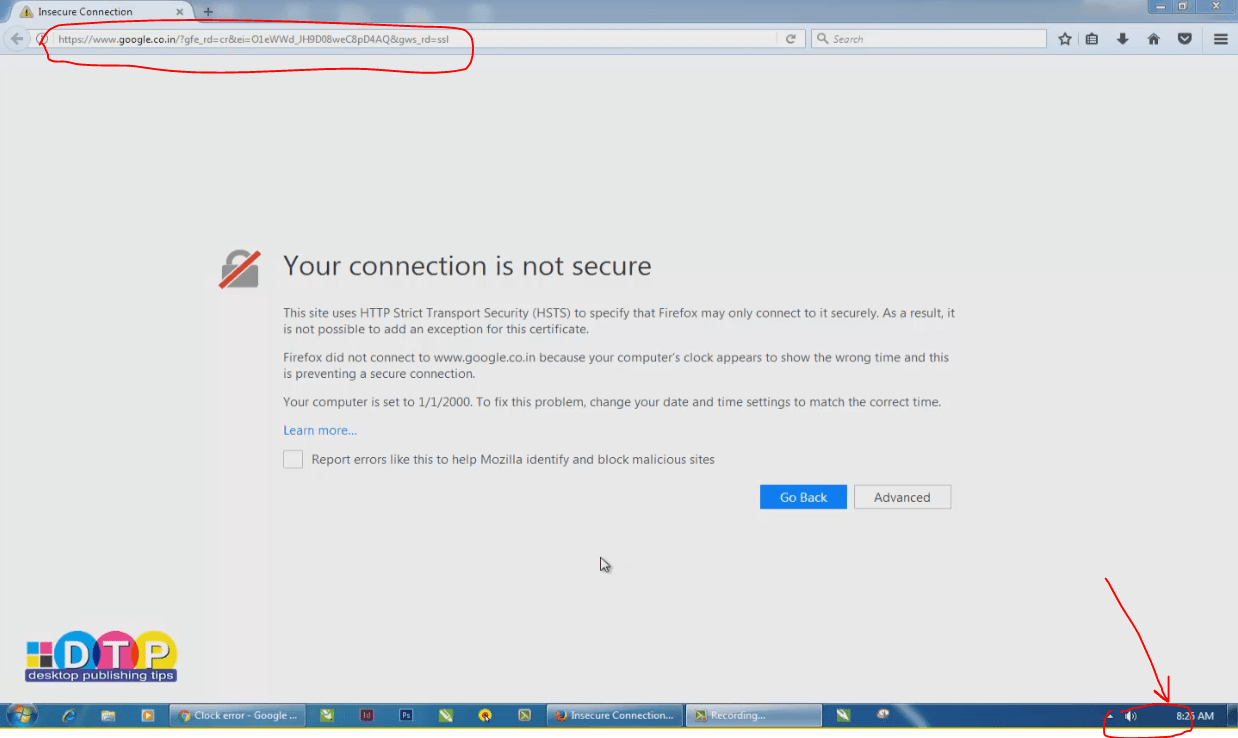
You might see this message when trying to visit any HTTPS website, especially on Firefox. It usually looks like this:
At the same time, you might notice that the network icon is missing from the taskbar.
🔎 Reason Behind the Problem
The most common cause is incorrect system date and time. HTTPS websites require your system clock to be accurate to validate security certificates. If your PC date is set to something like “1/1/2000” or any incorrect time, modern browsers will block access.
✅ Fix: Set Correct Date and Time in Windows
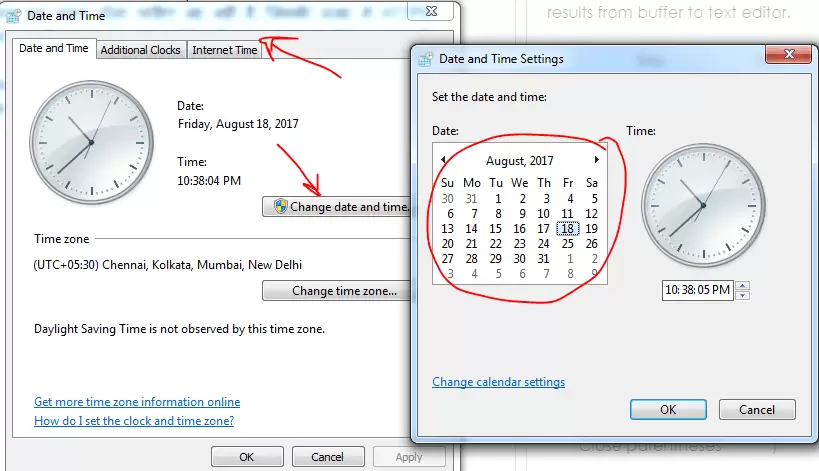
Let’s fix the clock to get secure browsing back:
Method 1: Manually Change the Time
- Right-click the clock in the bottom-right corner of the taskbar.
- Click on “Adjust date and time.”
- In the new window, click “Change date and time”.
- Set the correct date, month, year, and time.
- Click OK to save the changes.
Method 2: Use Internet Time Sync (Recommended)
- In the same Date & Time settings window, go to the “Internet Time” tab.
- Click on “Change settings…”
- Check the box “Synchronize with an Internet time server”
- Choose time.windows.com or any valid server.
- Click Update now.
- Press OK.
Now refresh the webpage in your browser. You should see the site loading without the security warning.
⚠️ Problem 2: Missing Network Icon in Taskbar
If your Wi-Fi or Ethernet icon is completely missing from the system tray, here’s how to restore it.
🔧 Fix: Restart Windows Explorer
- Press Ctrl + Alt + Delete and choose Task Manager.
- In the Processes tab, locate Windows Explorer (or
explorer.exe). - Right-click and select End Task.
- Your desktop and taskbar will temporarily disappear.
- In Task Manager, click File > Run new task.
- Type
explorerand click OK. - The taskbar will reload, and your network icon should be visible again.
This method is quick and often resolves both the missing icon and related interface glitches.
✨ Bonus Tips
- Always keep your system date/time synced with Internet time servers.
- Use a battery-backed CMOS clock if your PC resets to the year 2000 after every shutdown (common on older systems).
- If problems persist, check for corrupt system files using
sfc /scannowin Command Prompt. - Consider checking your Network Adapter settings and taskbar icon visibility settings.
🤔 FAQs
Q1. Why does my browser say “Your connection is not secure” when I have working internet?
A: Your PC’s date/time is likely incorrect, causing SSL certificate errors.
Q2. I fixed the date, but the problem still appears. Now what?
A: Restart your browser or clear browser cache. Also ensure firewall/antivirus isn’t interfering.










Q3. Why does the network icon vanish randomly?
A: This is often a glitch with explorer.exe or after certain updates. Restarting it brings icons back.
🔖 Tags:
network icon missing, no internet secure, date time error, ssl certificate error, windows firefox issue, explorer taskbar fix, your connection is not secure, network icon gone windows 10
📅 Hashtags:
#WindowsFix #SecureConnectionError #NetworkIconMissing #SSLProblem #DateTimeError #FirefoxIssue #ExplorerRestart #WindowsTips #Troubleshooting #PCErrorFix








