If your WordPress website isn’t sending or receiving emails—whether it’s from a contact form, order notifications through WooCommerce, or password recovery emails—it can be frustrating and detrimental to your business. Emails that end up in spam or never arrive at all can affect your communication and customer trust.
Fortunately, there’s a reliable fix: setting up an SMTP plugin to handle email delivery properly and securely.
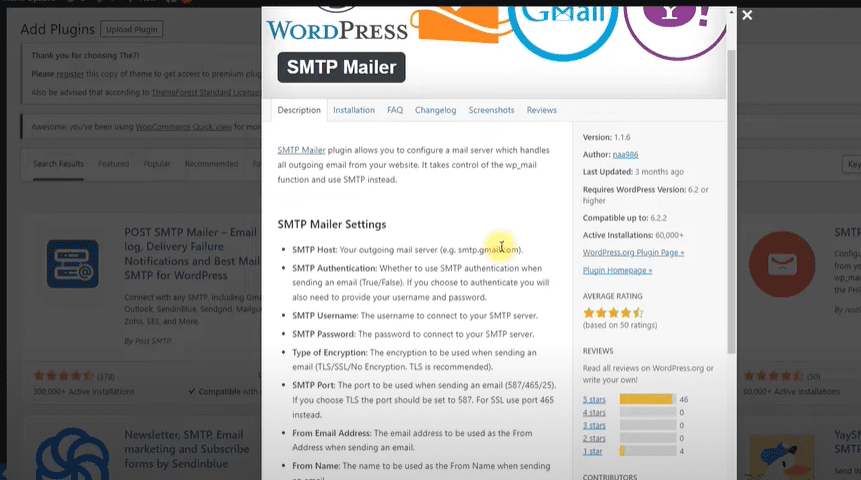
This article walks you through the full process of fixing WordPress email issues using the SMTP Mailer plugin and configuring it to ensure your emails are delivered professionally.
Common Email Issues in WordPress
You might be facing one or more of the following problems:
- Contact form submissions not reaching your inbox
- WooCommerce not sending order notifications
- Emails ending up in the spam folder
- Customers not receiving password reset or confirmation emails
These issues often arise because WordPress uses the PHP mail() function, which is not reliable or authenticated by many email providers.
Step-by-Step Guide to Fix Email Issues with SMTP
Step 1: Create a Professional Email Address for Your Domain
Before setting up the plugin, you need a custom email address that uses your domain (e.g., info@yourdomain.com). Most hosting providers allow you to create this through your hosting control panel.
- Create your email address.
- Generate a secure password.
- Keep the SMTP settings provided by your host (SMTP host, port, and encryption type).
Step 2: Install and Activate the SMTP Mailer Plugin
- Log into your WordPress dashboard.
- Navigate to Plugins → Add New.
- Search for SMTP Mailer.
- Click Install Now, then Activate.
This plugin is free, lightweight, and compatible with most WordPress themes and versions.
Step 3: Configure SMTP Settings
Once activated:
- Go to Settings → SMTP Mailer.
- Fill in the following information:
- SMTP Host: Usually something like
mail.yourdomain.com(check with your hosting provider). - SMTP Authentication: Set to True.
- SMTP Username: The full email address you created earlier.
- SMTP Password: The password for that email account.
- Encryption: Choose SSL or TLS based on your host’s recommendation.
- SMTP Port: Use 465 for SSL or 587 for TLS.
- From Email: The email address your site will use to send emails.
- From Name: Your website or company name.
- SMTP Host: Usually something like
- Save the changes.
Step 4: Test Your Email Setup
After saving your configuration:
- Scroll to the Test Email section in the plugin.
- Send a test email to an address you have access to.
- Check your inbox (and spam folder, just in case).
If it arrives successfully, your WordPress email system is now working correctly!
Step 5: Configure Contact Forms and WooCommerce
Contact Forms
Make sure your contact forms (e.g., using Contact Form 7, WPForms, or Elementor Forms) are set to send from the email address you just created. This helps with deliverability and branding.







WooCommerce Order Emails
- Go to WooCommerce → Settings → Emails.
- Verify and update the sender email address to match the SMTP email.
- You can also install the WP Mail Logging plugin to track sent emails.
Step 6: Monitor Email Logs (Optional but Recommended)
Install the WP Mail Logging plugin to keep track of all emails sent from your WordPress website.
- Go to Plugins → Add New and search for WP Mail Logging.
- Install and activate it.
- Access logs from Tools → WP Mail Log to verify that emails are being sent successfully.
This is especially helpful for troubleshooting and audits.
Final Thoughts
Proper email setup is critical for any professional website. Whether you’re running a blog, an eCommerce store, or a business portal, emails play a crucial role in communication and transactions.
By following the steps above and using the SMTP Mailer plugin, you can ensure that your website’s emails are delivered reliably—no more missed inquiries or unconfirmed orders.
Tags:
wordpress email fix, smtp plugin, fix contact form email, woocommerce email issue, wordpress smtp setup, wp mail logging, smtp mailer plugin, wordpress not sending email, wordpress email goes to spam, contact form 7 email problem, wpforms smtp
Hashtags:
#WordPress #EmailFix #SMTPSetup #WooCommerce #EmailNotWorking #WordPressTips #EmailDeliverability #SMTPMailer #WPForms #ContactForm #WebDevelopment








