Sometimes, even when everything seems fine, Windows denies you the simple act of installing a patch. You may see update errors like 0x800F0922 or 0x80240069, especially when trying to install updates such as KB5066835 or KB5066128. In this post, I’ll walk you step by step through how to diagnose and fix those errors, based on the method you outlined (with enhancements, cautions, and extra tips).
Note: As of October 2025, Microsoft has released KB5066835 for Windows 11 versions 24H2 and 25H2. This update includes servicing stack and quality improvements. Problems with installing it (due to error codes) have been reported. So this guide is relevant and timely.
Before diving into the steps, let me emphasize one thing: always make backups (or at least a restore point) before doing system repair tasks. Mistakes can lead to data loss or system instability.
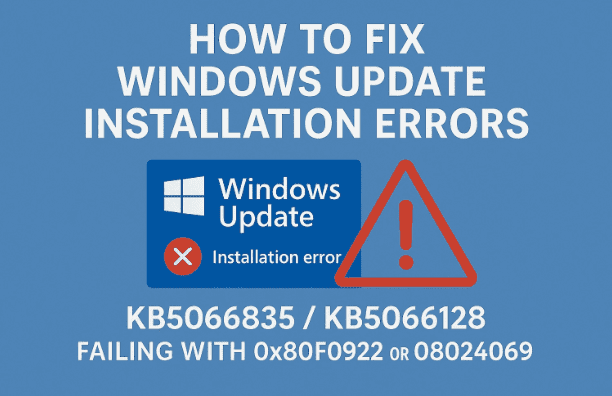
What the Errors Mean (0x800F0922, 0x80240069)
Let’s pause and understand what those error codes generally indicate — that helps with reasoning about fixes rather than blindly applying commands.
- 0x800F0922 often appears when Windows Update cannot access update servers, or when the System Reserved Partition lacks space (Windows needs that small partition for crucial boot and update metadata).
- 0x80240069 is a download error — the update couldn’t download properly, often due to network issues, corrupted caches, or interfering software.
- More broadly, these can be triggered by: corrupted system files, Windows Update component corruption, third-party software interference (antivirus, VPN), or configuration issues.
So with that in mind, the fixes we try will address these typical causes.
Step 1: Try the “Pause – Resume” Trick
This is often the easiest, least intrusive first attempt. It can sometimes “unstick” a failed update.
- Go to Settings → Windows Update
- If there’s a Retry button shown near the failed update, click it. Wait and see if it succeeds.
- If not, Pause updates (there’s a button for that), wait a short while (a few seconds or a minute), then Resume updates.
- Try checking/installing again.
Why this sometimes works: pausing resets some internal state in the update pipeline, clears pending operations, or gives Windows a “breather” to reorganize temp files.
If this does not fix the issue, move on to the next step.
Step 2: Run System Repair Commands (CMD as Admin)
This is the heart of the fix. You need to run system repair utilities to address corruption or inconsistencies.
Important: Make sure to run the Command Prompt as administrator.
Here’s a typical sequence (based on your script). But since you didn’t specify exactly which commands (you said “first, second, third”), I’ll suggest a concrete sequence that aligns with best practices:








A. Open elevated command prompt
- Press
Windowskey → typecmd - Right-click Command Prompt, choose Run as administrator
- Accept any UAC prompt (“Yes”)
B. Run DISM and SFC tools
These tools check and repair system image and file integrity:
DISM /Online /Cleanup-Image /RestoreHealth
sfc /scannow
- First command (DISM) will take some time. Wait until it reaches 100%.
- Once done, run
sfc /scannow. - After both complete, reboot and try updating.
If the update still fails, continue:
C. Reset Windows Update components manually
Here is one standard reset sequence:
net stop wuauserv
net stop cryptSvc
net stop bits
net stop msiserver

ren C:\Windows\SoftwareDistribution SoftwareDistribution.old
ren C:\Windows\System32\catroot2 Catroot2.old

net start wuauserv
net start cryptSvc
net start bits
net start msiserver
After that, close the command prompt, reboot the PC, and try the update again.
Your original script referred to three commands being run sequentially — this DISM → SFC → reset sequence is one well known variant. If your script’s commands differ (for example, specific component resets or registry tweaks), let me know and I’ll adapt.
If the update still doesn’t install, keep going.
Step 3: Ensure Key Windows Services Are Running
Even if system files are okay, the update won’t succeed if necessary services are disabled or misconfigured. We want to verify that and fix them.
3a. Open the Services console
- Press
Windowskey → typeservices, or pressWin + Rand enterservices.msc - Press Enter
You’ll see a long list of Windows services. We’ll focus on three:
3b. Windows Update service
- Find Windows Update in the list
- Double-click on it
- Set the Startup type to Automatic
- If the service is not running, click Start
- After that, click Apply → OK
- Then right-click Windows Update → Restart
3c. Background Intelligent Transfer Service (BITS)
- Same process: locate Background Intelligent Transfer Service
- Set to Automatic, start it if it’s stopped, then restart
3d. App Readiness (if present)
- Locate App Readiness
- Set to Automatic, start it, then restart
Once all these are running, try the Windows update again. These services are vital to orchestrate the download and install of updates.
Sometimes, after doing all that, people report success. If yours still fails, we escalate further.
Step 4: Use Microsoft Update Catalog / Download Offline Installer
If Windows Update refuses to cooperate, you can try the manual route: download the update package and install it manually.
4a. Go to Microsoft Update Catalog
Visit the Microsoft Update Catalog site at:
https://www.catalog.update.microsoft.com
Search for KB5066835 (or KB5066128, depending on which update you’re targeting).
You’ll see entries for different Windows 11 versions (24H2, 25H2) and architectures (x64, ARM). Choose the one that matches your system.
Click on Download, which will open a pop-up with the actual .msu file link — download it.
4b. Identify your Windows version & architecture
- Press
Win + R, typewinver, enter — you’ll see your Windows version, e.g. “Version 25H2” - Go to Settings → System → About to see whether you have a 64-bit operating system or something else
Make sure you pick the correct .msu file for your version (e.g. 25H2 ×86, ×64, or ARM). Wrong mismatch leads to failure.
4c. Install the .msu file manually
- Double-click the downloaded
.msufile - Follow on-screen instructions
- The installer normally offers to Keep personal files and apps — make sure that is selected so you don’t lose your data
- After installation completes, reboot your computer
Once rebooted, check for updates again. This “offline install” sometimes succeeds when the standard Windows Update path fails.
Step 5: Use the “Repair Windows” / “Fix Problems Using Windows Update” Option
If manual install fails or you suspect deeper issues, Windows provides a built-in repair path that reinstalls the current version without losing files or apps.
Here’s how to do it:
- Open Settings → Windows Update → Advanced options
- Look for a Recovery section
- Under it, you should see an option like Fix problems using Windows Update (this may repair your installation)
- Click Reinstall or the equivalent option
- The process may take a while. Windows will “repair” itself, keeping your files, settings, and installed apps intact
- Once the repair completes, try installing the update again
This is more heavy-duty than previous steps, so use it when earlier fixes haven’t worked.
Step 6: Use Media Creation Tool / In-Place Upgrade Using ISO
If all else fails, a guaranteed fallback is to perform an in-place upgrade by mounting the Windows ISO and running setup.exe. This refreshes the Windows core while preserving your apps and files.
6a. Download the Media Creation Tool / ISO
- Go to the official Microsoft website and download the Media Creation Tool for Windows 11
- Run it, accept terms
- When prompted, choose Create installation media (ISO)
- Save the ISO file locally
Alternatively, directly download the ISO from Microsoft (if available) and skip using the MCT. (Sometimes MCT issues are reported (for example, on Windows 10 devices) — in such cases, mounting ISO manually is safer.)
6b. Mount ISO and run in-place upgrade
- On the desktop or folder where ISO is saved, double-click it — this mounts it like a virtual drive
- Inside, run setup.exe
- Accept prompts, choose Keep personal files and apps (make sure that checkbox is on)
- Proceed with installation
- The process will upgrade/repair your Windows installation
- After completion, reboot
Once you’re back in Windows, check for the update again. It often works at this point because you’re operating in a “fresh but preserved” environment.
Example Scenario: KB5066835 on Windows 11 25H2
To ground this, here’s how things may look in a real case:
- The October 2025 cumulative update KB5066835 targets Windows 11 versions 24H2 and 25H2.
- If you failed to install it, many users reported getting 0x80240069 (download error) when using Windows Update.
- They then used the Catalog to download the
.msufile and manually installed, which worked for many. - Some users also encountered side effects (e.g. local IIS or web apps not working) after installing the patch, meaning that backup and caution are even more crucial.
So these are not hypothetical — these errors and fixes are actively relevant.
Frequently Asked Questions (FAQ)
Q1: Will I lose my data or apps by doing these repair methods?
A: Most methods (DISM, SFC, service tweaks, offline .msu install, in-place upgrade) preserve user files and installed applications. The “Repair Windows / Reinstall” and “In-place upgrade” options explicitly offer to “keep files and apps.” But always backup before attempting.
Q2: What if a particular service (e.g. Windows Update) doesn’t exist or doesn’t show “App Readiness”?
A: Not all Windows versions have every service. Focus on the ones present (especially Windows Update, BITS). If “App Readiness” is missing, skip it. Always be cautious—don’t tamper with services you are unsure about.
Q3: My update still fails — is there anything left?
A: You can also try:
- Disabling or temporarily uninstalling antivirus, firewall, or VPN software
- Making sure Secure Boot / firmware settings haven’t changed
- Checking for issues with the System Reserved partition (e.g. low space)
- Uninstalling a recently installed problematic update, if it coincided with this failure
- Consulting Microsoft’s Update Health or logs (Event Viewer) for clues
Q4: What if the offline .msu file also fails?
A: That could indicate a mismatch (wrong version or architecture), deeper corruption, or that your Windows installation is in a bad state. That’s when the in-place upgrade / repair option becomes more reliable.
Summary Recap & Roadmap
Here’s a high-level roadmap:
- Try Pause → Resume
- Run DISM + SFC + Reset Update Components
- Ensure Windows Update / BITS / essential services are running
- Use Microsoft Update Catalog to download
.msuand install manually - Use the built-in “Repair Windows / Reinstall” via Settings
- Perform an in-place upgrade using a mounted ISO (Media Creation Tool or direct ISO)
At each step, test whether the update now succeeds. If it does, you can stop there.
Disclaimer & Caution
- This guide is informational and intended to help you troubleshoot Windows update issues. Use at your own risk.
- Always back up important files before performing system-level changes.
- Be very careful with command prompt and service changes — a wrong command or disabled service can harm system stability.
- If you are using this on a work or managed PC (company, school), consult your IT department — they may have policies or additional constraints.
- The methods described here presume you have administrative privileges, and they may not work in all scenarios — especially on locked-down or domain-joined systems.
I hope this guide helps you get past those frustrating update errors. If any command was unclear in your original script (e.g. the “first, second, third command”), tell me exactly what you had there, and I’ll fit them precisely into this flow. Would you like me to provide ready-to-copy commands tailored to your Windows version?
#WindowsUpdate #UpdateError #Windows11 #DISM #SFC #KB5066835 #TechGuide








