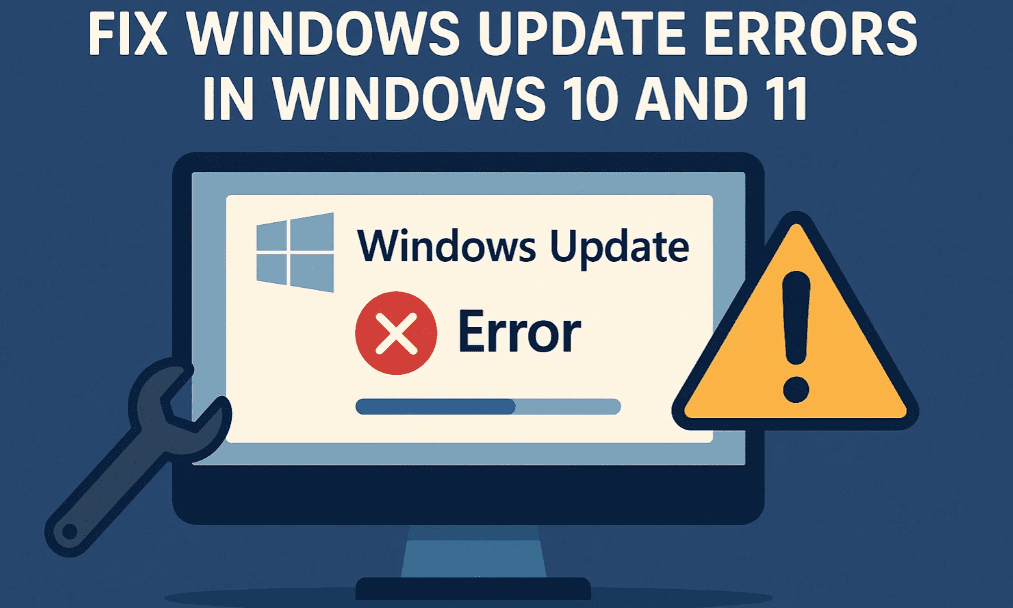
Are you facing issues while trying to update your Windows 10 or Windows 11 system? If Windows Update fails with an error message or simply refuses to proceed, don’t worry. This step-by-step guide provides you with four working methods to fix Windows Update errors effectively. Let’s solve this issue once and for all.
✅ Method 1: Delete the SoftwareDistribution Folder
This method clears old and possibly corrupted update files that are preventing new updates.
Steps:
- Open This PC and navigate to your C: Drive.
- Open the Windows folder.
- Find and open the folder named SoftwareDistribution.
- Select all files and folders inside it.
- Press
Shift + Deleteon your keyboard to permanently delete them. - Confirm the deletion. If some files don’t delete, cancel and ignore them.
- Restart your computer.
- After rebooting, check if Windows Update is now working properly.
📝 Note: This folder only contains temporary update data. Deleting it is safe and won’t affect your personal files.
✅ Method 2: Use Windows Troubleshooter
Windows comes with a built-in tool to automatically detect and fix update-related issues.
Steps:
- Go to Start > Settings.
- In the Settings window, use the search bar to search for “Troubleshoot”.
- Click on Troubleshoot Settings.
- Scroll down and select Other Troubleshooters.
- Find Windows Update and click on Run.
- Let Windows scan and fix the problem automatically.
- Once done, restart your computer and try updating again.
✅ Method 3: Use System File Checker (SFC Scan)
This command scans for corrupted system files and repairs them automatically.
Steps:
- Click on Start, type CMD.
- Right-click on Command Prompt and choose Run as administrator.
- In the command window, type the following command and press Enter:
sfc /scannow - Wait for the scan to complete (it may take a few minutes).
- If it finds any errors, they will be repaired automatically.
- After the process, restart your computer and check for updates again.
✅ Method 4: Restart Update Services from Services Manager
Sometimes update-related services are not running or incorrectly configured. This method ensures they are set properly.
Steps:
- Right-click on This PC and click Show more options > Manage.
- In the new window, go to Services and Applications > Services.
- Scroll down and find Windows Update.
- Right-click on it > Click Properties.
- Set Startup type to Automatic.
- Click Start if the service is not already running.
- Click Apply, then OK.
- Now find another service: Background Intelligent Transfer Service.
- Repeat the same steps: Set to Automatic, start the service, apply, and OK.
- Restart your PC and check Windows Update again.
Final Check
- Go to Start.
- Type Windows Update and press Enter.
- Open the settings and click Check for updates.
- Your update should now work properly.
Conclusion
These four methods—clearing SoftwareDistribution, running Troubleshooter, using SFC scan, and managing services—cover all major causes of Windows Update failures. At least one of these processes should resolve the issue on your Windows 10 or Windows 11 system.










If you continue facing issues, you may consider updating manually using Windows Update Assistant or Windows 11 Installation Assistant.
🔖 Tags:
windows update, fix update error, windows 10, windows 11, update troubleshooting, sfc scan, windows services, software distribution
📢 Hashtags:
#WindowsUpdate #Windows10 #Windows11 #UpdateErrorFix #TechTips #SFCScan #Troubleshooter #MicrosoftWindows
⚠️ Disclaimer:
This article is intended for educational purposes only. Please proceed with caution while deleting system files or modifying system services. If you’re unsure about any step, seek professional assistance or backup your system beforehand.








