If you’re running into the frustrating Windows Update Error 0x8024001E, you’re not alone. This error often appears when trying to install Windows updates and typically says something like:
“Could not complete install because an update service was shutting down. Failed to install on [date]. Error 0x8024001E.”
Don’t worry—it’s not as complicated as it sounds. This blog will walk you through easy yet powerful fixes to reset Windows Update components manually and restore your update service to working order.
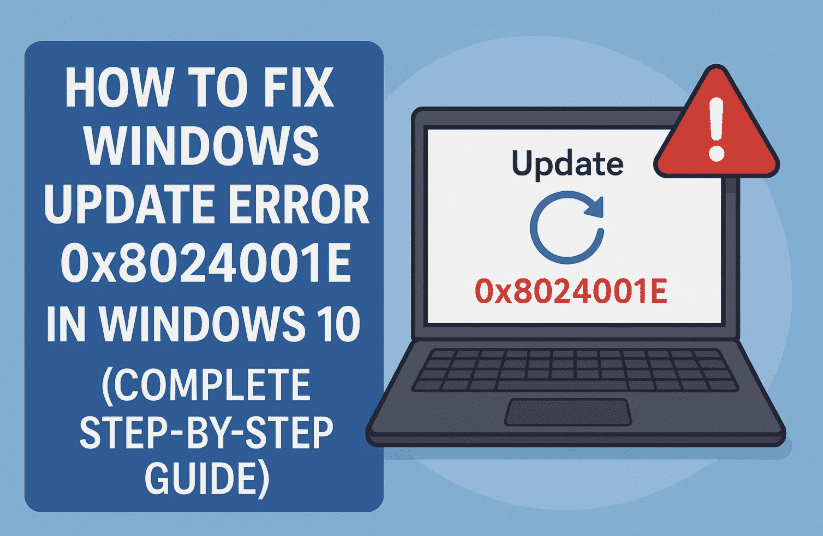
Let’s get started with a clean step-by-step breakdown. By the end of this guide, you should be able to resolve this error and get your updates running smoothly again.
🧠 What Causes Error 0x8024001E?
This error usually shows up when:
- Windows Update Services are malfunctioning or stuck
- Background processes like BITS, CryptSvc, or MSI Installer are not responding
- System update components have become corrupted
- A previous update failed and left residual issues
✅ Step 1: Manually Stop and Restart Windows Update Services
So far, we’ve done a good job understanding the root cause. Now let’s roll up our sleeves and manually reset the update services. This method works in most cases.
💡 You’ll be using Command Prompt with admin rights to stop and restart four essential services.
🖥️ Steps to Stop Update Services:
- Click the Search bar, type cmd.
- Right-click on Command Prompt and choose Run as administrator.
- Click Yes on the User Account Control prompt.
Now, type or paste the following commands one by one, pressing Enter after each:
net stop wuauserv
net stop bits
net stop cryptsvc
net stop msiserver
These commands will stop:
- Windows Update (wuauserv)
- Background Intelligent Transfer Service (BITS)
- Cryptographic Services
- MSI Installer
⚠️ Some services might already be stopped. That’s perfectly okay—move on to the next step.
🟢 Steps to Restart Update Services:
Now let’s restart all those services using the following commands:






net start bits
net start wuauserv
net start cryptsvc
net start msiserver
Again, hit Enter after each one.
Once you’ve restarted all services, close Command Prompt and restart your PC. After rebooting, try checking for Windows Updates again via Settings → Update & Security → Windows Update.
If the error persists, don’t worry. Let’s move to the next solution.
🔄 Step 2: Reset Windows Network and Update Components
Sometimes, the issue may be caused by corrupted network sockets or cached update configurations. This second method helps reset Winsock and other components that Windows Update relies on.
Let’s move to the next step—it’s easy and safe.
🖥️ Steps to Reset Network & Update Components:
- Again, open Command Prompt as Administrator:
- Search “cmd”
- Right-click and select “Run as Administrator”
- Enter the following commands one by one:
netsh winsock reset
netsh winhttp reset proxy
netsh int ip reset
ipconfig /release
ipconfig /renew
ipconfig /flushdns
💡 These commands will reset networking components and cached DNS which might interfere with update downloads.
Once done:
- Exit the Command Prompt
- Restart your computer
Now try running Windows Update again. This time, it should work without throwing the 0x8024001E error.
❓ Frequently Asked Questions
Q1: Is it safe to run these commands in CMD?
A: Yes, they are official system commands used to reset services. They do not delete personal files.
Q2: What if the issue still isn’t fixed?
A: Try running Windows Update Troubleshooter:
- Go to Settings → Update & Security → Troubleshoot → Additional troubleshooters → Windows Update
- Run the troubleshooter and follow on-screen prompts
Q3: Can antivirus software cause this issue?
A: In rare cases, yes. Temporarily disabling third-party antivirus software and trying the update can help isolate the issue.
🎯 Final Thoughts
So far, we’ve done a great job understanding and resolving the Windows Update Error 0x8024001E. By following the steps above, you should now be able to update your Windows 10 system without interruptions.
Just to recap:
- We stopped and restarted update services manually.
- We reset network components and system sockets.
- And you now know what to do if the issue persists (troubleshooter, antivirus check).
If this article helped you, feel free to share it with someone who may be facing the same problem. And if you’re still stuck, let us know in the comments so we can help further.
Until next time, this is Emanuel from Tech Based In, wishing you a bug-free and smooth Windows experience. 😊
🔗 Useful Resources
📌 Tags & Hashtags
Tags: windows update fix, error 0x8024001E, update service issue, windows 10 troubleshoot, windows update failed, fix update error, net stop net start cmd
Hashtags:
#WindowsUpdateError #Error0x8024001E #TechBasedIn #UpdateFix #CMDTips #Windows10Fix #TroubleshootWindows #NetshReset #WindowsUpdateReset
⚠️ Disclaimer:
This guide is intended for educational purposes only. Always run administrative commands carefully. If you’re unsure, consider creating a system restore point or contacting Microsoft Support.








