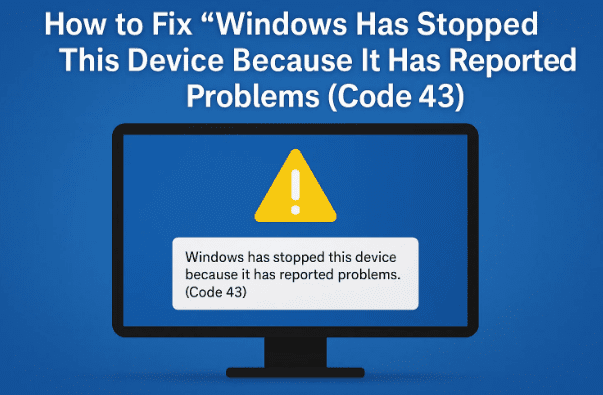
If you’ve ever plugged in a USB device or graphics card and suddenly faced the dreaded Code 43 error in Device Manager, you know how frustrating it can be. The full message usually reads:
“Windows has stopped this device because it has reported problems. (Code 43)”
This error is not tied to a single device. You might see it for a USB flash drive, Bluetooth adapter, GPU (NVIDIA/AMD/Intel), or even other peripherals. In most cases, Code 43 is Windows’ way of telling you that the device driver or firmware reported a failure, or Windows itself could not properly communicate with the hardware.
In this detailed guide, we’ll go through step-by-step solutions to fix Code 43. We’ll start with simple checks and move toward deeper system-level fixes like registry edits, driver reinstalls, and system repair commands. Stick with it, and by the end, you’ll know exactly what to do.
1) What Is Code 43?
Code 43 is a Device Manager error code that appears when Windows disables a piece of hardware. It’s not always clear whether the problem comes from the device itself, the drivers, or the system configuration.
When you open Device Manager (devmgmt.msc), the affected device will have a yellow warning triangle, and its properties will display Code 43.
2) Common Causes of Code 43 Error
Before diving into solutions, let’s understand the root causes. Knowing why this happens can help you pick the right fix.
- Corrupted or outdated device drivers.
- Windows update conflicts.
- Hardware malfunction (USB stick, GPU, etc.).
- Power management settings cutting off devices.
- Registry corruption for USB controllers.
- Overheating or insufficient power delivery (common in GPUs).
- BIOS or firmware bugs.
3) Step 1 — Restart and Reconnect
It may sound simple, but Code 43 is sometimes triggered by a temporary glitch.
- Restart your PC.
- Unplug and reconnect the device.
- If it’s a USB drive or adapter, try a different USB port (preferably USB 2.0 if it’s an older device).
This basic check alone clears the error for many users. If it persists, let’s open Device Manager.
4) Step 2 — Check Device Manager
Device Manager gives us insight into how Windows is treating the hardware.
- Press Win + X → choose Device Manager.
- Look under the relevant section:
- Universal Serial Bus Controllers (for USBs).
- Display Adapters (for GPUs).
- Bluetooth (for wireless adapters).
- Right-click the device with the warning icon → Properties.
- Confirm the error message shows Code 43.
From here, we can attempt a driver fix.










5) Step 3 — Update or Roll Back Drivers
Drivers are the most common trigger for Code 43.
- Update the driver:
- Right-click the faulty device → Update driver.
- Choose Search automatically for drivers.
- If nothing updates, visit your device manufacturer’s website for the latest driver package.
- Roll back the driver (if the error appeared after a recent update):
- Right-click device → Properties → Driver tab.
- If available, click Roll Back Driver.
This step alone often fixes GPU-related Code 43 errors.
6) Step 4 — Run Windows Update
Microsoft frequently pushes hardware compatibility fixes through Windows Update.
- Press Win + I → Windows Update.
- Click Check for updates.
- Install all pending updates and restart your PC.
Now check if the error disappears in Device Manager.
7) Step 5 — Use Built-In Troubleshooters
Windows includes troubleshooters that can automatically fix certain device issues.
- Go to Settings → System → Troubleshoot → Other troubleshooters.
- Run the Hardware and Devices troubleshooter (in older versions, search for it directly).
While not always effective, this step is quick and worth trying.
8) Step 6 — Registry Fix for USB Issues
If the Code 43 error appears for a USB device, corrupted registry entries may be the culprit.
⚠️ Warning: Editing the registry can break Windows if done incorrectly. Always create a backup first.
- Press Win + R, type
regedit, and press Enter. - Navigate to:
HKEY_LOCAL_MACHINE\SYSTEM\CurrentControlSet\Control\Class\ {36FC9E60-C465-11CF-8056-444553540000}This key controls USB controllers. - In the right pane, look for and delete these values (if present):
UpperFiltersLowerFilters
- Close Registry Editor and restart your PC.
When Windows reboots, it will rebuild default filter drivers, which often resolves USB Code 43 errors.
9) Step 7 — Run System File Checker & DISM
Corruption in Windows system files can also trigger Code 43.
Open Command Prompt (Admin) and run:
sfc /scannow
When that completes, follow up with:
DISM /Online /Cleanup-Image /ScanHealth
DISM /Online /Cleanup-Image /RestoreHealth
Reboot after both commands. If the issue came from OS corruption, it should now be fixed.
10) Step 8 — BIOS and Firmware Updates
If you see Code 43 repeatedly with GPUs or USB 3.0 devices, outdated BIOS or firmware may be blocking proper communication.
- Visit your PC/laptop manufacturer’s support page.
- Download the latest BIOS update and chipset drivers.
- Apply carefully, following official instructions.
This step has resolved persistent Code 43 for many users with ASUS, Dell, and HP machines.
11) Step 9 — Test on Another PC
To confirm whether the problem is Windows or the device itself:
- Plug the USB/GPU/adapter into another PC.
- If the error follows the device, it’s likely hardware failure.
- If it works elsewhere, the problem lies with your current system setup.
12) Advanced Notes on GPUs and USB Devices
- GPUs (NVIDIA/AMD/Intel): Code 43 may occur if drivers detect tampering, unsupported modifications, or improper overclocking. Resetting GPU settings or reinstalling official drivers helps.
- USB drives: Overheating, bad sectors, or power-hungry enclosures can trigger intermittent Code 43. Using a powered hub sometimes solves it.
- Bluetooth/Wi-Fi adapters: Conflicts between Windows updates and chipset drivers are common culprits—always check your OEM site for updated drivers.
Frequently Asked Questions (FAQ)
Q1: Can Code 43 damage my device?
No, Code 43 itself is just Windows disabling the device. However, the underlying issue (like overheating or corrupted firmware) can cause permanent damage if ignored.
Q2: Should I uninstall and reinstall the device?
Yes, uninstalling from Device Manager and then restarting forces Windows to reinstall drivers. This is a safe troubleshooting step.
Q3: What if the device only shows Code 43 on USB 3.0 but works on USB 2.0?
This usually indicates a driver or power issue with the USB 3.x controller. Update chipset/USB controller drivers from your manufacturer.
Q4: I’ve tried everything but still get Code 43. What’s next?
If you’ve covered drivers, registry, SFC/DISM, BIOS, and still see the error, the device itself is likely failing. Replacing it may be the only solution.
Disclaimer
This article is intended for educational purposes. Registry edits, BIOS updates, and system repairs should be carried out carefully. Always back up your data and create a restore point before making major changes. If your PC is under warranty, contact your manufacturer before applying advanced fixes.
Tags & Hashtags
Tags: code 43 error fix, windows device manager error codes, usb not recognized windows 10, gpu code 43 fix, bluetooth adapter not working, windows registry usb fix, device driver reinstall
Hashtags:
#Windows11 #Windows10 #ErrorCode43 #USB #GPU #DeviceManager #Troubleshooting #TechFix #SysAdmin








