Is your Start Menu not working in Windows 11? If clicking the Start button does nothing or if it fails to open completely, you’re not alone. Many users have reported this frustrating issue — often after system updates or due to software conflicts.
Luckily, there are a couple of easy and safe solutions you can try yourself before resorting to a system reset.
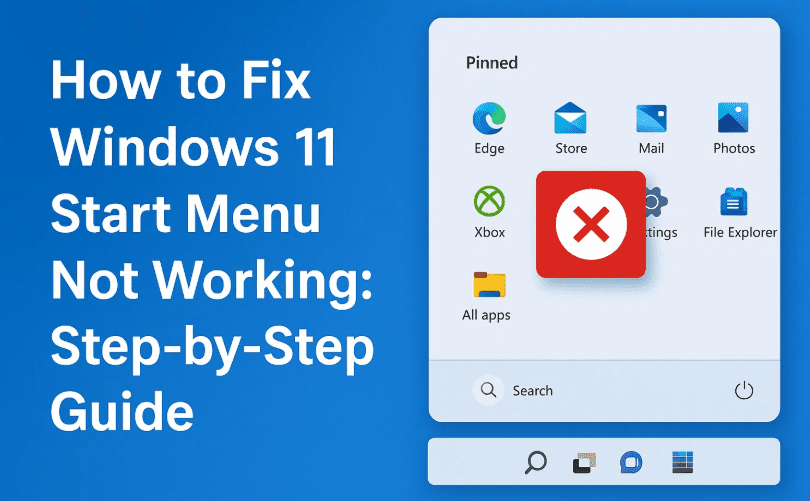
In this guide, we’ll walk you through two effective methods to fix the Windows 11 Start Menu issue, using Task Manager and PowerShell. These steps work for most cases and don’t require advanced technical knowledge.
🔧 Method 1: Restart Windows Explorer
Sometimes, the Start Menu issue is caused by Windows Explorer (explorer.exe) becoming unresponsive. Restarting it can refresh the interface and restore Start functionality.
✅ Steps:
- Open Task Manager
- Press Ctrl + Shift + Esc on your keyboard.
- Find Windows Explorer
- In Task Manager, click on the Search box or scroll to find Windows Explorer in the list.
- Restart Windows Explorer
- Right-click on “Windows Explorer” and select Restart.
- Test the Start Menu
- Wait a few seconds, then click the Start icon in the taskbar to check if it’s working.
📝 This method solves the issue in most temporary cases caused by memory leaks or frozen processes.
🛠️ Method 2: Re-register the Start Menu Using PowerShell
If restarting Explorer didn’t help, try re-registering the Start Menu components using PowerShell. This command resets the Start Menu configuration without affecting personal data.
✅ Steps:
- Open Task Manager
- Press Ctrl + Shift + Esc on your keyboard.
- Run a New Task
- Click File > Run new task from the top menu.
- Launch PowerShell with Admin Rights
- Type
powershellin the input box. - Check the box next to “Create this task with administrative privileges”.
- Click OK.
- Type
- Run the Re-registration Command
Copy and paste the following command into PowerShell and press Enter:
Get-AppXPackage -AllUsers | Foreach {Add-AppxPackage -DisableDevelopmentMode -Register "$($_.InstallLocation)\AppXManifest.xml"}⏳ Wait patiently. This may take a few minutes.
- Restart Your PC
- Press Alt + F4 on the desktop.
- Select Restart from the dropdown.
- Click OK.
After rebooting, try clicking the Start menu again—it should now function normally.
❓ Frequently Asked Questions (FAQs)
Q1: Is it safe to run the PowerShell command?
Yes. This command only resets built-in apps and Start menu components. It does not remove files or personal data.
Q2: Why did my Start Menu stop working?
Some possible causes include:

- Corrupted system files
- Incomplete Windows updates
- Conflicting background processes
- User account issues
Q3: What if neither of these methods works?
If both methods fail, consider:
- Creating a new user account
- Running System File Checker (SFC)
- Performing a Windows repair install using the Media Creation Tool
📝 Final Thoughts
The Start Menu is an essential part of the Windows experience, and it’s frustrating when it doesn’t respond. Thankfully, in most cases, a simple Explorer restart or PowerShell re-registration can get things back to normal without needing a full reset.
🔁 If you’re still facing the issue, make sure your Windows 11 is up to date and that no third-party tools are interfering with the Start process.
Stay patient, follow the steps carefully, and your Start Menu should be working again in no time.
🔗 Useful Resources
- 👉 How to Remove or Reset a Forgotten Windows Password: 3 Effective Methods
- 👉 40 Essential Windows 11 Tips and Tricks to Enhance Your Experience
- 👉 How to Repair Windows System Files Without Reloading Windows
🏷️ Tags
Windows 11, Start Menu not working, Windows Explorer, PowerShell fix, Windows troubleshooting, fix Start Menu, Windows 11 task manager, start menu issue
🔖 Hashtags
#Windows11 #StartMenuFix #PowerShell #WindowsExplorer #TechHelp #FixWindows #WindowsTips #StartMenuNotWorking #WindowsTroubleshooting #MicrosoftFix
Found this helpful? Share it with anyone struggling with their Start Menu. And don’t forget to bookmark this article for future reference!








