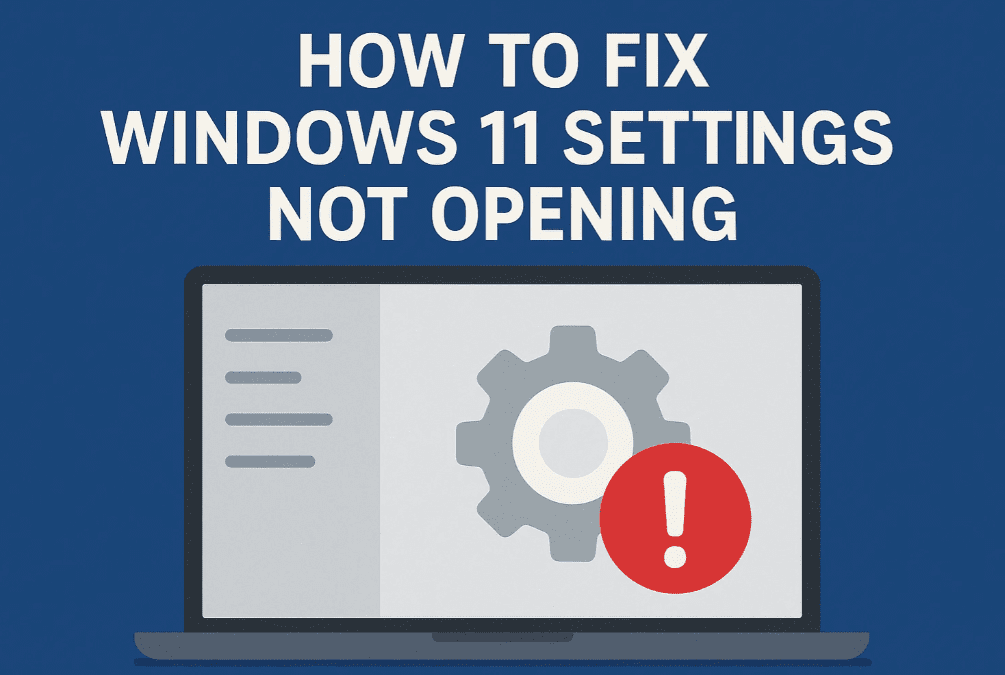
If your Windows 11 Settings app isn’t opening or working properly, don’t panic. This guide provides step-by-step solutions to resolve the issue, from simple restarts to advanced system repairs.
🛠️ Method 1: Restart Your PC
Sometimes, a simple restart can fix the issue.
- Click the Start Menu → Power Button → Restart.
- After reboot, check if Settings opens normally.
✅ Why It Works:
- Clears temporary system glitches.
- Refreshes background processes.
💻 Method 2: Run System File Checker (SFC Scan)
If Settings still won’t open, repair corrupted system files.
Steps:
- Open Command Prompt as Administrator:
- Press
Win + S→ Type CMD → Right-click → Run as Administrator.
- Run the following command:
sfc /scannow- Wait for 100% verification (may take 10-30 minutes).
- Once complete, type
exitand check if Settings works.
✅ What SFC Does:
- Scans and repairs corrupted Windows system files.
- Fixes issues preventing apps like Settings from opening.
📂 Method 3: Restart Windows Explorer
A crashed Explorer process can break the Settings app.
Steps:
- Press Ctrl + Shift + Esc to open Task Manager.
- Scroll down, find Windows Explorer.
- Right-click → Restart.
- Check if Settings now opens.
✅ Why This Helps:
- Refreshes the Windows shell, which controls system apps.
⏪ Method 4: System Restore (Last Resort)
If all else fails, revert Windows to an earlier state.
Steps:
- Open Control Panel → Recovery → Open System Restore.
- Select a restore point (preferably 2-3 days before the issue).
- Follow prompts to restore your system.
- Wait (may take 15 mins to 2 hours depending on system speed).
⚠️ Warning:
- System Restore reverts installed apps & updates but keeps personal files.
- Only use if you have a recent restore point.
❓ Frequently Asked Questions (FAQ)
Q1: What if SFC scan doesn’t fix the issue?
Try DISM (Deployment Image Servicing and Management):
DISM /Online /Cleanup-Image /RestoreHealthQ2: Can I reinstall Windows Settings without a full reset?
Yes, via PowerShell (Admin):




Get-AppXPackage -AllUsers | Foreach {Add-AppxPackage -DisableDevelopmentMode -Register "$($_.InstallLocation)\AppXManifest.xml"}Q3: Will System Restore delete my files?
No, it only rolls back system changes (apps, updates).
🔧 Final Fix: Reset Windows (If Nothing Works)
If Settings still won’t open, consider:
- Windows Repair Install (Download Windows 11 ISO)
- Full Reset (Settings → System → Recovery → Reset PC).
📌 Tags: Windows 11 Fix, Settings Not Opening, Windows Troubleshooting, Tech Guide, PC Repair
🚀 Hashtags: #Windows11Help #FixSettingsApp #WindowsErrors #TechSupport #WindowsTips
Disclaimer: Back up important data before using System Restore or Reset.
By following these steps, your Windows 11 Settings should work perfectly again! 🚀 If the issue persists, comment below for further help.








