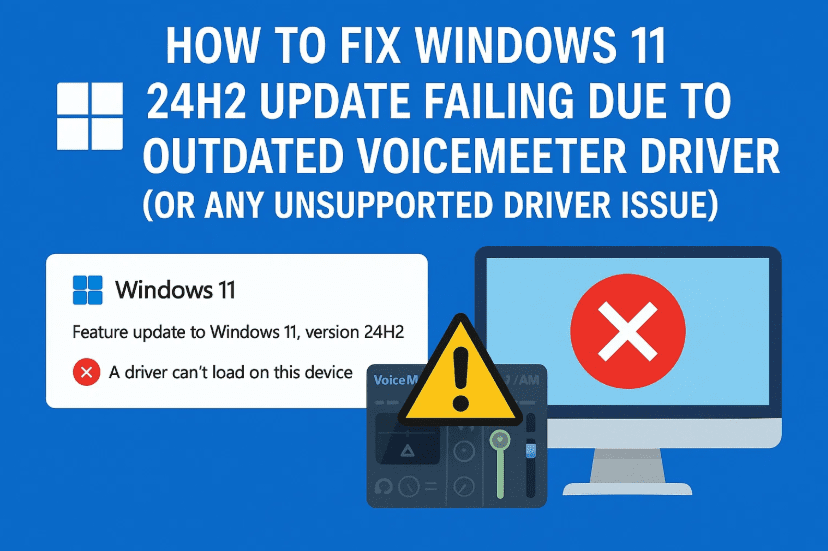
Updating to a new version of Windows should be straightforward—but sometimes, hidden driver issues stop you in your tracks. If you’re trying to upgrade to Windows 11 24H2 and get the message:
“Your PC has a driver that isn’t ready for this version of Windows. A new version is available.”
—you’re not alone.
Many users encounter this error due to virtual audio drivers like Voicemeeter, even if the software was uninstalled long ago. In this detailed guide, we’ll walk you through everything you need to know to fix this problem properly, ensure your Windows update succeeds, and prevent it from happening again.
Let’s get into it step by step.
🚨 Why Is the Windows 11 24H2 Update Failing?
Before jumping into solutions, let’s understand the root cause. This isn’t a random glitch—it’s due to leftover or incompatible drivers, often from apps you thought were already removed.
In this case, the culprit is Voicemeeter, a popular virtual audio mixer used by gamers, streamers, and advanced audio users.

❓ What’s Actually Going Wrong?
Even after you uninstall Voicemeeter, its virtual audio drivers remain registered in your system. These outdated drivers are:
- Not automatically updated during uninstallation
- Not visible in standard Device Manager view
- Flagged by Windows 11 24H2 as incompatible
This makes the update process halt with that frustrating driver error message.
⚠️ Don’t waste time manually deleting files in
System32or Device Manager.
These leftovers are hidden, and trying to remove them this way won’t fix the issue.
✅ Step-by-Step Guide to Fix the Voicemeeter Driver Error in Windows 11 24H2
So far we’ve understood what causes the issue. Now let’s solve it the right way.



Instead of hunting ghost files or manually editing the registry, the most effective and safest method is to reinstall the latest version of Voicemeeter, which will update the driver to a compatible version automatically.
Let’s walk through the full process.
🔁 Step 1: Reinstall the Latest Version of Voicemeeter
Even if you don’t use it anymore, reinstalling Voicemeeter allows the driver to properly register and update—which resolves the Windows compatibility issue.
Here’s how to do it:
Before you proceed, let’s grab the correct software.
👉 Visit the official Voicemeeter page:
🔗 https://vb-audio.com/Voicemeeter/
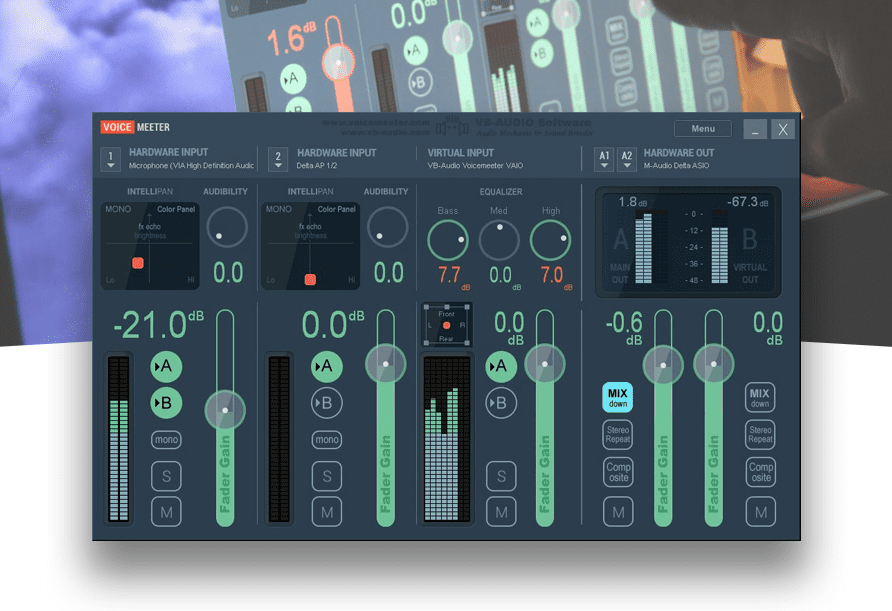
You’ll find three versions available:
- Voicemeeter Standard
- Voicemeeter Banana
- Voicemeeter Potato
💡 If you’re not sure which one you had earlier, go with Voicemeeter Potato — it’s the most commonly used and works fine for all driver repair cases since they share the same driver base.
Installation Instructions:
- Download the version of Voicemeeter you choose.
- Right-click the installer and select “Run as administrator”.
- Follow the setup instructions on screen.
- After the installation finishes, restart your computer.
✅ This process will refresh the virtual driver that Windows was previously blocking.
🔄 Step 2: Retry the Windows 11 24H2 Update
Now that the driver issue is resolved, you can move forward with your update.
Here’s how to proceed:
- Open Settings on your PC.
- Navigate to Windows Update.
- Click Check for updates.
- Wait for the 24H2 update to appear and proceed to download/install.
If everything went correctly, the error should be gone and the update will complete smoothly.
🧹 Step 3: Optional Cleanup (After the Update)
If you don’t plan to use Voicemeeter anymore, you can safely remove it now that the update is done.
To uninstall Voicemeeter:
- Go to Settings > Apps > Installed apps.
- Locate Voicemeeter (or Banana/Potato version).
- Click Uninstall.
- Restart your PC again.
⚠️ Important Note:
Even after uninstalling, the virtual audio driver might still remain. If you try to upgrade again in the future, the same issue may come back unless VB-Audio releases a driver cleanup tool.
Some users have attempted deep registry cleaning and file-level removal from System32, but those methods are not recommended unless you’re extremely confident, as they can break system audio or affect other drivers.
Looking for detailed article to remove Voicemeeter … read here – How to Completely Remove Voicemeeter and Ghost Drivers from Windows
🧠 Additional Tips & Clarifications
Let’s clarify some common questions you may still have:
❓ Q: Can I remove the Voicemeeter driver without reinstalling it?
A: Not reliably. The driver does not show up clearly in Device Manager, and registry remnants are hard to trace. A clean reinstall is the safest and most effective fix.
❓ Q: Will this method work for other “driver not ready” errors?
A: Yes. This method also works for other outdated driver errors that prevent Windows from updating—particularly virtual drivers (audio, network, etc.) that remain after uninstalling tools like:
- VPN clients
- Audio enhancement tools
- Custom gaming software (like EQ apps)
❓ Q: Do I need to keep Voicemeeter installed after the update?
A: Not necessarily. If you’re not using it, you can uninstall it. But if your system might update again later, it’s worth keeping or reinstalling when needed to avoid future driver compatibility issues.
❓ Q: Why didn’t this issue happen in earlier Windows updates?
A: Windows 11 24H2 includes stricter driver validation policies. Microsoft is pushing toward better driver hygiene, which means even previously tolerated leftover drivers are now flagged and block updates.
🛡️ Disclaimer
This guide is based on troubleshooting Windows 11 24H2 update compatibility issues specifically related to Voicemeeter virtual audio drivers. While the outlined steps are verified and safe for most users, please ensure you download Voicemeeter only from the official VB-Audio website.
Do not use third-party driver cleaners or registry wipers unless you’re an advanced user familiar with system recovery procedures.
✅ Summary: Fix Windows 11 24H2 Update Failure (Driver Not Ready Issue)
Here’s a quick recap of what you need to do:
- Download and reinstall the latest version of Voicemeeter from VB-Audio.
- Restart your system to ensure the driver is registered.
- Retry the Windows 11 24H2 update — it should now complete successfully.
- (Optional) Uninstall Voicemeeter after the update, but be aware the issue may return in future upgrades.
By following these steps, you can resolve this stubborn issue without taking unnecessary risks or manually digging into your system files.
🔖 Tags:
windows 11 update fix, driver not ready windows 11, voicemeeter driver issue, windows 11 24H2 error, voicemeeter reinstall, driver compatibility update error
🔖 Hashtags:
#Windows11Update #Voicemeeter #DriverFix #Windows11Error #24H2Update #TechSupport #PCTroubleshooting






