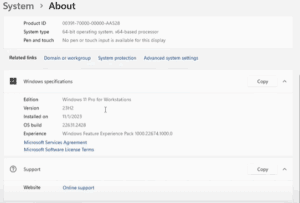
Have you recently upgraded from Windows 11 version 23H2 to 24H2, only to be met with a failed update and an error message like 0x800f0825? You’re not alone. Many users have encountered this frustrating issue while trying to install cumulative updates after upgrading to the latest Windows version.

In this article, we’ll walk you through a step-by-step guide to fix this error, based on community solutions and recommendations from Microsoft. Let’s dive into the solutions and see how to get your update working again.
Step 1: Clear Windows Update Cache
One of the primary causes for failed updates is corrupted cache files stored by Windows Update. You can manually delete these files to force a fresh update attempt.
1. Delete Contents of the SoftwareDistribution Folder
- Open File Explorer.
- Navigate to
C:\Windows\SoftwareDistribution. - Select all the contents inside and delete them. Don’t worry — these are temporary files, and Windows will regenerate them.
2. Delete Contents of Catroot2 Folder
⚠️ Important: Do not delete the Catroot folder, only Catroot2.
- Navigate to
C:\Windows\System32\Catroot2. - Delete all files and folders inside it.
- If you encounter a “file in use” error:
- Open Command Prompt as Administrator.
- Run the following commands one by one to stop update services:
net stop wuauserv net stop cryptsvc - Try deleting the files again.
- Once done, restart your computer.
Step 2: Use a Windows Update Repair Tool
There are free third-party tools that can help reset your update components and fix related errors with one click.
Recommended Tools
- Windows Update Fixer (from trusted sources)
- Tweaking.com Windows Repair Tool (especially the Windows Updates Repair section)
Here’s what to do:
- Download the tool and run the portable version (no installation required).
- Let it analyze your system.
- Select options such as:
- Clear and reset delivery files
- Re-enable Windows Update settings
- Clean system folders and temporary files
- Click the Fix Windows Update button.
- Restart your computer once the process is complete.
Step 3: Manually Install the Update from Microsoft Catalog
If the update continues to fail, manually installing it might work.
Steps to Manually Install a Cumulative Update
- Visit the official Microsoft Update Catalog.
- Search for the cumulative update causing the issue (e.g., KB5033178 or KB5033080).
- Download the appropriate version for your system:
- 64-bit systems: Choose the
x64update - ARM systems: Choose the ARM version (if applicable)
- 64-bit systems: Choose the
- Create a folder on your C drive named
Packages:C:\Packages - Move the downloaded
.msufiles into that folder.
6. Install via Command Prompt
- Open Command Prompt as Administrator.
- Run the following command to install the first update:
dism /online /add-package /packagepath:"C:\Packages\windows10.0-kb5033080-x64.msu" - Once the installation is complete, repeat the command for the second update:
dism /online /add-package /packagepath:"C:\Packages\windows10.0-kb5033178-x64.msu" - After both are installed, restart your PC.
- Go back to Settings > Windows Update and check your update status.
Step 4: Verify Update Installation
- Open Settings.
- Go to Windows Update > Update History > View Installed Updates.
- Confirm if the updates (e.g., KB5033178) are listed as successfully installed.
If the updates appear here, congratulations — your Windows 11 24H2 is now up to date!
Bonus Tip: Unsupported Processors and Manual Updates
If your device is running on an unsupported processor, this error may occur more frequently. Manual updates can often bypass this issue, as long as the correct packages are downloaded from Microsoft Catalog and installed using the steps above.
Final Thoughts
Although the update process can be frustrating, especially when dealing with unsupported devices or buggy update packages, following the steps above can help you resolve the 0x800f0825 error and similar installation failures.
If this guide helped you, be sure to bookmark it for future reference. And remember, for any update that continues to fail, manually downloading from Microsoft Catalog is often the most effective fix.





If you still face issues, leave a comment on this article and we’ll try to assist further.
Tags:
windows 11 update error, windows 11 24h2 update issue, 0x800f0825 fix, cumulative update failed, update not installing windows 11, software distribution folder, catroot2 folder, dism install msu, microsoft update catalog, windows unsupported processor fix
Hashtags:
#windows11 #windowsupdate #updateerror #fixwindowsupdate #manualupdate #windows11tips #troubleshooting #windowsupdatefix #disminstall #techguide







