If you’re facing the frustrating issue where the Windows 10 Start button isn’t responding, you’re definitely not alone. This is one of those Windows bugs that seems to show up at the most inconvenient times—when you’re in the middle of work, trying to search for an app, or attempting a simple restart.
The good news? There’s a simple and effective way to fix this using PowerShell.
In this step-by-step article, I’ll guide you through a proven method to refresh the Start Menu service using just two PowerShell commands. You don’t need to be a tech expert, and even if your search bar or right-click Start menu doesn’t work, I’ve got you covered with an alternate way to open PowerShell.
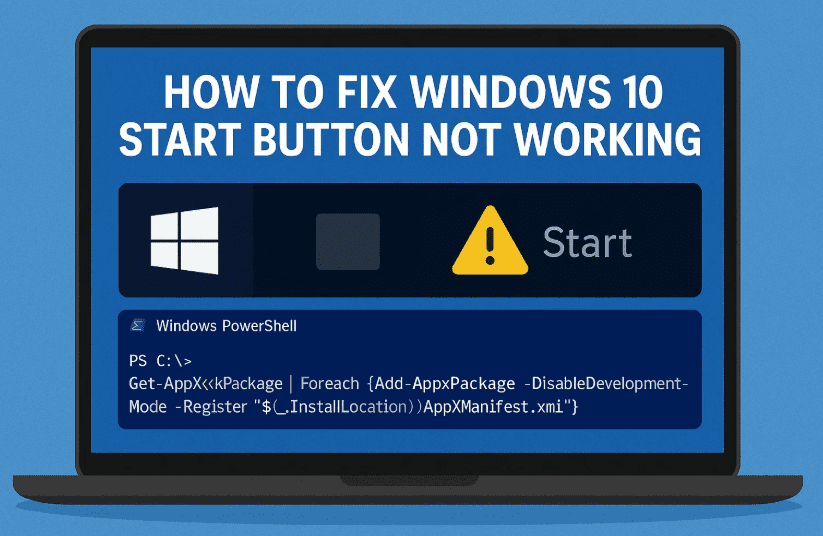
Let’s get started and breathe life back into that stubborn Start button!
🧠 Why Does the Start Menu Stop Working in Windows 10?
Before we jump into the solution, here are some common causes for the Start button to become unresponsive:
- Corrupted Windows Shell Experience Host process
- Background service glitches
- Conflicts from third-party software or updates
- Start menu files getting corrupted in user profile data
While there are multiple causes, the PowerShell method we’ll use can resolve most of these cases in just a few steps.
🛠️ Step-by-Step: Fix Start Button Using PowerShell
So far, we’ve done a good job understanding the issue—now let’s fix it manually using PowerShell.
Even if your Start Menu and Search box aren’t working, this workaround will still help you open PowerShell as an administrator.
🔧 Step 1: Open Task Manager
Since clicking on the Start menu doesn’t work, we’ll use Task Manager.
- Right-click on the taskbar
- Choose Task Manager
- If you see a simplified view, click “More details” at the bottom
🔧 Step 2: Run PowerShell as Administrator
Here’s how you can bypass the broken Start button and launch PowerShell with elevated permissions.
- In Task Manager, click on File → Run new task
- In the pop-up window:
- Type
powershell - Check the box that says “Create this task with administrative privileges”
- Click OK
- Type
You should now see a PowerShell window open with admin rights.



📋 Step 3: Run the Fixing Commands
Let’s move to the next step and input two simple commands that will refresh the start menu processes.
Paste each command one at a time, then hit Enter after each:
Get-AppxPackage -AllUsers | Foreach {Add-AppxPackage -DisableDevelopmentMode -Register "$($_.InstallLocation)\AppXManifest.xml"}
Get-AppxProvisionedPackage -Online | ForEach-Object {Add-AppxProvisionedPackage -Online -PackagePath "$($_.InstallLocation)\AppXManifest.xml" -SkipLicense}
These commands will:
- Re-register all Windows built-in apps
- Refresh the Start menu, Cortana, and other shell components
- Resolve any corruption in Start menu-related packages
🔁 Step 4: Restart Your Computer
Once both commands have run successfully:
- Close PowerShell
- Restart your computer
After rebooting, check your Start menu again—it should now be responsive and working like normal.
❓ Frequently Asked Questions (FAQ)
Q1: What if the commands show errors in PowerShell?
A: Some harmless red error lines may appear—especially if certain packages are missing. That’s normal. The commands still re-register existing apps.
Q2: Will this delete any of my apps or data?
A: No, this fix only refreshes built-in Windows apps. Your files, third-party apps, and personal settings will remain untouched.
Q3: Can I use this method on Windows 11?
A: While this guide is for Windows 10, similar PowerShell commands work on Windows 11 too. However, the new Start Menu shell may require different components to be reset.
🎉 Final Thoughts
So far, we’ve followed a simple yet powerful method to fix one of the most annoying issues in Windows 10—the Start button not working. This quick PowerShell approach resolves the problem in most cases by resetting the underlying services that power the Start Menu.
If you found this guide helpful, feel free to share it with others, or drop a comment if you’ve got questions or suggestions.
Until next time, this is Tech Based In, wishing you smooth computing and bug-free productivity!
🔗 Useful Resources
📌 Tags & Hashtags
Tags: windows 10 start menu fix, start button not working, powershell fix, taskbar issues, windows shell problems, fix windows search, windows tips and tricks, tech based solutions
Hashtags:
#Windows10Fix #StartMenuNotWorking #PowerShellTips #TechBasedIn #TaskbarBug #StartButtonFix #WindowsTips #FixYourPC
⚠️ Disclaimer:
This guide is intended for educational purposes only. Always use caution when running PowerShell commands. While the provided commands are safe and tested, it’s recommended to create a system restore point before making system-level changes.








