If you’ve been facing issues with the WhatsApp Desktop app not opening on your Windows 10 PC lately—you’re not alone. Many users have recently reported that the app either doesn’t launch at all or just stays stuck on the loading screen. Thankfully, the solution is simple and doesn’t require you to uninstall or troubleshoot anything complicated.
Let’s walk you through a quick and effective method to fix this issue by updating the WhatsApp Desktop app via the Microsoft Store. By the end of this article, you’ll be back to chatting on your computer without any hiccups.
🚨 Why This Issue Happens
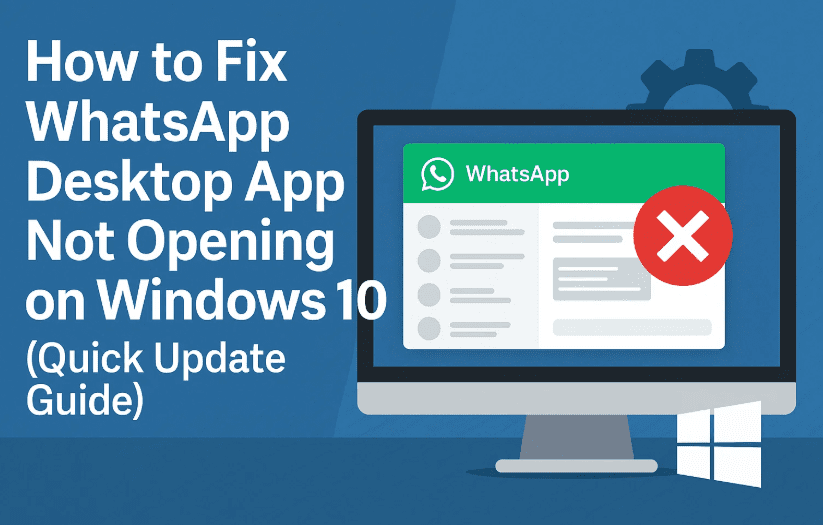
Over the past few weeks, many users have reported that the WhatsApp Desktop app installed via the Microsoft Store either crashes on startup or fails to open altogether. This bug was caused by a version-specific issue introduced in an earlier release.
Luckily, the developers have released a new update that fixes the problem.
So the fix is simple: update the WhatsApp app to the latest version through the Microsoft Store.
✅ Step-by-Step Guide to Fix WhatsApp Not Opening on Windows 10
Let’s go ahead and fix the issue now. Follow these steps carefully to ensure all Microsoft Store apps are updated properly, especially WhatsApp.
🔹 Step 1: Open Microsoft Store
We’ll start by opening the Microsoft Store to manage your app updates.
- Click on the Search box in the taskbar (bottom-left of your screen).
- Type “Store” and click on Microsoft Store from the search results.
This will open the Store app where all your installed apps from Microsoft’s ecosystem are managed.
🔹 Step 2: Navigate to Downloads and Updates
Now that you’re in the Microsoft Store, let’s head to the update section.
- Click on the three-dot menu (⋯) at the top-right corner of the window.
- From the dropdown, select “Downloads and updates.”
This is where all available app updates, including WhatsApp, are listed.
🔹 Step 3: Click on “Get Updates”
Here’s the magic button that solves it all.




- In the Downloads and Updates page, you’ll see a button that says “Get updates.”
- Click on it, and the Microsoft Store will now scan for updates to all installed apps.
Once the update check is done, it will automatically begin updating apps that have newer versions available—including WhatsApp Desktop.
🔹 Step 4: Wait for the Update to Finish
- You’ll see a progress bar or download indicator beside the app name.
- Wait until the WhatsApp app update completes successfully.
- Once done, try launching WhatsApp Desktop again.
It should now work without any errors or crashes.
🧠 Extra Tip: Enable Auto Updates in Microsoft Store
To prevent this issue in the future, make sure automatic updates are enabled:
- Go to Microsoft Store settings (via the 3-dot menu).
- Ensure “Update apps automatically” is turned on.
This way, apps like WhatsApp will always stay up to date without manual intervention.
❓ FAQ Section
Q1: I don’t see WhatsApp Desktop in Microsoft Store. What should I do?
A: It’s possible you’re using the version downloaded from the WhatsApp website. You can try uninstalling that version and installing the Microsoft Store version from here:
🔗 https://apps.microsoft.com/store/detail/whatsapp/9NKSQGP7F2NH
Q2: I clicked “Get updates” but nothing happened. What now?
A: Make sure your internet connection is active. If still nothing updates, try restarting your PC and repeating the process. Also, ensure the Microsoft Store itself is updated.
Q3: Should I uninstall and reinstall WhatsApp Desktop?
A: Usually, updating the app is enough. But if the issue persists even after updating, a clean reinstall may help.
🎉 Wrapping Up
So far, we’ve done a good job addressing this annoying issue. By simply updating the WhatsApp Desktop app through Microsoft Store, most users will be able to resolve the crash or non-opening bug without needing any technical skills.
It’s a good reminder to regularly check for app updates, especially for essential tools like WhatsApp, Zoom, or Teams.
We hope this article helped you out! If you’re still facing issues, feel free to leave a comment or reach out for more troubleshooting steps.
Until next time, stay productive and stay updated!
🔗 Useful Link
📌 Tags & Hashtags
Tags: whatsapp desktop not opening, fix whatsapp desktop windows 10, microsoft store update guide, whatsapp app update, whatsapp not launching, windows 10 app fix
Hashtags:
#WhatsAppDesktop #Windows10Fix #MicrosoftStore #TechBasedIn #FixWhatsApp #AppNotOpening #Windows10Apps
⚠️ Disclaimer:
This guide is intended for users running the WhatsApp Desktop app installed via Microsoft Store. If you’re using the web version or the .exe version from WhatsApp’s official website, the steps may differ slightly. Always ensure apps are updated from official sources and avoid installing third-party versions from unknown websites.








