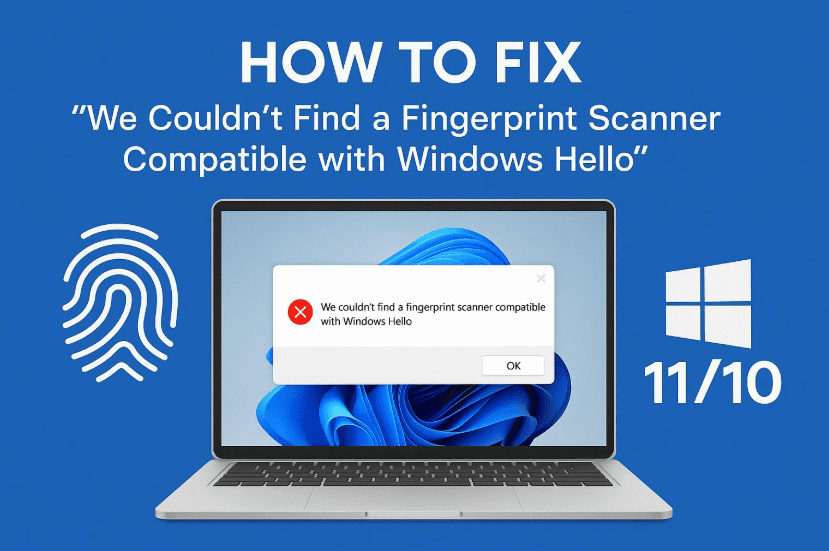
Struggling to set up your fingerprint scanner using Windows Hello, only to be met with the frustrating error:
“We couldn’t find a fingerprint scanner compatible with Windows Hello”?
You’re not alone — and the good news is, this issue can often be resolved with a few smart fixes.
Whether you’re setting up Windows Hello Fingerprint for the first time, or your previously working scanner has suddenly stopped responding, this guide has you covered. Let’s go through it step-by-step — from services to driver updates to advanced system tweaks.
🧠 Why Does This Error Happen?
The issue typically arises due to one or more of the following reasons:
- Windows Biometric Service not running
- Corrupt or outdated biometric drivers
- A bug in the latest Windows update
- Device not detected or incorrectly configured
🔧 Fix 1: Start or Restart the Windows Biometric Service
Let’s begin by making sure the biometric service is running — this is the foundation of Windows Hello.
Step-by-Step Instructions:
- Press
Windows + R - Type:
services.msc - Hit Enter to open the Services window
- Scroll down and find “Windows Biometric Service”
- Right-click on it and click Properties
Now, in the Properties window:
- Startup type: Set it to Automatic
- If the Service Status is not “Running”, click Start
- Go to the Log On tab
- Check the box: “Allow service to interact with desktop”
- Click Apply and then OK
⚠️ Even if it’s already running, it’s a good idea to restart the service.
🖥️ Fix 2: Check Device Manager for Biometric Device
So far, so good! If the service is running but you’re still seeing the error, let’s inspect the device drivers.
Steps:
- Right-click on the Start Menu → Choose Device Manager
- Expand the section Biometric devices
If you don’t see the Biometric devices section:
- Go to View in the top menu
- Click Show hidden devices
Look for these signs:
- A device name like “Fingerprint Reader”
- A yellow triangle ⚠️ icon next to the device
If the fingerprint scanner appears with a yellow warning:
- Right-click the device
- Select Disable device
- Wait a few seconds, then Enable it again
This can refresh the connection and often fixes temporary issues.
📥 Fix 3: Update or Reinstall the Fingerprint Driver
Still stuck? Time to update the driver.






- In Device Manager, right-click your biometric device
- Click Update driver
- Choose Search automatically for drivers
If that doesn’t work:
- Select Browse my computer for drivers
- Click Let me pick from a list of available drivers
- Choose the latest version and click Next
After installing, check if the fingerprint setup now works.
🔄 Fix 4: Roll Back the Driver
In some cases, the issue starts after a Windows Update or a faulty driver update.
- Right-click on the fingerprint device
- Click Properties → Driver tab
- If available, click Roll Back Driver
- Select any reason and click Yes
- Restart your PC
This will revert to the previously working driver.
🔁 Fix 5: Scan for Hardware Changes
If the device has disappeared altogether or won’t reinstall:
- In Device Manager, click your computer name at the top
- Click Action → Scan for hardware changes
This forces Windows to redetect connected devices — including biometric scanners.
⚡ Fix 6: Uninstall Problematic Windows Updates
If the issue started after a recent update, it could be due to a bug in that update.
Here’s how to uninstall it:
- Go to Settings → Windows Update → Update History
- Scroll down and click Uninstall updates
- Look for recent updates labeled with KB numbers (e.g., KB5006670)
- Select the latest Microsoft Windows update
- Click Uninstall
- Restart your system
Once the update is removed, check if the fingerprint setup works again.
🔄 Fix 7: Run System File Checker (SFC)
Sometimes Windows corruption causes this fingerprint detection issue. Running an SFC scan can help.
- Open Command Prompt as Administrator
- Type:
sfc /scannow - Press Enter
Let the scan complete. It will repair corrupted system files, if found. After it’s done, restart your system.
🌐 Fix 8: Check for Windows and Driver Updates
Sometimes, the fix is in the update itself!
- Go to Settings → Windows Update
- Click Check for Updates
- Install all pending updates and restart your PC
This ensures your Windows biometric stack is current.
❓ Frequently Asked Questions (FAQs)
Q1: Why is my fingerprint scanner missing from Device Manager?
It may be hidden or unrecognized. Use “Show hidden devices” and try “Scan for hardware changes.”
Q2: Is the issue related to Windows Updates?
Often, yes. A recent update might break biometric functionality. Rolling back or uninstalling that update can help.
Q3: Can a system restore help?
Yes, if the problem began recently. Use a restore point from before the issue occurred.
📝 Final Thoughts
We’ve covered eight effective solutions to resolve the “We couldn’t find a fingerprint scanner compatible with Windows Hello” error. Whether it’s a driver bug, a hidden device, or a Windows update glitch — these fixes will help you get Windows Hello fingerprint back in action.
So far we’ve done a great job diagnosing and solving — just take each step carefully and don’t skip the basics like driver rollback and service restarts.
If nothing works even after trying all these fixes, it might be a hardware issue — and you should consult your device manufacturer or a certified technician.
🧷 Tags:
windows hello fingerprint fix, fingerprint scanner not working, biometric service windows, device manager fingerprint, windows 11 fingerprint setup, windows 10 fingerprint error, sfc scan biometric fix, uninstall windows update fix, fingerprint compatibility error, biometric driver update
🔖 Hashtags:
#WindowsHello #FingerprintFix #Windows11Tips #BiometricScanner #TechSupport #DeviceManager #FingerprintError #SFCScan #UpdateRollback #WindowsFix
Disclaimer:
The fixes provided in this article involve modifying system settings, drivers, and updates. Proceed with caution and ensure you back up your system before uninstalling updates or changing drivers. If your fingerprint sensor is physically damaged, software fixes may not help — consider contacting your device manufacturer.








