If you’ve recently reinstalled Voicemeeter or updated Windows 10/11, you might encounter issues with bad icons or incorrect pin names in your audio devices. While reinstalling Voicemeeter or its virtual cables (like VB-Cable) can often resolve these issues, sometimes manual fixes are necessary.
This guide will walk you through step-by-step solutions to correct these errors and restore proper functionality.
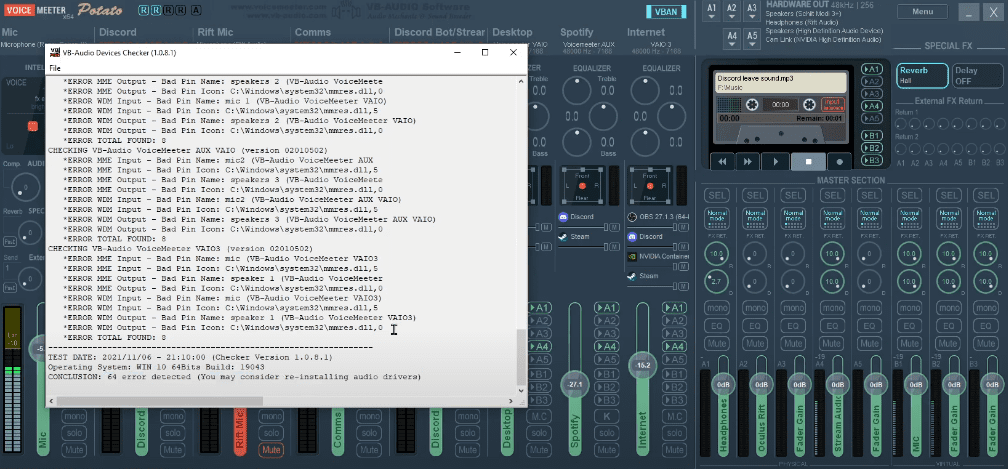
Common Causes of Voicemeeter Errors
- Windows updates resetting audio device configurations.
- Reinstalling Voicemeeter or VB-Cable without proper cleanup.
- Disabled audio devices causing detection issues.
If reinstalling doesn’t work, follow the manual steps below.
Step-by-Step Fix for Bad Icons and Pin Names
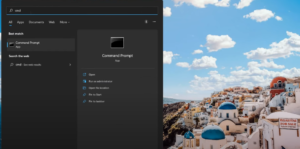
1. Open Sound Settings
- Right-click the speaker icon in the taskbar.
- Select Sounds (Windows 10) or Open Sound settings > Advanced sound options (Windows 11).
2. Correcting Playback Device Names
- Go to the Playback tab.
- Locate Voicemeeter devices (VAIO, AUX, VAIO3) and VB-Cable entries.
- For each, right-click > Properties.
- Rename them as follows:
- Voicemeeter Input →
Voicemeeter VAIO - Voicemeeter Aux Input →
Voicemeeter AUX - Voicemeeter VAIO3 Input →
Voicemeeter VAIO3 - VB-Cable Input →
CABLE Input(uppercase) - VB-Cable A Input →
CABLE-A Input - VB-Cable B Input →
CABLE-B Input - VB-Cable C Input →
CABLE-C Input - VB-Cable D Input →
CABLE-D Input
- Click Apply after each change.
3. Fixing Playback Device Icons
- In the Properties window, go to the Customize tab (or General in some versions).
- Click Change Icon.
- Browse to the correct icon location:
- Voicemeeter devices →
- Path:
C:\Windows\System32\Drivers - File:
voicemeeter(select the appropriate.icofile) - Red icon = Playback, Green icon = Recording
- Path:
- VB-Cable devices →
- Path:
C:\Program Files\VB\CABLE - Select the correct
.icofile (infor input,outfor output).
- Path:
- Click OK and Apply.
4. Correcting Recording Device Names
- Switch to the Recording tab.
- Rename the devices similarly:
- Voicemeeter Output →
Voicemeeter VAIO Output - Voicemeeter Aux Output →
Voicemeeter AUX Output - Voicemeeter VAIO3 Output →
Voicemeeter VAIO3 Output - VB-Cable Output →
CABLE Output - VB-Cable A Output →
CABLE-A Output - VB-Cable B Output →
CABLE-B Output - VB-Cable C Output →
CABLE-C Output - VB-Cable D Output →
CABLE-D Output
5. Fixing Recording Device Icons
- Repeat the icon change process, but select the green versions for recording devices.
- For VB-Cable, choose the
out.icofile.
6. Restart Your PC
- Some changes (especially for VB-Cable C/D) require a reboot to take effect.
7. Verify in Voicemeeter
- Open Voicemeeter and check Menu > System Settings > Check Driver Installation.
- If no errors appear, the fix was successful!
Additional Troubleshooting
- If a device is disabled, enable it to prevent “Device not listed” errors.
- Reinstall VB-Cable if issues persist: Download VB-Cable.
- Reset sample rates (e.g., 48kHz) if they reset after reinstallation.
FAQ
Q: Why do my Voicemeeter icons keep changing after updates?
A: Windows updates sometimes reset audio device configurations. Manually fixing them ensures stability.
Q: Do I need to reinstall Voicemeeter to fix this?
A: Not always—manual renaming and icon correction often work. Reinstalling is a last resort.
Q: What if VB-Cable C/D still shows errors after fixing?
A: Restart your PC. If issues persist, reinstall VB-Cable.
Q: Can I prevent this from happening again?
A: Backup your Voicemeeter settings (Menu > Save Settings) before major Windows updates.
Final Thoughts
Manually correcting bad icons and pin names in Voicemeeter ensures smooth audio routing. If reinstalling doesn’t work, this guide provides a reliable fix.
For more help, visit:
#Voicemeeter #AudioRouting #WindowsAudio #VBCable #AudioFix #SoundSettings #TechGuide
Tags: Voicemeeter, VB-Cable, Windows Audio Fix, Bad Icons, Pin Name Errors, Audio Troubleshooting



Disclaimer: Voicemeeter and VB-Cable are third-party software. This guide is for troubleshooting purposes only. Always download software from official sources.








