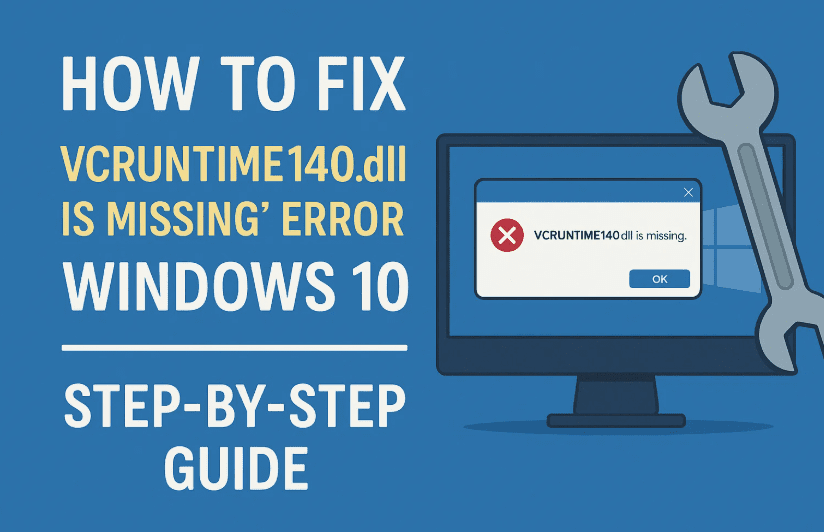
If you’ve recently encountered the “VCRUNTIME140.dll is missing from your computer” error on Windows 10, don’t worry—you’re not alone. This is a very common DLL error, and it can occur when launching various applications like Microsoft Office, Adobe software, OBS Studio, or even smaller utility apps.
The good news is: the fix is straightforward and doesn’t require you to be a tech expert.
In this detailed blog post, we’ll cover:
- What causes this DLL error
- Multiple ways to fix it, including system tools and manual repair
- Trusted resources to download the right DLL files
- A short FAQ section for common questions
Let’s get right into it.
🧠 What Causes the “VCRUNTIME140.dll Is Missing” Error?
Before we jump to solutions, let’s quickly understand the cause. This error typically appears when an application requires the Microsoft Visual C++ Redistributable, but:
- The file VCRUNTIME140.dll is corrupted
- It’s missing from your system
- The software is trying to use the wrong version
- Or it was accidentally deleted by an antivirus or during an uninstallation
✅ Step 1: Run Windows Update
Let’s begin with the basics. Sometimes, a simple update is all you need.
So far, so good? Let’s start with updating Windows to patch any known system file errors.
📋 Steps:
- Click the Start button and open Settings (⚙️).
- Go to Update & Security → Windows Update.
- Click on Check for Updates and install everything available.
- Restart your PC once updates are completed.
This helps because some DLL-related errors are patched in system updates, especially Visual C++ runtime components.
🛠️ Step 2: Run System File Checker (SFC)
If the DLL is corrupted or damaged, this built-in command-line tool can fix it automatically.
💡 Here’s how to do it:
- Click the Start button, type
cmd. - Right-click on Command Prompt and choose Run as administrator.
- In the terminal, type:
sfc /scannow
- Hit Enter and wait for the scan to finish (it may take 10–15 minutes).
- Restart your PC once the process is complete.
The System File Checker will repair missing or corrupted system files—including essential DLLs like
VCRUNTIME140.dll.
📦 Step 3: Reinstall the Microsoft Visual C++ Redistributable
This is the most common fix for this error. The VCRUNTIME140.dll file is part of the Visual C++ Redistributable for Visual Studio 2015, 2017, 2019, and 2022.



🔗 Official Microsoft Download Page:
👉 https://learn.microsoft.com/en-us/cpp/windows/latest-supported-vc-redist
Steps:
- Open your browser and go to the above Microsoft link.
- Scroll down and download the following based on your system:
vc_redist.x64.exe(for 64-bit systems)vc_redist.x86.exe(for 32-bit systems)
💡 Most modern PCs use 64-bit architecture, but install both to be safe.
- Run both installers, check “I agree”, and click Install.
- If you already have them installed, the setup might say “Repair” or “Already installed”. If so:
- Go to Control Panel → Programs → Programs and Features
- Uninstall both versions first, then reinstall from fresh downloads.
🧰 Step 4: Manually Download the DLL File (Only If Above Fails)
Still stuck? You can manually replace the missing DLL.
⚠️ Disclaimer: Only download DLL files from trusted sources to avoid malware.
Safe Source:
👉 https://www.dll-files.com/vcruntime140.dll.html
Steps:
- Visit the DLL-Files website above.
- Choose the version that matches your system:
- 32-bit for
x86 - 64-bit for
x64
- 32-bit for
- Download the ZIP file and extract it.
- Copy the extracted
VCRUNTIME140.dllfile to:C:\Windows\System32(for 64-bit systems)C:\Windows\SysWOW64(for 32-bit systems)
You may also copy the DLL directly to the installation folder of the application that’s giving the error (e.g., OBS, Filmora, etc.).
- Restart your PC.
❓ Frequently Asked Questions
Q1: What is VCRUNTIME140.dll used for?
A: It’s part of Microsoft Visual C++ runtime libraries, required to run applications built with Visual Studio.
Q2: Can I just download the DLL and skip installing Visual C++?
A: It’s better to install the full Visual C++ Redistributable to avoid version mismatches. Manual DLL downloads should be a last resort.
Q3: Does this error affect gaming software?
A: Yes. Many games and multimedia apps depend on these runtime libraries to function.
🎯 Final Thoughts
So far, we’ve covered several ways to fix the VCRUNTIME140.dll missing error on Windows 10:
- Checking for system updates
- Using the built-in SFC tool
- Reinstalling the Visual C++ Redistributable
- And, if necessary, manually downloading the DLL file
With these methods, you should be able to resolve the error and get your app or game running again.
If this article helped you, feel free to share it or leave a comment below with your experience. If you’re still facing issues, let us know—we’re here to help.
Until next time, this is Emanuel from Tech Based In, signing off. Have a great day and a DLL-free PC experience!
🔗 Useful Links
- 🛠️ Microsoft Visual C++ Redistributable (Official)
- 📂 Download VCRUNTIME140.dll – DLL-Files.com
- 🧰 Malwarebytes (if DLL errors are caused by malware)
📌 Tags & Hashtags
Tags: vcruntime140.dll fix, missing dll error, visual c++ redistributable, obs crash fix, windows 10 error fix, dll-files download, microsoft visual c plus plus, filmora error, runtime error fix
Hashtags:
#VCRUNTIME140 #MissingDLLFix #Windows10 #VisualCPlusPlus #DLLFix #TechBasedIn #OBSFix #FilmoraError #RuntimeError #PCTroubleshooting
⚠️ Disclaimer:
This guide is intended for educational purposes only. Always download DLLs and system tools from official and trusted sources. Modifying system files may affect the stability of your OS—proceed with caution and create a restore point before making system changes.








