Is Valorant not launching when you try to open it? You click the icon and… nothing. No error. No game. Just silence. Don’t worry — this issue is quite common, and the good news is that you can fix it with a few targeted steps.
In this detailed guide, we’ll walk you through the most effective solutions to get Valorant running again. Whether it’s a background process conflict, a VGC service issue, or a compatibility setting, this post covers it all — with a human touch.
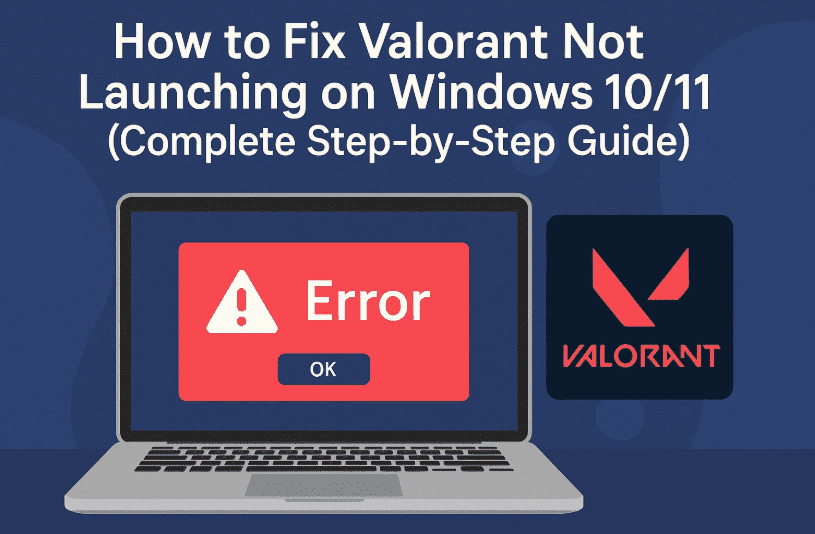
Let’s dive in and fix your game step by step.
🎯 What Causes Valorant to Not Launch?
Some of the most common causes include:
- Valorant or Riot-related background processes not closed properly
- VGC (Vanguard anti-cheat) service not starting
- Full-screen optimization or compatibility issues
- Damaged Riot Client cache
- Outdated graphics drivers
- Conflicting administrator settings
Let’s tackle these one by one.
🪛 Step 1: Close All Valorant and Riot Processes
First things first, let’s make sure the game and its background processes are not still running invisibly.
Here’s how:
- Close Valorant completely, including the Riot client from the system tray.
- Right-click on the taskbar → Open Task Manager.
- Under the Processes tab, look for:
ValorantRiot ClientVanguard
- Right-click on each and select End Task.
- Once all processes are closed, exit Task Manager.
This clears any frozen or unresponsive services in the background.
📂 Step 2: Disable Full-Screen Optimization
Sometimes, Windows full-screen optimization causes conflicts with Valorant.
Here’s how to disable it:
- Right-click on your Valorant shortcut → Select Show more options → Open file location.
- Navigate to the following folder path:
Riot Games > VALORANT > live > ShooterGame > Binaries > Win64 - Look for
Valorant-Win64-Shipping.exe(or similar). - Right-click → Properties → Go to the Compatibility tab.
- Check the box: Disable full-screen optimizations.
- Click Apply, then OK.
Nice work. Now let’s move to the critical part — VGC service.
🔧 Step 3: Enable and Start VGC (Vanguard Anti-Cheat) Service
VGC is the backbone of Riot’s anti-cheat system, and if it’s not running, Valorant won’t launch.
Follow these steps:
- Open Start → Type
Services→ Open the Services app. - Press
Vto jump to services starting with “V”. - Find VGC.
- Right-click → Properties.
- Set Startup type to Automatic.
- Click Start, then Apply → OK.
Let’s make sure it’s also enabled in your system configuration.


⚙️ Step 4: Enable VGC in System Configuration
- Open Start and search for:
System Configuration(or typemsconfig). - In the new window, go to the Services tab.
- Scroll down to find VGC.
- If it’s unchecked, check it.
- Click Apply, then OK.
- Choose “Exit without restart” (we’ll restart later).
📁 Step 5: Rename Riot Games Cache File
Corrupted Riot Client data can also cause startup issues.
Here’s how to clear it:
- Press
Windows + R→ Type%appdata%→ Press OK. - In the new window, click on AppData in the address bar.
- Open the Local folder → Find Riot Games → Open it.
- Go to the
Riot Client > Datafolder. - Right-click on the file named:
RiotGamesPrivateSettings.yaml(or similar) - Rename it to something like
RiotGamesPrivateSettings.1.yaml.
This will force the client to create a new file upon relaunch.
🖥️ Step 6: Update Graphics Drivers
An outdated or incompatible GPU driver could prevent Valorant from launching properly.
- Right-click on the Start menu → Open Device Manager.
- Expand Display adapters.
- Right-click on your graphics card (NVIDIA, AMD, or Intel) → Select Update driver.
- Choose Search automatically for drivers.
Once done, close Device Manager.
🛑 Step 7: Uncheck “Run as Administrator” for Valorant
Oddly enough, some systems have issues launching Valorant when this setting is enabled.
- Right-click the Valorant shortcut → Choose Properties.
- Go to the Compatibility tab.
- If “Run this program as administrator” is checked — uncheck it.
- Click Apply, then OK.
🔁 Final Step: Restart Your PC and Launch Valorant
We’ve completed all the steps — good job! Now it’s time to restart your computer to apply all changes.
Once your system restarts, try launching Valorant again.
If everything went well, the game should start without issues, and you’ll be back in action.
❓ FAQ – Valorant Not Launching
Q: Why does nothing happen when I click on Valorant?
A: Background processes, VGC service not running, outdated drivers, or file permission issues could be preventing it.
Q: Is uninstalling and reinstalling necessary?
A: Usually not. The above steps solve the issue in most cases. Reinstallation should only be a last resort.
Q: Should I run Valorant as Administrator?
A: For most users, it’s better to keep it unchecked to avoid compatibility conflicts.
⚠ Disclaimer:
Valorant and Riot Vanguard are proprietary software developed by Riot Games. This guide is for educational and troubleshooting purposes. Follow steps carefully and always ensure you’re running legitimate software.
🔗 Useful Links:
📌 Tags:
valorant not launching, fix valorant not starting, vgc service fix, riot client issue, valorant crash windows 11, disable fullscreen optimization, valorant startup problem
📢 Hashtags:
#ValorantFix #RiotGames #ValorantNotLaunching #VGCFix #GamingSupport #Windows11 #PCGaming #FPSFix
If this guide helped you fix the Valorant startup problem, share it with your squad or leave a comment below. Still having issues? Drop your question and we’ll do our best to help. See you on the battlefield! 🎮🔥








