If you’re facing an issue where your USB flash drive or external hard drive is detected by Windows, but not visible under “This PC” or File Explorer, don’t worry—you’re not alone. This is a common problem in Windows where the system detects a USB or portable drive but doesn’t assign it a drive letter, which makes it invisible to the user.

In this detailed guide, we’ll walk you through how to fix this issue quickly using Disk Management in Windows.
🔍 Problem Overview
Symptoms:
- USB or portable hard drive is connected.
- Windows shows device connection notification.
- The drive is visible in Disk Management but not in File Explorer.
- The device does not appear under “This PC”.
Cause:
This usually happens when Windows fails to assign a drive letter to the connected USB or external storage. Without a drive letter, the drive won’t appear in File Explorer.
🛠 How to Fix USB Not Showing Up in File Explorer
✅ Step 1: Connect Your USB or External Hard Drive
- Plug the USB stick or external hard drive into your computer.
- Wait for Windows to show the device connection notification.
- If the drive is not appearing under “This PC”, move to the next step.
✅ Step 2: Open Disk Management
- Right-click on “This PC” or “My Computer” on the desktop or in File Explorer.
- Click “Manage” to open the Computer Management window.
- On the left pane, select “Disk Management” under Storage.
✅ Step 3: Locate the USB Drive in Disk Management
- Look through the list of drives shown in Disk Management.
- Find your USB or external hard drive.
- You might notice the drive has no drive letter assigned or shows as “Healthy (Primary Partition)” without a label.
✅ Step 4: Assign a Drive Letter
- Right-click on the problematic USB drive.
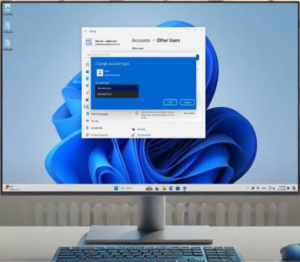
- Select “Change Drive Letter and Paths…”.
- Click “Add” (or “Change” if a letter exists but the drive is still not visible).
- Choose a letter from the dropdown (e.g., E:, F:, G: etc.). Avoid assigning letters that may already be in use.
- Click OK to confirm.
After assigning a drive letter, the USB or hard drive should now be visible under “This PC” and fully accessible.
🧪 What If It Still Doesn’t Work?
If your device still doesn’t appear in File Explorer even after assigning a drive letter:
- Try using a different USB port.
- Test the drive on another PC to rule out hardware failure.
- Update or reinstall USB drivers using Device Manager.
- Use chkdsk or formatting tools only if you’re ready to lose data.
⚠️ Disclaimer:
Be cautious when working with Disk Management. Assign drive letters only to the correct removable drives. Mistakenly altering partitions on your system drive can lead to data loss or system boot issues.
📌 Conclusion
This quick fix should help you restore visibility for your USB stick or portable hard drive in most cases. Using Disk Management to assign a drive letter is a safe and effective solution, especially when the hardware is working but not appearing in File Explorer.
By following the steps above, you can resolve the issue and access your files again.
🔖 Tags:
usb not showing up, external hard drive not visible, fix usb drive issue, usb disk management windows, drive letter not assigned, windows usb fix, portable hdd not showing, how to show usb in file explorer, usb not recognized
📣 Hashtags:
#USBNotShowing #ExternalDriveFix #DiskManagement #WindowsFix #TechGuide #USBTroubleshooting #DriveLetterFix #FileExplorerFix