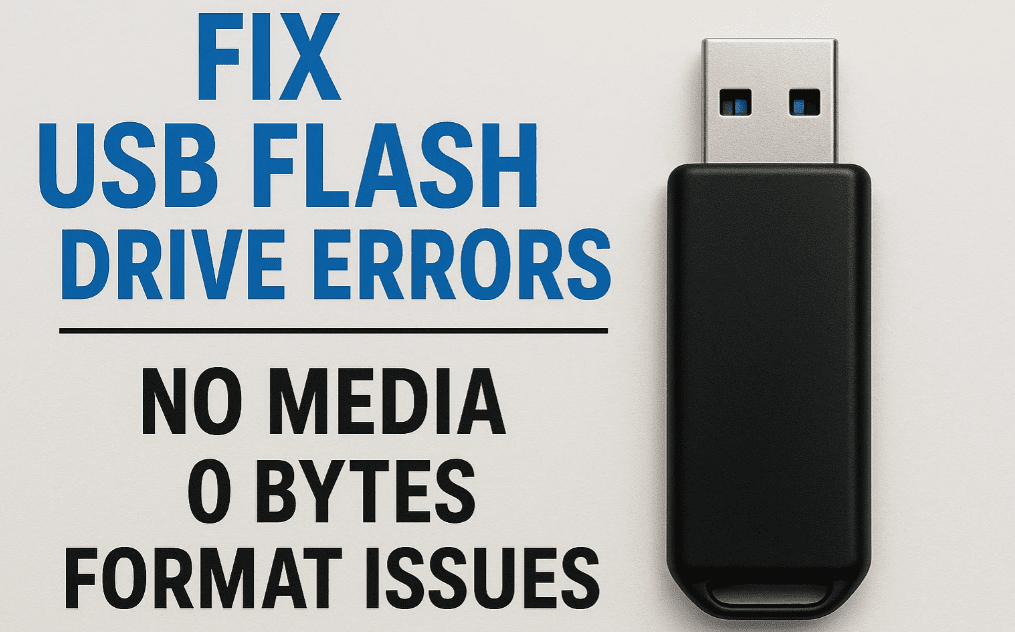
If your USB flash drive (pen drive) is showing errors like “No Media,” “0 Bytes,” or “Unable to Complete Format,” this guide will help you repair it. We’ll cover step-by-step solutions, including firmware reinstallation and physical troubleshooting.
⚠️ Disclaimer:
- This process erases all data on the USB drive. If you have important files, consult a data recovery specialist first.
- Some methods require technical skills. Proceed with caution.
🔍 Common USB Flash Drive Errors
- “No Media” detected
- “0 Bytes” capacity
- “Windows unable to complete the format”
- “Please insert a disk into drive”
- Write-protection errors
These issues often occur due to corrupted firmware or damaged storage controllers.
🛠️ Method 1: Fixing USB Drive Using ChipGenius & Firmware Flashing
Step 1: Check USB Status in Disk Management & CMD
- Open Disk Management (
Win + X> Disk Management).
- If the drive shows “No Media,” proceed.
- Open Command Prompt (
Win + R> typecmd> press Enter). - Run these commands:
   diskpart
list disk - Identify your USB drive (e.g., Disk 2 with 0 Bytes).
Step 2: Identify USB Controller Using ChipGenius
- Download ChipGenius (official site).
- Run ChipGenius and detect your USB drive.
- Note the:
- Controller Vendor (e.g., USBest)
- Controller Part Number (e.g., UT165)
- VID & PID (if available)
Step 3: Download & Flash Correct Firmware
- Google your controller model (e.g., “UT165 firmware download”).
- Download the firmware from a trusted source.
- Extract & run the flashing tool (e.g., MPTool).
- Click “Update” to reinstall firmware.
- Replug the USB—it should now be detected properly.
🔧 Method 2: Fixing USB Drives with Unknown Controllers
If ChipGenius doesn’t detect the controller, try this:
Step 1: Physically Inspect the USB Drive
- Disassemble the USB drive (carefully remove the casing).
- Locate the controller chip (usually near the USB connector).
- Note the chip model (e.g., FC1178).
Step 2: Download & Flash Firmware Manually
- Search for “[Chip Model] firmware” (e.g., “FC1178 firmware”).
- Download and run the flashing tool (e.g., FC1178 MPTool).
- Enter VID & PID (if required).
- Click “Start” to flash the firmware.
⚠️ Important Notes:
- Standard USB drives (with separate controller & storage chips) can be fixed this way.
- Micro USB drives & SD cards have integrated controllers—this method won’t work.
💡 Alternative Fixes if Firmware Flashing Fails
- Try a Different USB Port/PC (sometimes a driver issue).
- Use DiskPart to Clean & Reformat:
   diskpart
   list disk
   select disk X (replace X with your USB number)
   clean
   create partition primary
format fs=fat32 quick - Use Third-Party Tools:
📌 Final Thoughts
If your USB drive shows “No Media” or 0 Bytes, firmware corruption is likely the cause. Using ChipGenius + MPTool can fix most issues. For physically damaged drives, professional recovery may be needed.
💬 Questions? Drop them in the comments!
📌 Tags:
USB repair, fix USB no media, USB 0 bytes fix, flash drive recovery, USB firmware update, corrupted USB fix, USB not detected
📌 Hashtags:
#USBFix #FlashDriveRepair #NoMediaFix #TechTutorial #DataRecovery #USBTroubleshooting #WindowsTips